This guide explains how to create a Slideshow Information Box in LearnPath or News pages by combining existing Information Boxes to display them sequentially in a single area with customizable slide order and duration.
Overview
A Slideshow Information Box groups together two or more existing Information Boxes and displays them in the same area of the News page one after the other.
Before you can create a Slideshow, the Information Boxes that will form the slides must have been created already.
All types of Information Boxes can be assembled into a Slideshow, except for a Slideshow. The individual Information Boxes will be resized if required but the best results will be obtained if all the boxes are already a similar size and shape.
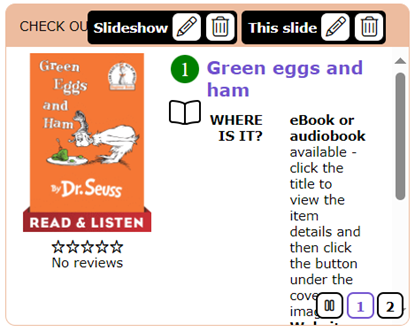
How to Create a Slideshow Information Box In LearnPath or News Pages
- On the News home page or LearnPath guide, click the
 button.
 - Select Slideshow from the drop-down menu.
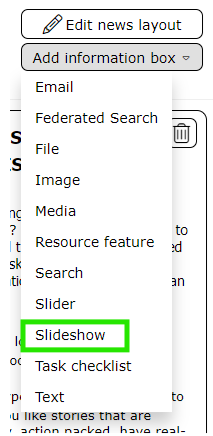
- The ‘ADD INFORMATION BOX – SLIDESHOW’ screen will be displayed.
- A list of all existing Information Boxes that have not already been added to a slideshow will be displayed on the right, in the column ‘Unused’.
Note: An Information Box cannot be part of more than one Slideshow. - Drag the Information Boxes that are to be part of the Slideshow from the Unused column on the right into the Used column on the left. Change the display order of the slides by dragging the entries in the Used Column into the desired sequence.
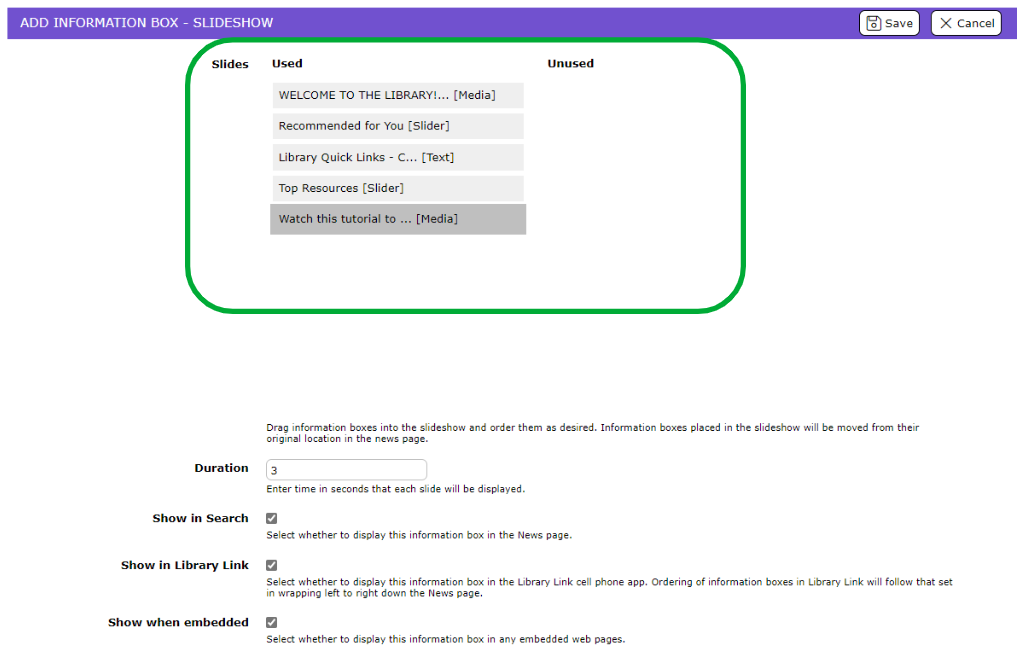
- The Duration sets the number of seconds that each slide will be displayed before moving on to the next. The default value is 3 seconds.
- Click the Save button to save the entries. Alternatively, click the Cancel button to abandon the creation of the Information Box.
Related Guides:
- How to Edit News Page or LearnPath Guide Layout
- How to Create an Email Information Box in LearnPath OR News Pages
- How to Create a Text Information Box in LearnPath OR News Pages
- How to Create a File Information Box in LearnPath or News Pages
- How to Create an Image Information Box in LearnPath or News Pages
- How to Create a Media Information Box in LearnPath OR News Pages
- How to Create a Resource Feature Information Box in LearnPath OR News Pages
- How to Create a Search Information Box in LearnPath OR News Pages
- How to Create a Slider Information Box in LearnPath OR News Pages
- How to Create a Federated Search Information Box in LearnPath or News Pages
- How to Create a Task Checklist Information Box in LearnPath OR News Pages
Was this article helpful?
That’s Great!
Thank you for your feedback
Sorry! We couldn't be helpful
Thank you for your feedback
Feedback sent
We appreciate your effort and will try to fix the article