This guide explains how to create a Slider Information Box in LearnPath or News pages to display a row of item thumbnails based on selected Slider Type, search restrictions, and optional formatting for users to browse featured resources.
Overview
A Slider Information Box is like a Text Information Box but also displays a row of item thumbnail images based on your selection of Slider Type and Search Restriction.
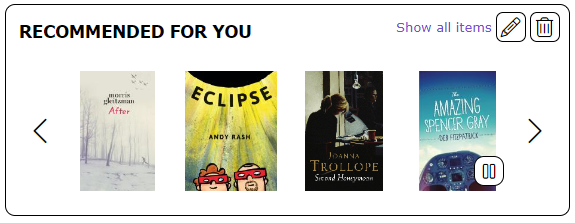
How to Create a Slider Information Box In LearnPath OR News Pages
- On the News home page OR LearnPath guide, click the
 button.
 - Select Slider from the drop-down menu
- The ‘ADD INFORMATION BOX – SLIDER screen will be displayed.
- In the Heading entry window, enter the text to be displayed as a heading in the top bar of the Information Box.
Note: If the Heading field is left blank the Information Box will be displayed without a Heading bar.
- In the Text entry window, enter the text to be displayed as the contents of the Information Box.
- (OPTIONAL) Use the Rich Text Format editor to format the heading or text. You can also add images and links if needed.
- Using the Heading Background or Content Background checkboxes, override the default color scheme to change the background color of the top bar or the information box.
- (OPTIONAL) Apply a border to the information box.
- Use the Show in Search checkbox to control whether the information box will be displayed on the LearnPath guide or News page or kept hidden.
- (OPTIONAL) The Embed and Show when embedded functionality can be used to display the information box on another application such as a web page.
- The Slider Type and Search Restriction fields determine which items will be displayed on the Slider.
- Select a Slider type from the drop-down list.
- Custom – The items displayed will be determined exclusively by the Search Restriction.
- Highly rated – Items with high Book Review ratings.
- Matching your interests – Items matching interests a patron may have registered.
- New items – Items recently added to the library catalog.
- Popular – Items that have been borrowed frequently.
- Recently returned – Items that have been returned from checkout recently.
- Recommended for you – Items like resources clicked by a patron.
- Recommend for you by Reading Level – The standard 'Recommended for you' results are filtered by the user's ATOS reading level (used by Accelerated Reader) +/- 0.5 points.
Note: The ‘Recommended for you by reading level’ slider only works if: The library has an Accelerated Reader subscription, and patrons have a reading level type of ATOS, Lexile or Lexplore.
- You can add a Search Restriction to filter the results from the predefined Slider types or creating customized search, e.g. specific author, subject, genre or reading list. For example, you may wish to exclude Textbooks from a Slider displaying New Items. The Search restriction would be: Collection <> “Textbooks”. Refer to Search Strategies guide for information on configuring customized searches.
- The Slider image size allows you to select the size the cover images will be displayed in the Slider Information Box. Images can be displayed as Regular, Large, Extra Large or Jumbo size.
- Click the Save button to save the entries. Alternatively, click the Cancel button to abandon the creation of the Information Box.
Related Guides:
- How to Edit News Page or LearnPath Guide Layout
- How to Create an Email Information Box in LearnPath OR News Pages
- How to Create a Text Information Box in LearnPath OR News Pages
- How to Create a File Information Box in LearnPath or News Pages
- How to Create an Image Information Box in LearnPath or News Pages
- How to Create a Media Information Box in LearnPath OR News Pages
- How to Create a Resource Feature Information Box in LearnPath OR News Pages
- How to Create a Search Information Box in LearnPath OR News Pages
- How to Create a Federated Search Information Box in LearnPath or News Pages
- How to Create a Slideshow Information Box in LearnPath OR News Pages
- How to Create a Task Checklist Information Box in LearnPath OR News Pages
Was this article helpful?
That’s Great!
Thank you for your feedback
Sorry! We couldn't be helpful
Thank you for your feedback
Feedback sent
We appreciate your effort and will try to fix the article