This guide explains how to create a Federated Search Information Box in LearnPath or News pages to provide patrons with a searchable field connected to selected federated search sources.
Overview
A Federated Search Information Box is like a Text Information Box but allows you to add a search field so that patrons may search the pre-selected federated search sources.
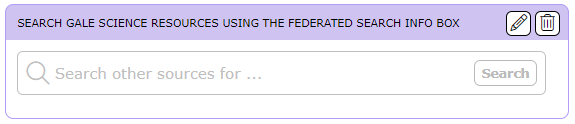
How to Create a Federated Search Information Box In LearnPath OR News Pages
Search Sources (as per Step 7 below) need to be configured in System > Search Sources before creating a Federated Search information box. Refer to the How to Set up Federated Search guide.
- On the News home page OR LearnPath guide, click the
 button.
 - Select Federated Search from the drop-down menu
- The ‘ADD INFORMATION BOX – FEDERATED SEARCH’ screen will be displayed.
- In the Heading entry window, enter the text to be displayed as a heading in the top bar of the Information Box.
Note: If the Heading field is left blank the Information Box will be displayed without a Heading bar.
- In the Text entry window, enter the text to be displayed as the contents of the Information Box.
- (OPTIONAL) Use the Rich Text Format editor to format the heading or text. You can also add images and links if needed.
- Using the Heading Background or Content Background checkboxes, override the default color scheme to change the background color of the top bar or the information box.
- (OPTIONAL) Apply a border to the information box.
- Use the Show in Search checkbox to control whether the information box will be displayed on the LearnPath guide or News page or kept hidden.
- (OPTIONAL) The Embed and Show when embedded functionality can be used to display the information box on another application such as a web page.
- Of notable mention in this screen is the list of Search Sources, enabling you to specify which sources the Federated Search will apply to.
- Click the Save button to save the entries and options. Alternatively, click the Cancel button to abandon the creation of the Information Box.
Related Guides:
- How to Edit News Page or LearnPath Guide Layout
- How to Create an Email Information Box in LearnPath OR News Pages
- How to Create a Text Information Box in LearnPath OR News Pages
- How to Create a File Information Box in LearnPath or News Pages
- How to Create an Image Information Box in LearnPath or News Pages
- How to Create a Media Information Box in LearnPath OR News Pages
- How to Create a Resource Feature Information Box in LearnPath OR News Pages
- How to Create a Search Information Box in LearnPath OR News Pages
- How to Create a Slider Information Box in LearnPath OR News Pages
- How to Create a Slideshow Information Box in LearnPath OR News Pages
- How to Create a Task Checklist Information Box in LearnPath OR News Pages
Was this article helpful?
That’s Great!
Thank you for your feedback
Sorry! We couldn't be helpful
Thank you for your feedback
Feedback sent
We appreciate your effort and will try to fix the article