How to send (email) overdue notices
Navigate to Circulation > Overdues
A list of pre-configured overdue notices will be listed. Configurations may be set up for different delivery methods (email or print), different groups of patrons (e.g. staff vs junior student vs senior student) and number of days overdue, or any combination of these.
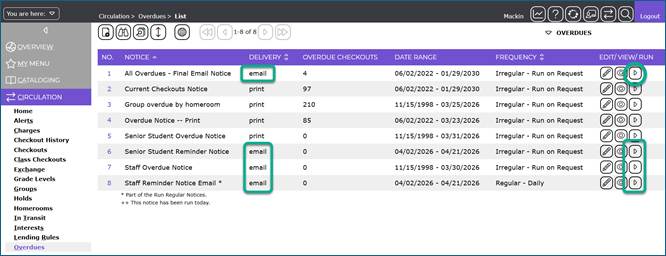
To send an overdue notice via email, click the  (Run) icon next to the required notice which has a Delivery of email.
Note: If the Overdue Checkouts column is 0, this means there is nothing to be sent at the time, i.e. nothing matches the configuration’s restrictions (e.g. patrons, number of days overdue, etc.).
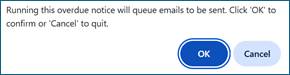
A confirmation message is displayed.
Click the List button to return to the Overdues screen.
** will be displayed next to the notice just run, indicating it has been run today.
Was this article helpful?
That’s Great!
Thank you for your feedback
Sorry! We couldn't be helpful
Thank you for your feedback
Feedback sent
We appreciate your effort and will try to fix the article