How to search the catalog
Click the Search icon in the top-right corner of the screen:

Type your search into the search box:

A list of matching terms will be displayed and include keywords. Titles, Authors, Subjects, Series.
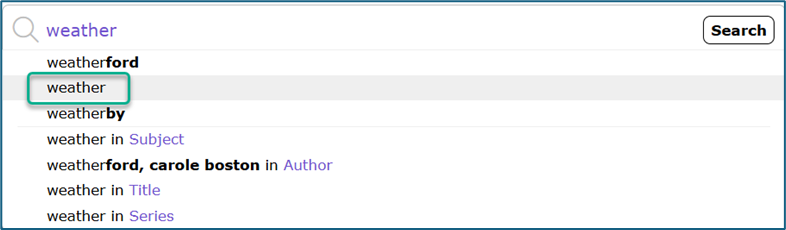
Select the required term
A list of matching titles will be displayed.
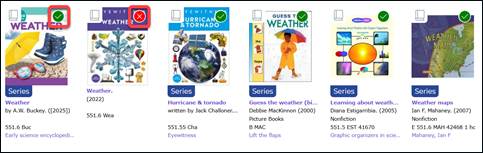
Availability information is displayed as  Available or
  Unavailable.
To view more detailed information, click on a cover image or Title.
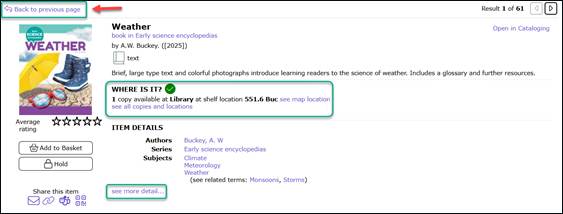
To view more information about the title, click the see more detail… link.
Where is it? provides availability and location information.
- If your library has a map configured, the see map location link is available This will display a map of your library, highlighting the location of the item.
To see details of all copies, click the see all copies and locations link.
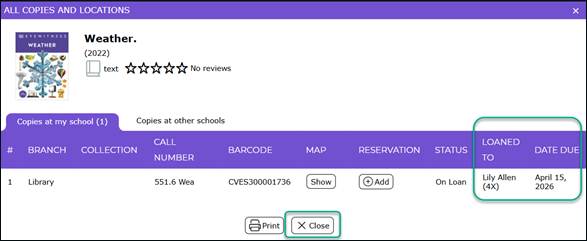
- If any of the copies are checked out, the Patron’s name and Homeroom, along with the Date Due are listed.
- Click the Close button to return to the title information.
To return to the list of search results, click the Back to previous page link.
To start a new catalog search, type a new search term in the search box at the top of the screen.
Was this article helpful?
That’s Great!
Thank you for your feedback
Sorry! We couldn't be helpful
Thank you for your feedback
Feedback sent
We appreciate your effort and will try to fix the article