How to Checkout items to patrons
Click the Circulation Desk icon in the top-right corner of the screen

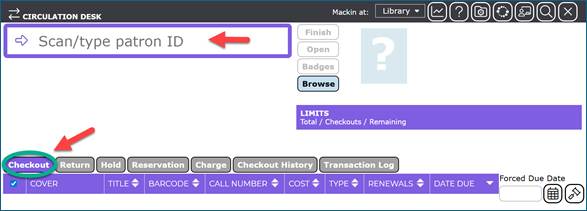
Select a Patron.
- In the search box at the top of the screen, scan in a patron’s ID or
- Search by the patron’s name, by typing a few letters of their first or last name. Do not press <Enter>. A list of matching patrons will be displayed.
- Select the patron by using the mouse.
The selected patron’s details will be displayed at the top right of the screen. The patron’s existing checkouts (if any) will be listed in the Checkout tab. If the patron has any overdue items, the Date Due will be highlighted in red. If a message is displayed regarding the overdue checkouts, click the check on the message to proceed.
Scan each item’s barcode into the search box at the top of the screen.
Ensure the cursor is positioned in the search box at the top of the screen, then scan the barcode of each item to be checked out. Details of the checkout will be displayed on the Checkout tab including Cover image, Title, Barcode, Call Number and Date Due (automatically calculated). Repeat this step if there are more items to be checked out to the same patron.
Click the Finish button.
Was this article helpful?
That’s Great!
Thank you for your feedback
Sorry! We couldn't be helpful
Thank you for your feedback
Feedback sent
We appreciate your effort and will try to fix the article