Summary
MackinVision provides comprehensive features to allow you and your patrons to search for information in your library. In addition to the Search Interface which is accessible to all users, MackinVision includes search options that can be used by Library Staff to select records from all the major data tables. The main tables are:
- Resources;
- Copies;
- Patrons;
- Checkouts;
- Checkout History;
- Authority lists.
The most frequently used Search screens have commonly searched fields listed as selection options to simplify the process of creating a search expression. For example, the Patrons Search screen may include the fields Homeroom, Year, Branch, (Patron) Checkout Category, Patron Type and Department among others.
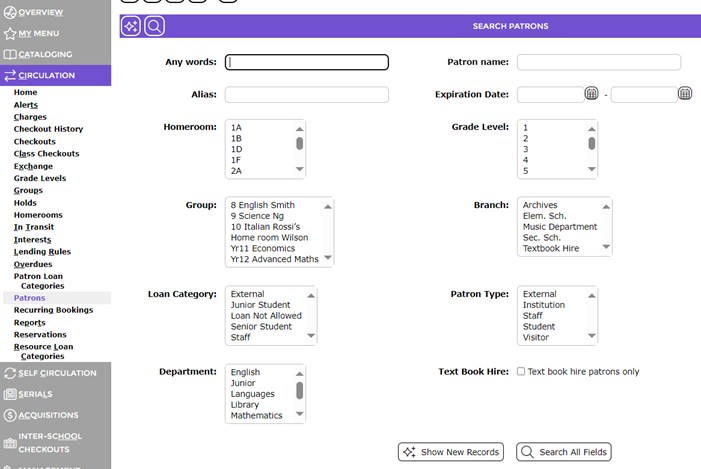
All Search screens include an Any words entry field where you can enter:
- A Search Term that will be searched for in all fields, or;
- A Search Expression that can be used to search specific fields.
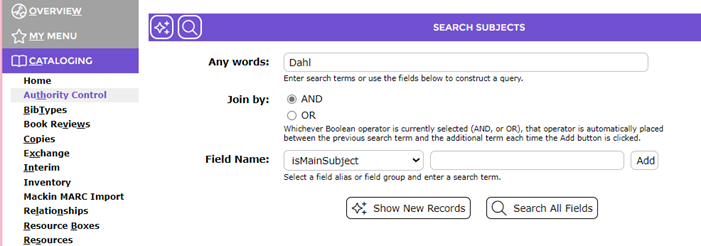
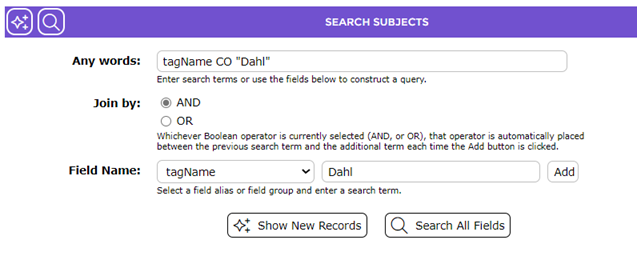
The less frequently used Search screens have only the Any words searching option together with a field name selection list option to help create a valid Search Expression.
Searching using Commonly Searched Fields
Commonly Searched Fields require you to either:
- Enter a Search Term to look for in the field, or;
- Select one or more options from a lookup list.
One Field and one value
The simplest form of Searching is to search for one value in a single field, for example:
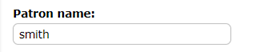
Any Patron with the full word ‘smith’ as part of their Patron name.
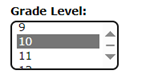
All Patrons with a Grade Level of ‘10’.
One Field and multiple values
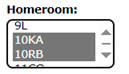
Multiple values can be selected from a list using Ctrl+Click, for example, Patrons in either Homeroom 10KA or 10RB.
The Expiration Date field is searched for dates between 01/01/2016 and 31/12/2016 inclusive.

Multiple Fields
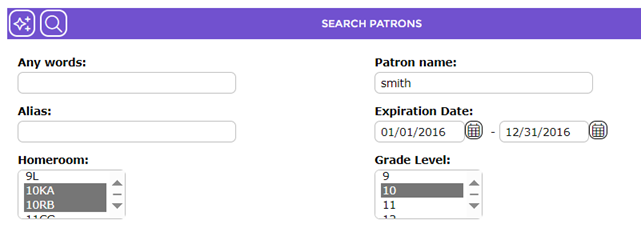
If more than one commonly searched field is selected, the searches are combined with a Boolean ‘AND’ to further restrict the result. For example:
Patron Name = "smith" AND Expiration Date between "01/01/2016" AND "31/12/2016" AND Year = "10"
will only return Patrons where all four conditions are met.
Wildcard Character
Adding an asterisk character to the end of a search term performs a ‘starts with’ search.
The search term ‘smith*’ will find any patron whose family name or personal name starts with ‘smith’, for example, ‘smithson’ or ‘smithfield’.

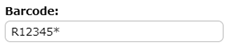
This feature can be useful when searching for a barcode that uses a check letter, for example, ‘R12345X9999’. The search term ‘R12345*’ will find the barcode without needing to know what the check letter is.
Phrase Searching
Enclose a phrase between inverted commas to ensure that the exact term is searched for. Without inverted commas, each word will be searched for separately. For example, an Any Words search using the search term Animal Farm (without inverted commas) will find all resources that contain the words Animal and Farm but not necessarily together.

To find only the resources where the exact phrase ‘Animal Farm’ is found, enclose the term between inverted commas, "Animal Farm".

Relational Searching using Search Expressions
A Search Expression is a combination of:
- A field name;
- An Operator;
- A value.
for example an Any words search in Patrons using the Search Expression::
familyName = smith
will find all Patrons whose family name is ‘smith’.
Search Expressions can be combined using the Boolean operators AND, OR and NOT to construct more precise searches, for example:
familyname = smith AND personalName = john
will find all Patrons whose family name is ‘smith’ and whose personal name is also ‘john’.
Searching Operators
Searching with Relational Operators is useful where a field-specific search is required and the search page does not include the fields you wish to search as Commonly Searched Fields. A relational search will be more precise than a full text search, as there are fewer fields which are searched.
Relational searches can be entered in any Search page in MackinVision v5, and are always entered into the Any Words field of a search page.
The Operators that can be used in a relational search are listed below.
Symbol | Description | Notes |
= | Equal to | Must be exactly the same. |
<> | Not equal to |
|
CO | Contains the word | Only the whole word will be found. ‘cat’ will not find be found in ‘catastrophe’ or ‘indicate’ |
< | Less than | Alphabetically before or an earlier date |
<= | Less than or equal to | Alphabetically before or the same as |
> | Greater than | Alphabetically after or a later date |
>= | Greater than or equal to | Alphabetically after or the same as |
Note: Searches are not case sensitive. A search for ‘DAHL’ will find ‘DAHL’, ‘Dahl’ or ‘dahl’.
Note: A search term should be enclosed between inverted commas to force the term to be treated as a ‘phrase’ if it contains spaces or punctuation characters such as ‘.’, ’/’ or ‘-‘ that are treated as word separators.
Searching for Dates
Dates are stored in MackinVision in a combined date and time format, hence any date searches need to take this into account. In particular, when a date is entered as a search term without a time, the search will assume that the time portion of the date and time value is midnight (00:00).
The Equal to and Not equal to Operators generally will not work when searching on date fields. Use the Operators Contains (CO), Greater than (>) or Less than (<) instead. For example:
dateReceived CO "30/10/2016" | Finds the date ignoring the time |
dateReceived > "30/10/2016" AND dateReceived < "31/10/2016" | Finds date/time values after the start of 30/10/2016 and before the start of 31/10/2016 |
dateReceived = "30/10/2016" | Will not work because the time portion of the date prevents an exact comparison |
Date values must be:
- Enclosed between straight inverted commas not curly (typographic) quotes;
- Use the format "mm/dd/yyyy", for example, "31/10/2016";
- Use two digits for the day and month;
- Use four digits for the year.
"30/10/2016" | Valid |
“01/02/2016”” | Valid |
31/12/2106 | Invalid. Not enclosed between inverted commas |
"1/10/2016" | Invalid. Day value is not two digits |
"01/2/2016" | Invalid. Month Value is not two digits |
"01/02/16" | Invalid. Year value is not four digits |
“31/12/2016” | Invalid. Curly (typographic) quotes used “ ” instead of straight " " |
Boolean Operators
The Boolean operators of AND, OR and NOT allow you to perform more complex searches. The operators must be entered in upper case or the search screen will view them as a specific search word.
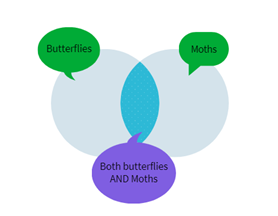
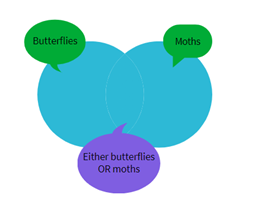
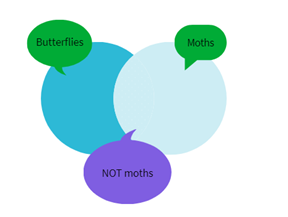
The following explanation of Boolean operators includes Venn diagrams, which represent how Boolean operators work when searching for two terms, for example, butterflies and moths:
AND
Searches for records which contain both terms of butterflies AND moths. AND will narrow the search to only return records that include both the term of butterflies as well as the term of moth.
| |
OR
Searches for records, which contain either of the specified terms of butterflies OR moths. OR will broaden the search to include records that contain either the term butterflies or the term moths or both.
|
|
NOT
Searches for records that contain the first term but excludes any records that also contain the second. Searching for butterflies NOT moths will narrow the search to return records that contain the term butterflies but will exclude any records that also include the term moths. Entering moths NOT butterflies will include records that contain the term moths but exclude those containing the term butterflies.
|
|
Field Names available for Searching
The Search screens for:
- Cataloging > Resources;
- Cataloging > Copies;
- Circulation > Patrons;
do not include an option to select the fieldname from a list. A list of valid fieldnames that are available to use in a search expression can be found from the Sort option which is available once a list of results has been displayed. For example:
- Navigate to Cataloging > Resources.
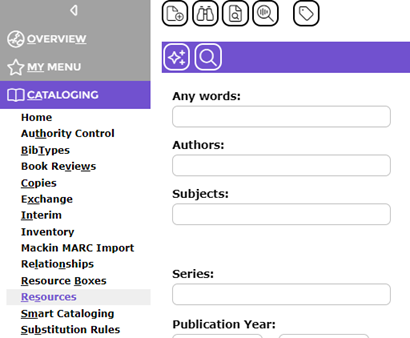
- Click the Browse icon
 to display a list of resources.
 - Click the Sort Icon
 to display the SORT RESOURCES window.
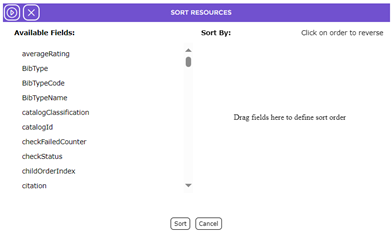
- The Available Fields list contains a complete list of the fieldnames that can be used in a Search Expression
Examples of Search Expressions
Cataloging > Resources
Search Expression | Description |
Call Number >= 600 AND call number < 700
| Finds resources with a Dewey call number between 600 – 699.9999. Note: Less than 700 means that 700 is not included |
Cataloging > Copies
Search Expression | Description |
Barcode = R12345* | The Asterisk turns the search into ‘starts with. Search for a barcode without knowing the check letter. |
Cataloging > Authorities > Subjects
Search Expression | Description |
LeadTerm = "Cats – Fiction" | Only the single Subject Heading that exactly matches "Cats – Fiction" |
LeadTerm <> "Cats" | Every Subject Heading that does not exactly match "Cats – Fiction", i.e. every other Subject Heading. |
LeadTerm CO cat | Standalone word ‘cat’. Will not find ‘cat’ as part of another word, for example, cats. |
timeEntered CO "31/10/2016" | Finds subjects added to the Subjects Authority on the specific date 31/10/2106 |
Circulation > Patrons
Search Expression | Description |
timeEntered > "31/12/2015" | After 31 December 2015 |
timeEntered >= "01/01/2016 13:45" | On or after 1:45PM on 1 January 2016 |
timeEntered >= "01/10/2016" AND timeEntered < 31/12/2016” | Between 1 October 2016 and 31 December 2016 |
|
|
Current Checkouts (Circulation > Home, then click Current Checkouts link)
Barcode = "" | Temporary checkouts |
Alias=ITZERJO | Checkouts issued to the Patron with Alias (Barcode) ITZERJO |
RollClass=11HF | Checkouts issued to patrons in RollClass 11HF |
DateDue CO "01/10/2106" | Checkouts due on 01/10/2016 |
DateLent > "30/06/2016" | Checkouts issued after 30/06/2016, i.e. On or after 01/07/2016 |
Checkout History (Circulation > Home, then click Checkout Histories link)
Alias=ITZERJO | Checkouts returned by the Patron with Alias (Barcode) ITZERJO |
RollClass=11HF | Checkouts returned by patrons in RollClass 11HF |
TimeDue CO "01/10/2106" | Checkouts returned that were due on 01/10/2016 |
TimeReturned > "30/06/2016" | Checkouts that were returned after 30/06/2016, i.e. On or after 01/07/2016 |
Was this article helpful?
That’s Great!
Thank you for your feedback
Sorry! We couldn't be helpful
Thank you for your feedback
Feedback sent
We appreciate your effort and will try to fix the article