Summary
Keyboard shortcuts consist of two or three letters which can be typed as an alternate, mouse free (point and click) method of accessing a number of screens and functions. They cannot however be used in Edit or Search screens as the system views the types in letters of any shortcut keys, for example, ‘se’ or ‘ne’ as data entry or search text. Using shortcut keys for commonly accessed screens or functions can speed up navigation, reduce the amount of point, and click requirements. Shortcut keys are not case sensitive.
This guide will provide examples of shortcut keys in Circulation and Cataloging. The format and operation of shortcut keys applies to most modules in the system.
Identifying Shortcut Keys
The majority of main Menus, their related sub-Menus, Function menu options and buttons in Detail and List screens, for example, have shortcut keys. Underlined letters, for example, Patrons or Resources, identify the keys. Typing the keys perform the same function as clicking on the menu option or button. Depending on the screen you wish to access, and the screen you are currently in, one or more shortcut keys can be typed to access another screen. For example, if you are in the Resources List screen, the Circulation > Patrons screen can be accessed simply by typing ‘ci’ then ‘bo’. If you are already operating in one of the Circulation screens just type ‘bo’ to access the Patron List or Search screen.
Note: Whether you access a Search or List screen when using an applicable shortcut is determined by the setting on Parameter No. 1201.
Main Menu Shortcut Keys
Most options in the main Management screen menu have shortcut keys, for example ca, for Cataloging, and ci for Circulation. Typing the key will expand the menu menu option to display its related sub-menu options. Note that the Overview and Shop Mackin main menu options do not include a shortcut key.
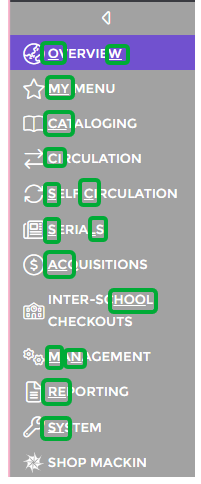
Sub-Menu Shortcut Keys
Most of the sub-menu options of each of those main Menu options (Cataloging, Circulation, Serials, and so on) also include shortcut keys. The example below is of the expanded Circulation Menu. Most of the sub-menu options such as Patrons, Charges, Reservations, and Overdues have letters underlined indicating the shortcut keys.
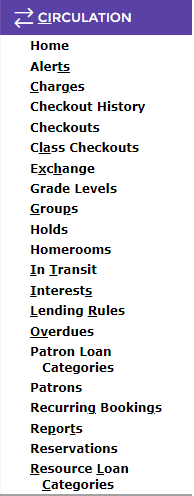
Typing the key will display the applicable screen. For example, if the Circulation menu was expanded, type the shortcut ‘bo’ to display the patron List screen (or Search screen). If staff are in the patron List screen and want to access the Search screen, typing the applicable shortcut of ‘se’ will display that screen.
Shortcuts do not work in a Search screen. The shortcut letters are viewed as part of a search term so, for example, typing ‘li’ in the Any words field of a Search screen will not display the List screen.
Note: Shortcuts are not available in Edit screens.
Shortcut Key in Function Menu
Shortcut keys are also available for most of the Function menu list options.
Resources Function Menu Example Patrons Function Menu Example
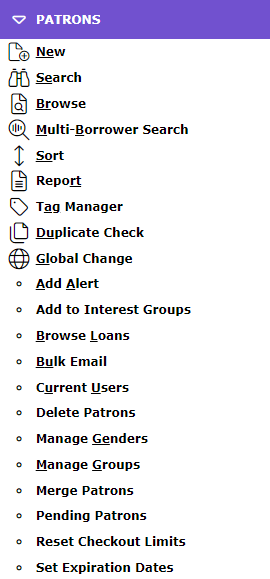
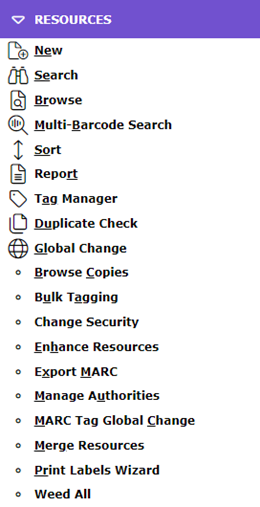
While there are a number of functions that apply to most modules such as New or Sort or Browse, there are some unique to processes with a specific module. Some of the specific functions will also have shortcut keys. For example, the Function menu, on the resource Detail (or List) screen, includes Export MARC and Multi-Barcode Search that are not processes available in any other module. There may also be options, for example Change Security, that do not include any underlined letters identifying that there is not applicable shortcut key for that function.
Several shortcut keys are common to most Function menu options. They are:
- New
- Search
- Browse
- Sort
- Report
- Tag Manager
- Duplicate Check
And
- Global Change.
The above common function options include an icon which matches the clickable icons on Search and Detail screens throughout the system. Staff may prefer to click on the icon in the main screen rather than click on the Function menu and then click on the option (or type the shortcut key).

Shortcut Keys in Detail Screens
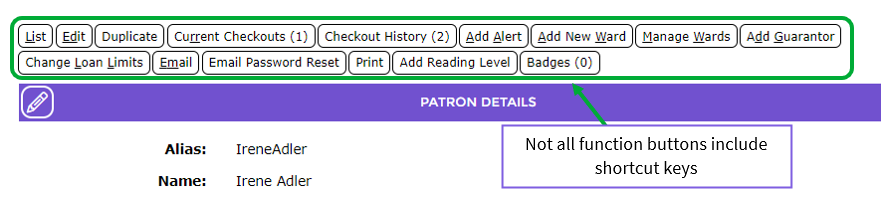
The Detail screens throughout the system also include function buttons (with red text), many of which also include a shortcut key. Rather than clicking on the button, Users can type the key to access the function. The two example Detail screens provided below show the buttons in those screens. One is a resource Detail screen, the other is a patron Detail screen. Note that both screen examples have the List and Edit buttons that are common to most screens while others are for functions specific to their area in the system.
Resource Detail Screen Example
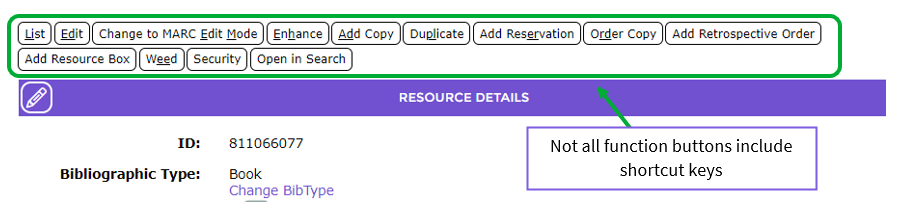
Many of the Link buttons, which also have shortcut keys, are specific to the module and screen. For example, the Change to Non-MARC Edit Mode button would have application for resource records not patron records. Detailed explanation of the function buttons and their use are covered in the related How to guides.
Patron Detail Screen Example
On patron records, the Guarantor or Ward button, among others, would only have application for patron records, not resource or copy records. Others such as List or Edit are, again, common to most screens.
Note: Function menus and Shortcut Keys are not available in the Overview, Self-Circulation, and Support options.
Was this article helpful?
That’s Great!
Thank you for your feedback
Sorry! We couldn't be helpful
Thank you for your feedback
Feedback sent
We appreciate your effort and will try to fix the article