Summary
The option to duplicate a patron record is useful when more than one family member with the same address and telephone number details for example, is joining the library. Duplicating the first patron’s record and editing fields such as Alias, Name and date of birth will create any subsequent family patron records.
This guide provides the steps required to duplicate a patron record.
Duplicate a Patron Record
- Locate the record of the existing patron if necessary and access the Detail screen.
- Click on the Change Patron Type link on the Detail screen and change the type if necessary.
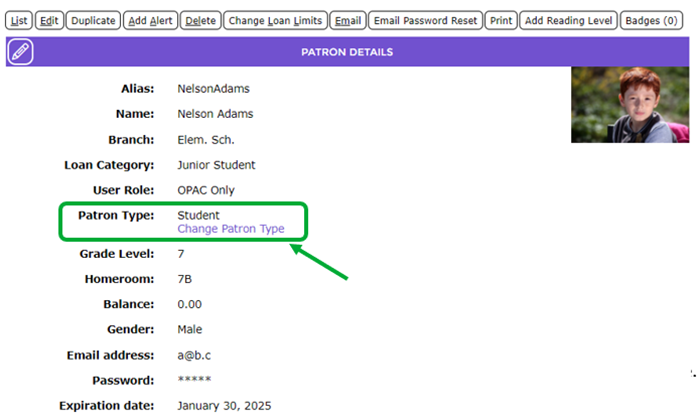
- The Change Patron Type popup screen will display with a list of types from which to choose.
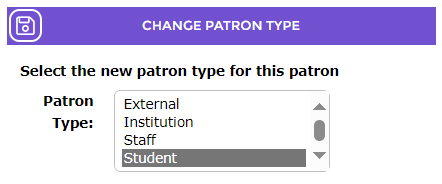
- Click on the type required, for example Student, then click the Save button.


- Click on the Duplicate button.
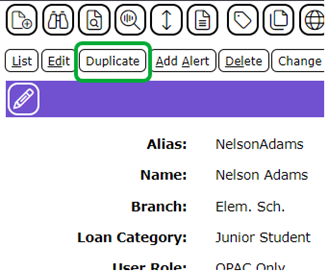
- The Patron > Edit screen will display.
- Edit the applicable fields, for example Alias, Family name (if different), Personal name, Year, Homeroom, User Role and Date of Birth and complete the Password fields.
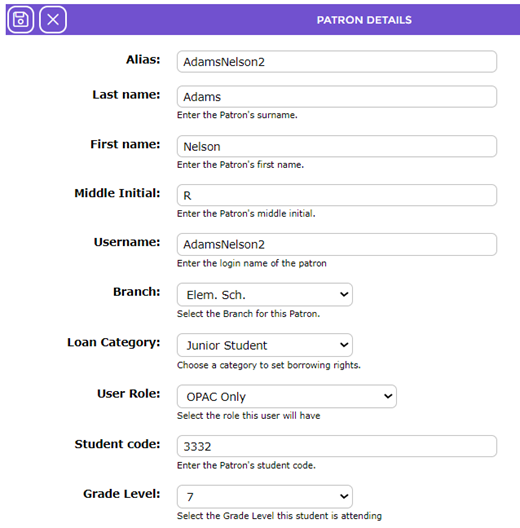
- Click the Save button when all the required fields have edited.

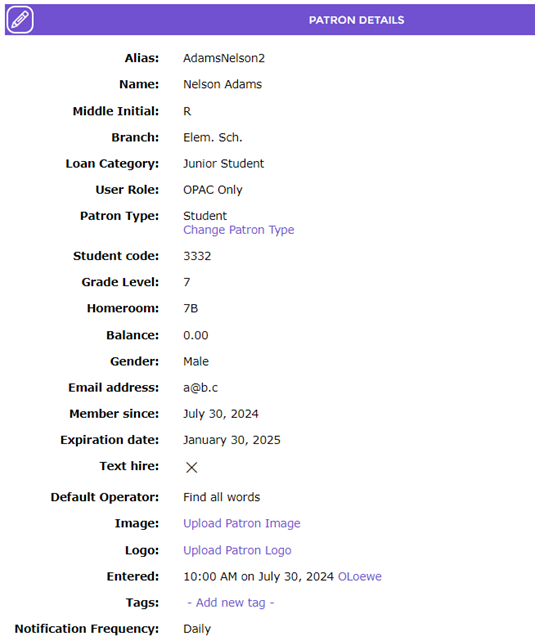
- The Detail screen of the new patron will display.
Was this article helpful?
That’s Great!
Thank you for your feedback
Sorry! We couldn't be helpful
Thank you for your feedback
Feedback sent
We appreciate your effort and will try to fix the article