Reading Lists allow for resources (titles) to be grouped together using locally recognizable terminology, similar to the way that Subject headings are used.
Separate guides are available showing to assign a Reading List to resources:
How to Add a Resource to a Reading List (individual resources) and
How to Add Titles to an Existing Reading List via the Resources Manage Authority Option (multiple resources).
Sometimes it may be useful to hide individual reading lists, e.g. those related to specific calendar events or holiday seasons. When hidden, it will not appear in the OPAC (catalog search screen) when displaying a list of all Reading Lists.
To hide a Reading List:
1. Navigate to Cataloging > Authority Control. The Subjects Search screen will appear.
2. Select Open Lists from the Subjects menu.
3. Locate the Reading List to be hidden by using the Any Words search box.
4. If more than one Reading List is located in the search, click on the Edit icon next to the required entry.
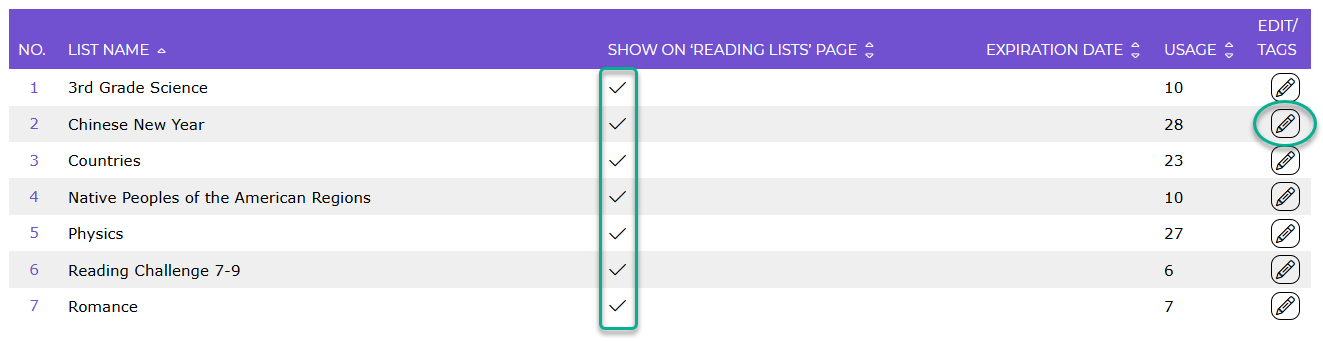
The Show on 'Reading list' page check indicates which reading lists will be displayed on the OPAC Reading List screen.
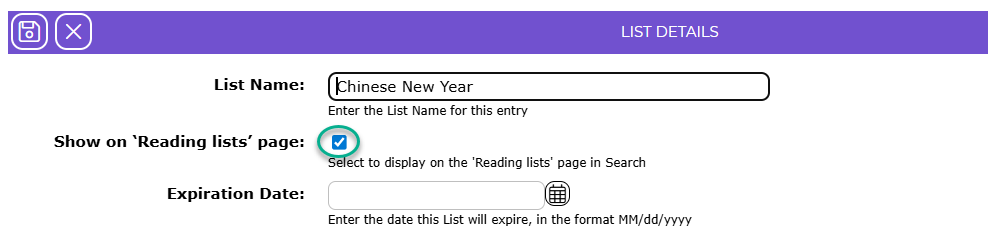
5. One the List Details screen, remove the Show on 'Reading lists' page check.
Before removal:
After removal:
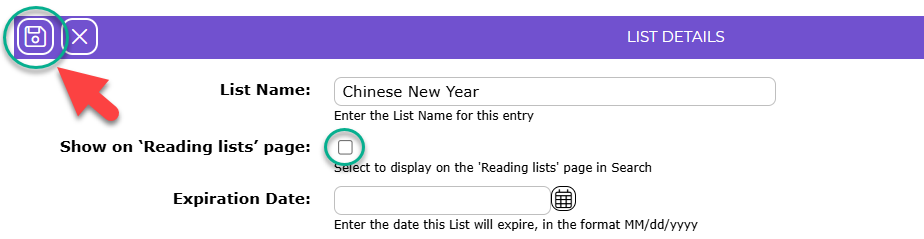
6. Click the Save icon.
The process to allow a Reading list to be be displayed on the OPAC Reading List screen is the same, except the Show on 'Reading lists' page check is added, instead of being removed.
Was this article helpful?
That’s Great!
Thank you for your feedback
Sorry! We couldn't be helpful
Thank you for your feedback
Feedback sent
We appreciate your effort and will try to fix the article