Introduction
Now that you have become a user of LearnPath, your next step will be to consider how to implement and develop this module in your school. This guide will provide you with a range of ideas and resources to assist you in developing this information curating tool in your school to improve student engagement with library resources and consequently enhance student learning.
LearnPath will place your library and its resources at the center of learning. You will be able to target information for student research and support the development of critical skills and independent learning.
Introducing LearnPath to your teaching colleagues
One of the best ways to introduce LearnPath to your teaching colleagues is to develop some LearnPath pages for student use. As a school library there are a variety of resources to support the development of information and digital literacy as well as reading for both curriculum and recreational purposes that can provide content for LearnPath pages.
How will you structure your LearnPath pages?
You will need to give some consideration to the structure of your LearnPath. Your choice will depend on the needs of your school community.
The two most common structures include:
• By Year Level – Subject – Topic
• By Subject – Year Level – Topic
Other organization types may suit you school community such as:
• By Junior, Middle and Senior Years – Subject – Topic
Refer to the ‘Getting Started with LearnPath’ help guide for instructions on how to organize your LearnPath pages.
Create LearnPath pages to promote library services
LearnPath pages can be created and used for a variety of purposes to promote library services. The option to hide LearnPath pages from user allows libraries to have LearnPath pages for events and celebrations that occur during the school year.
Topics to consider include:
- Library week
- Library Lover’s Day (Valentine’s Day)
- Book Week
- Winter holidays
- Spring Holidays
- Holiday reading recommendations
Consider creating pages to meet the needs of students and staff. Create LearnPath pages for the following:
LearnPath Page | Suggested content |
|
|
|
|
|
|
|
|
Once LearnPath pages are in place it is easy to demonstrate the benefits of LearnPath, its ease of access and connection to both digital and print resources for student learning.
Work with individual teachers to create LearnPath pages
Working collaboratively with teachers is one effective method to develop LearnPath in your school. Teachers will appreciate the support in providing the best resources for students.
Consider the teachers in your school and select one that you can work with to develop a LearnPath for a research/assignment task. Organize a meeting with this teacher and demonstrate LearnPath and its potential. Invite them to work with you to develop a LearnPath page for the upcoming research/assignment task. Offer to introduce the page to the class when it is ready. Set a timeframe for completion.
Begin by gathering information on the research/assignment task and spending time gathering the resources from your library, online databases and the web that would support students completing the research task. Construct your LearnPath page with some of the following features:
- Slider – this will highlight the suitable resources in your library that students will find the most useful to complete the assignment
- Text box – with web links to websites that you have evaluated and selected. Other text boxes can be included to highlight key readings or resources
- If your school subscribes to Online databases, select suitable readings from these databases that will get students on the right path and link these in a Text box
- Media – embed selected you tube clips or other relevant media
- Email – provide an email link so students can easily seek assistance from the library and contribute ideas for additional resources. Students can also provide feedback on the usefulness of the LearnPath.
Demonstrate the LearnPath page to the class and encourage students to use LearnPath as the starting point for their research/assignment work.
Launching LearnPath at your school
Once you have a number of LearnPath pages completed and you have worked in partnership with one or more teachers to develop these pages it is an opportune time to launch LearnPath to all teachers.
Organize time at a teacher staff meeting and invite a couple of the teachers you have worked with to co-present with you.
A PowerPoint presentation titled ‘Launching LearnPath’ has been attached to this guide’s help article for your use. You may need to edit the slides to suit your particular school setting and needs.
Professional Development sessions for teachers
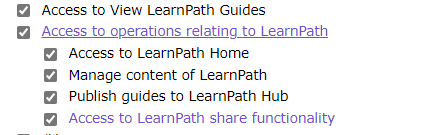
Teachers may indicate an interest in being editors of the LearnPath pages for their subject areas. Invite interested teachers to a professional development session to demonstrate how to set up LearnPath pages and to add the information boxes. Once they are skilled in this area you can create a new User Role in MackinVision called, for example ‘LearnPath Teacher’ or something similar and add ‘Manage content of LearnPath’ user privilege operation set to the role.
Information Boxes in LearnPath
Note: A recorded webinar on ‘How to set up Information Boxes’ is available at https://www.softlinkint.com/resource-details/how-to-setup-information-boxes
Add Information Box | Options | Applications |
Link to email. There is an option to show the email link on Library Link cell phone app | Students can easily contact the library or teacher for further information or clarification. | |
Federated Search | Add a Federated Search bar | Allows students to search beyond the library using databases that have been linked through MACKINVISION |
Image | Add related images; cartoons etc | Images can be useful for developing visual literacy skills; analyzing and responding to photos and pictures; |
Media | Link YouTube clips; google maps and websites | YouTube clips and websites can include Book Trailers, book reviews, initiate discussion on a topic, provide instructional materials, documentary clips, history clips, and introducing topics. |
RSS Feed | RSS (Rich Site Summary) – allows users to access updates to online content | |
Search | Add a search box | The embed code generated can be used to embed a Search bar on other sites such as your school website. |
Slider | The Slider box will show book cover images | See section 4.1 on using Sliders |
Slideshow | Bring Sliders together into a slide show | Sliders created for a variety of genres or topics can be linked together in a slideshow that will appear on your LearnPath page |
Text | Add weblinks; information and other content | Text boxes are versatile and can be used to add content, web links, pictures etc. related to the LearnPath topic. Content may include Learning Intentions; assignment information; definitions; extension activities etc. |
Setting up Sliders
There are a wide variety of options available with the Slider Information Box. Slider Type options provide a range of choices:
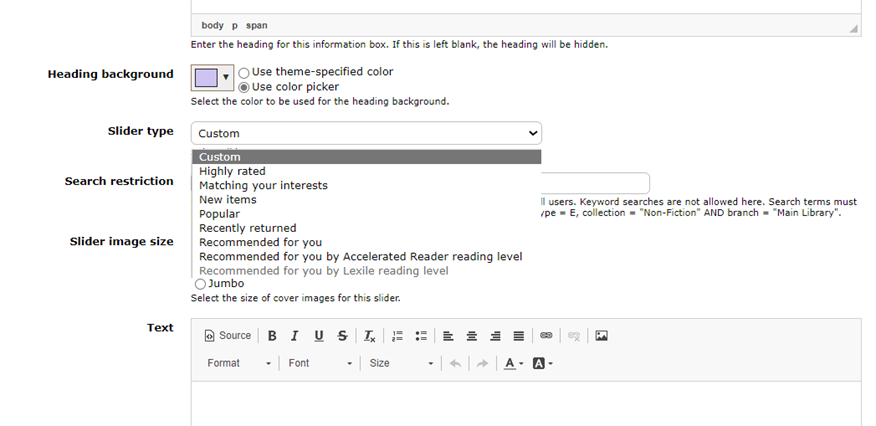
Adding a Search restriction can focus the resources shown in the Slider so that better alignment is achieved.
Search restrictions can include the following:
Search Restriction | Location in MackinVision | Examples |
Collection | Management > Collections | Collection = “Senior Fiction” |
Subject | Cataloging > Authority Control
| Subject = “Australian Poetry” |
Author | Cataloging > Authority Control > Click on Subjects (top right) and select Open Authors
| Author = "Bongers, Christine" (surname first) |
BibTypes | Cataloging > BibTypes Check the letter assigned to each BibType for your slider
| BibType = AB (AudioBook) BibTyoe = S (Journal/Magazine)
|
Genre | Cataloging > Authority Control > Click on Subjects (top right) and select Open Genres
| Genre = “Science Fiction” |
Resource Type | Management > Resource Types
| Resource Type = magazine |
Barcode |
| Barcode = (list barcodes with a comma between them) |
ISBN |
| ISBN = (list ISBNs with a comma between them) |
Publishers | Cataloging > Authority Control > Click on Subjects (top right) and select Open Publishers
| Publisher = "Amnesty International" |
Reading Lists | Cataloging > Authority Control > Click on Subjects (top right) and select Open Lists. | Excellent method for promoting any Reading Lists you have created in MackinVision. For example: ReadingList = “Easy Read”
|
Note: You need to use quotation marks where a search term is two or more words. Refer to the ‘Search Strategies for LearnPath’ guide for more information on constructing search queries in LearnPath.
To find more field names to use in your slider information boxes, Go to Cataloging > Resources and select Browse (from top right drop down menu under Resources), then select Sort from the drop down menu across the top. The list of ‘Available Fields’ can be used in your sliders.
Was this article helpful?
That’s Great!
Thank you for your feedback
Sorry! We couldn't be helpful
Thank you for your feedback
Feedback sent
We appreciate your effort and will try to fix the article