Summary
Images are added to reading lists via the list’s Add/Edit screen. Reading lists that form a “parent/child” relationship can each have their own individual image. Images for both the parent and the child list will then be displayed in the Search interface.
This guide will provide the steps required to add an image to a reading list.
How to Add an Image to a Reading List
An image can be added during the process of creating a reading list or added to a reading list that already exists. This example will provide the steps required to add an image to an existing reading list.
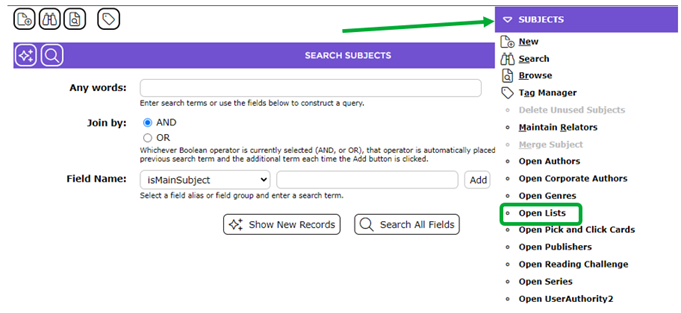
- Navigate to Cataloging > Authority Control and click on Open Lists from the Function menu.
- Click on the Edit icon corresponding to the list to which you are going to add an image.

- The List Details screen will display.
- Click on the Choose File button in the Image field.
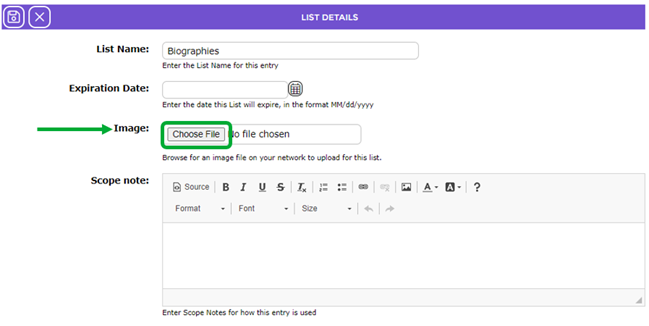
- The Choose File to Upload popup screen will display.
- Navigate to the folder containing the images available for adding to reading lists and either highlight the image and click the Open button or double click on the image.
- The path and image file will display in the Image field.

- Click on the Save icon.
- You will be returned to the List screen.
- Click on the number link corresponding to the list to which the image was added.

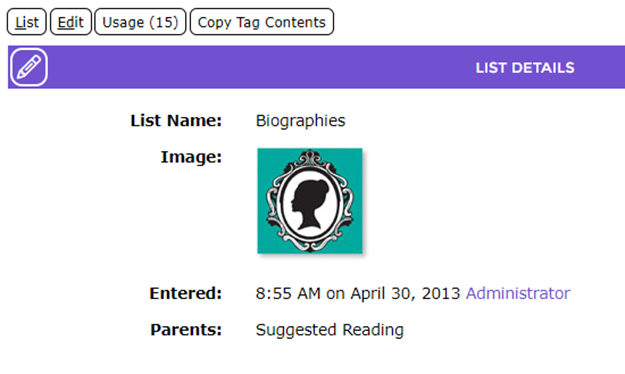
- The image will display in the Image field in the List Details screen.
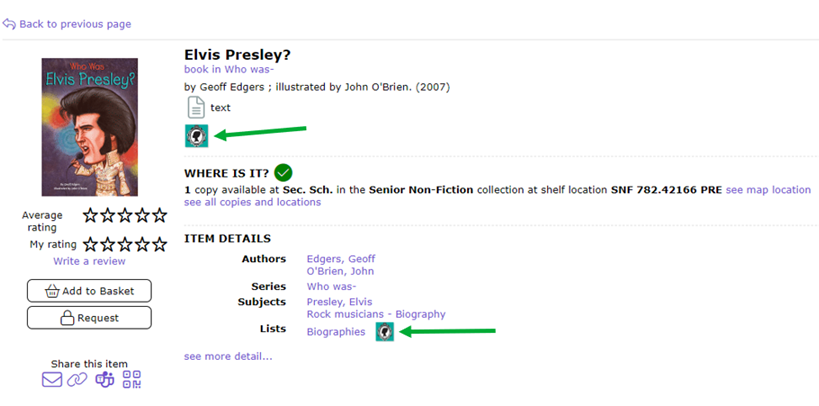
When Users access a resource in that reading list via the OPAC, the image is included in the results and is a hyperlink to that reading list.
Was this article helpful?
That’s Great!
Thank you for your feedback
Sorry! We couldn't be helpful
Thank you for your feedback
Feedback sent
We appreciate your effort and will try to fix the article