Summary
Library staff can establish a hierarchical Parent/Child structure for Reading Lists whereby one or more lists of resource titles can be tied to another list in a parent/child relationship. A child list can also have more than one “parent”. Patrons can access Reading Lists via the Search interface. Library staff can access List via Cataloging and the Search interface.
This guide provides the steps required to tie Reading Lists to another, as a child, to form a parent/child relationship. Separate guides provide the steps required to create a Reading List, adding images to reading lists and creating a temporary Reading List.
Add a Child Reading List to a Parent
Once Reading Lists are created, staff can link one or more lists to a Reading List designated as the parent. Linking a child list to a parent list can be done as part of the process of creating a Reading List or, at a later date. In the following example, the Pedagogy Reading List is the designated parent list to which the Indigenous Education Reading List will be linked as a “child”.
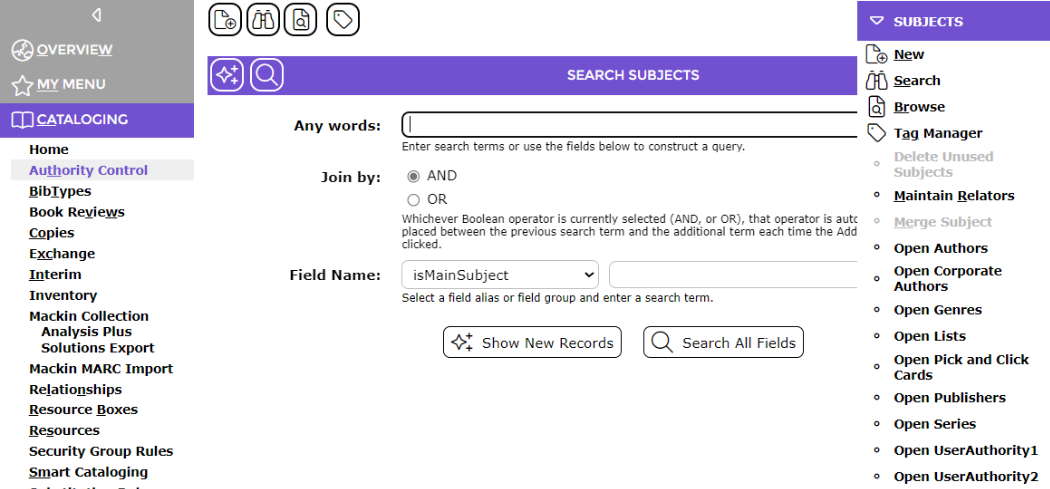
1. Navigate to Cataloging > Authority Control > Open Lists (in dropdown function in top right)

If there is a large number of reading lists, you may need to complete a search for the list that is to be the parent.
2. Click on the Edit icon corresponding to the list that will be flagged as the parent.


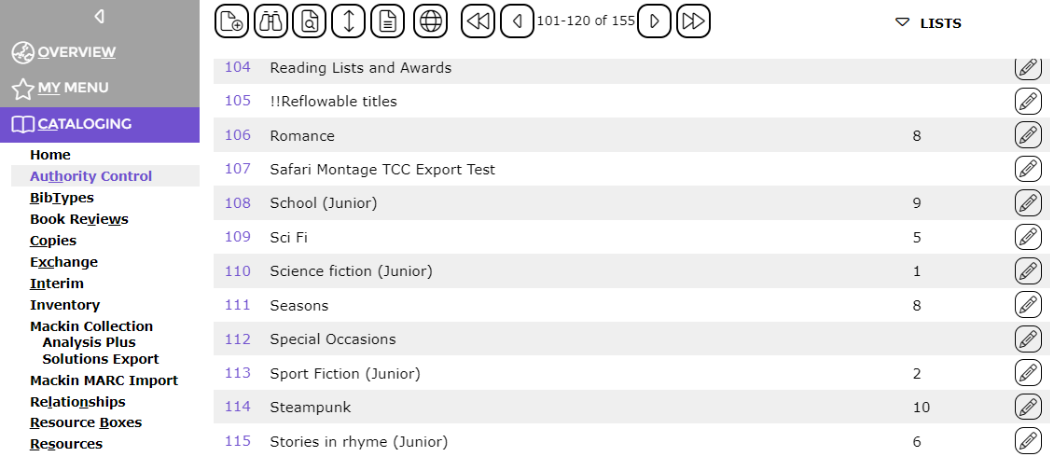
The following screen will display.
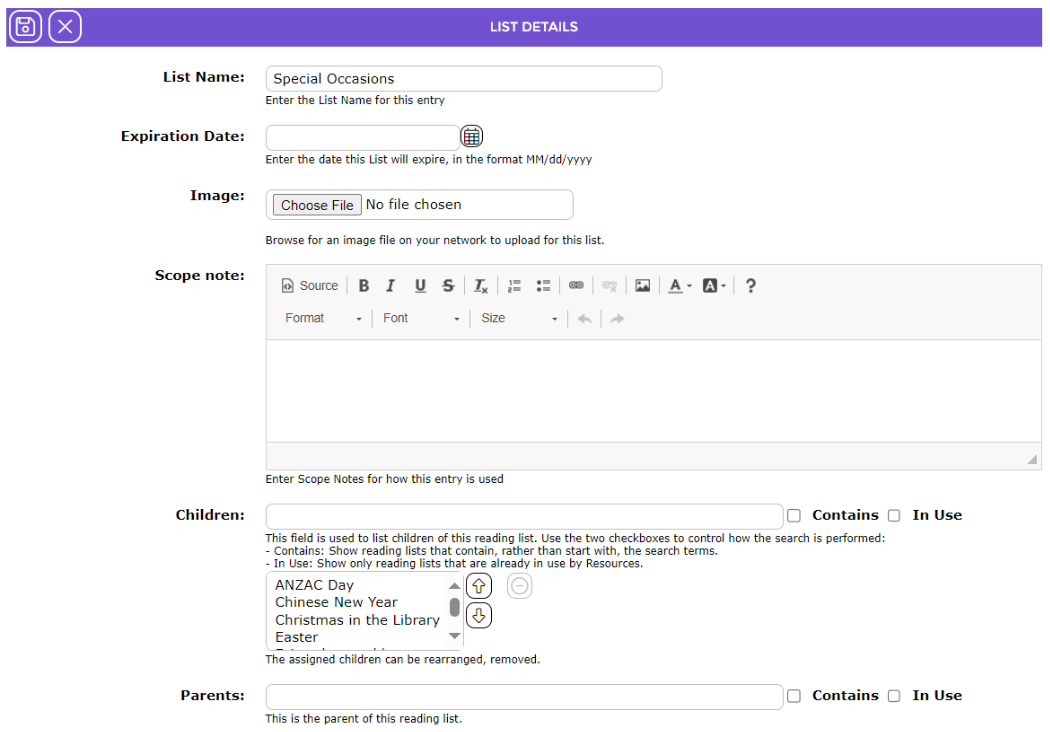
3. If the list is to be temporary, enter the date the list will expire in the Expiration Date field otherwise leave this field blank. There is a separate guide available to assist staff with creating a temporary reading list.
4. If the list is to include an image, click on the Browse button, locate the image, and import it into the screen in the usual manner.
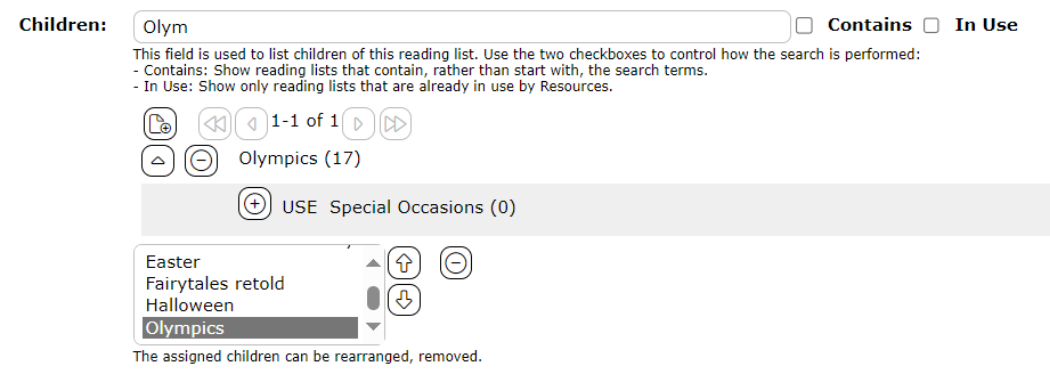
In the Children field type in the first few letters of the list to be linked, for example educ, in the Children field.
Any lists, whose name begins with the part term entered will be displayed in the field below.


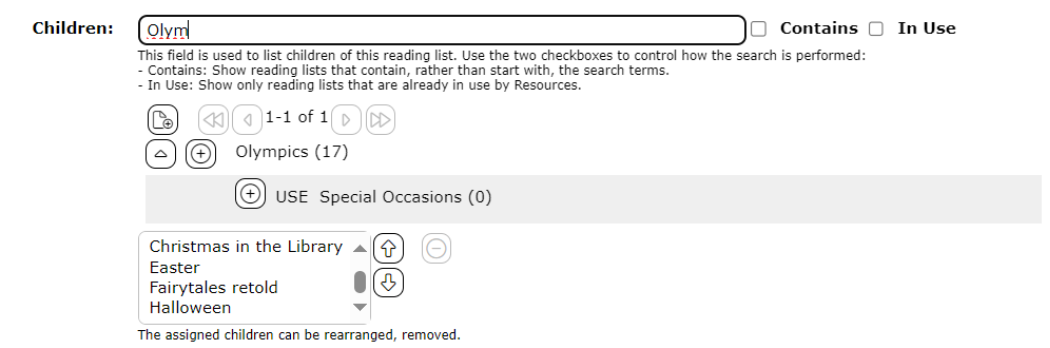
5. To add a list, click on the Plus icon corresponding to the Reading List required, for example, Education.
A list box will display once a Reading List is selected. The selection will be included in the list box.


Repeat steps 1-4 for any additional lists to be linked as a child.
TIP:
If the User is in the Edit screen of the Reading List that is to be the child, not the parent, enter the name of the Reading List that is the parent in the Parent field. This negates the need for Users to exit the Edit screen of the child, search for the parent and access the Edit screen of the parent Reading List.
Note: The Contains, Verified and In Use checkboxes next to both the Children and Parents fields. If ticked, determine what lists will be included in the prediction list when a search or part of a search term is entered. If, for example, only verified lists are to be included in the prediction list, click in the checkbox next to Verified.
6. When all lists that are to be children have been added, click the Save icon.


7. In the resulting Lists screen click on the number link corresponding to the list to which you added one or more child lists.
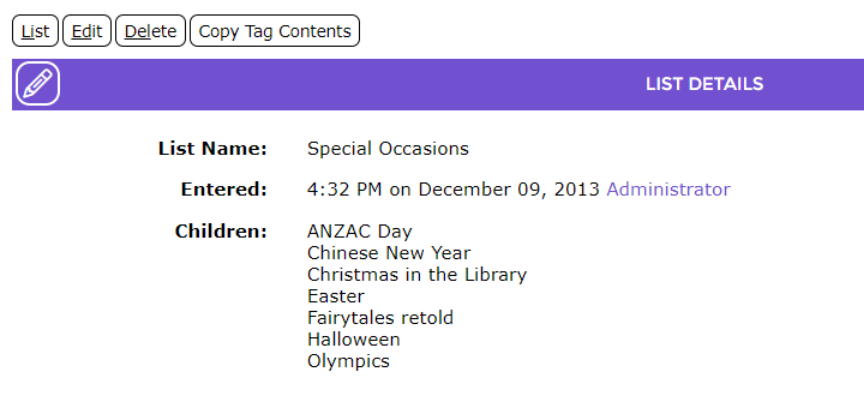
The parent List’s Details screen will display. The name of the list, added as a child, will display in the Children field.

View Parent/Child Hierarchical List in the Search Interface
1. In the Search interface, complete a search for the Special Occasions Reading List, for example.
The Special Occasions list will be included in the displayed screen. The child list of Olympics is included in the See option located directly below Special Occasions.
Note: Remember, child lists are Reading Lists in their own right and are searchable using the list’s name.
Each List is a link which, when clicked, will display the titles on that list.
Clicking on the Parent List would display the titles on the parent list only. However, easy access to titles relating to sub-levels of the overarching Parent Reading List topic is provided using the Parent/Child hierarchy.
Was this article helpful?
That’s Great!
Thank you for your feedback
Sorry! We couldn't be helpful
Thank you for your feedback
Feedback sent
We appreciate your effort and will try to fix the article