Summary
A relationship can be manually added to a resource record via a link on the resource Detail screen. Note that MARC resource records, which are imported, or entered via the Marc Editor screen, and have the appropriate 760 to 789 tags and subfields, will include a link to any other related resource records once the next scheduled Housekeeping process is run.
This guide provides the steps required to manually add a relationship link.
System Provided Relationships
A number of default relationships are provided in the system. They are accessed via Cataloging > Relationships. Additional relationships can be added if required.
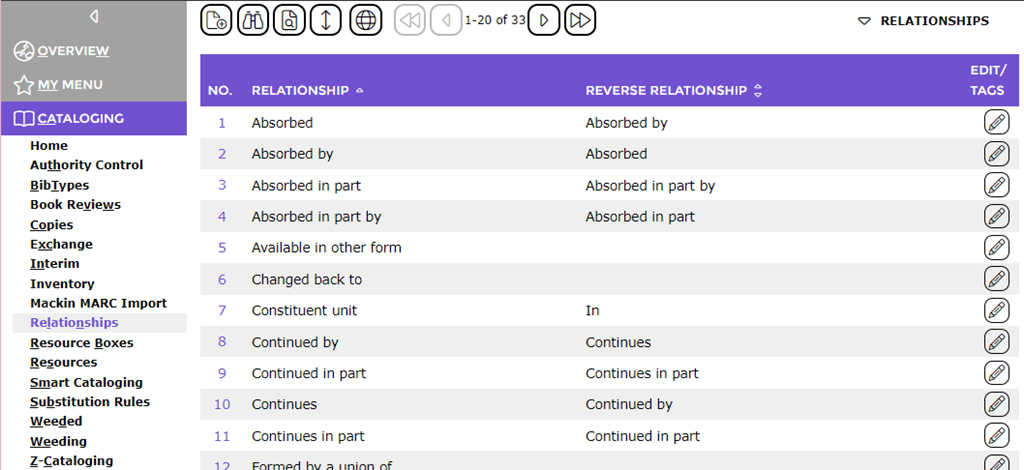
Manually Add a Relationship to a Resource
1. Access the Detail screen of a resource in the usual manner.
2. Click on the Maintain related resources link in the Related Resources field.
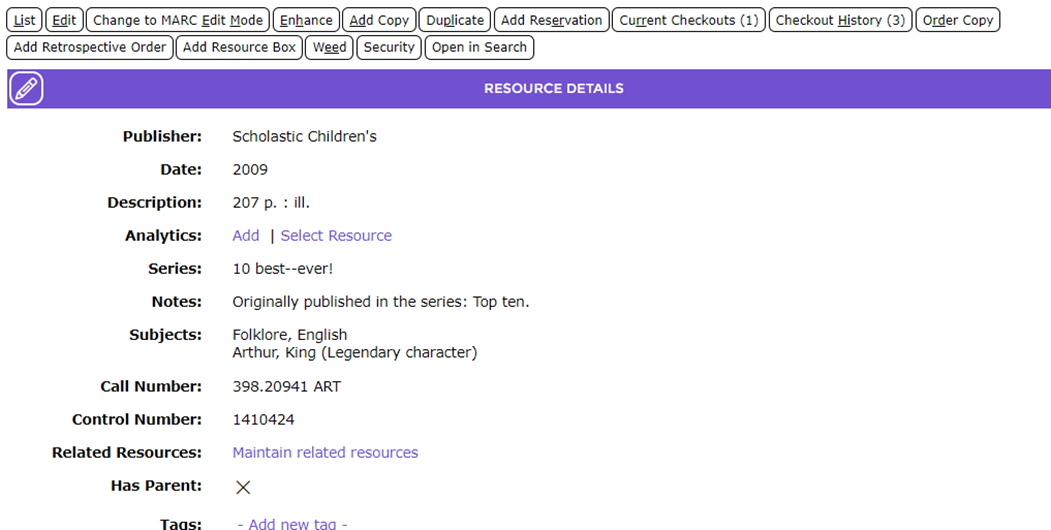
3. In the resulting screen, the title of the resource displays in the title field.
4. Click on the down arrow at the end of the Relationship field.
5. A list of Relationship options available in the system will display.
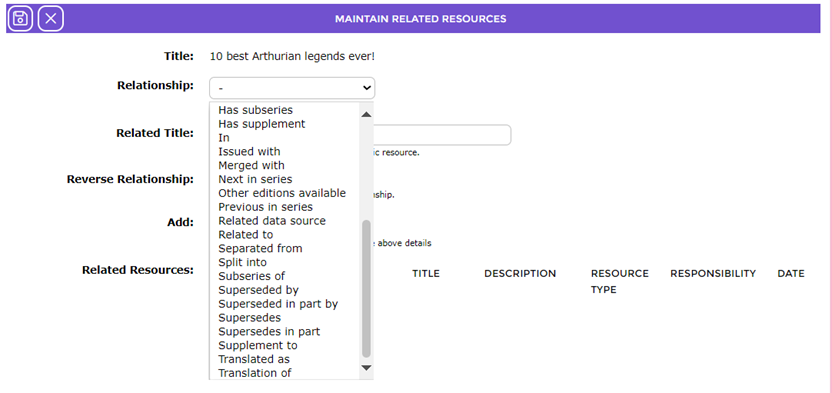
6. Click on the option required, in this example, Next in series will be used.
7. In the Related Title field, enter the title of the related resource, for this example, 10 Best. Note that this field includes predictive search functionality.
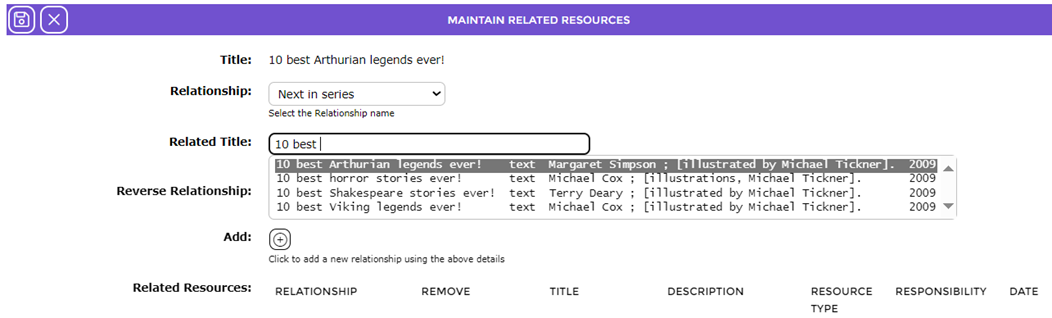
8. Click in the checkbox next to Reverse Relationship to create the request relationship.
9. Click on the Plus symbol icon in the Add field to add the new relationship using the details you have entered in the Related Resource grid that will display.
10. Click on the Save icon.
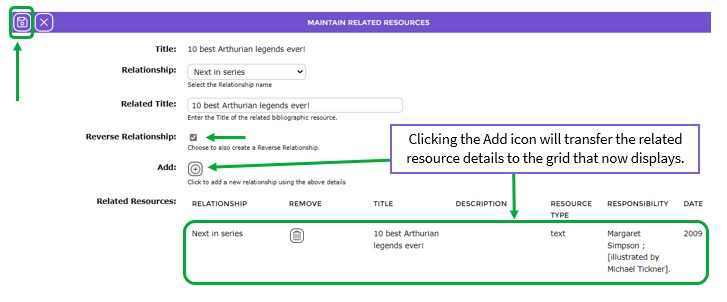
11. The details will display in the Related Resources grid.
12. If the relationship details are incorrect click the Delete (dustbin) icon in the Remove column of the grid and reenter the correct options as explained in the previous steps.
13. If all the details are correct click the Save icon.
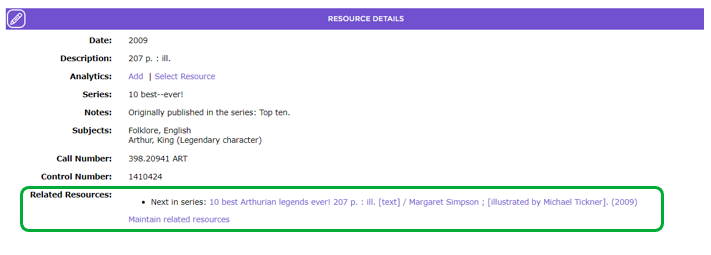
14. The resource Detail screen will display.
15. The Relationship and applicable title will display in the Related Resources field.
Was this article helpful?
That’s Great!
Thank you for your feedback
Sorry! We couldn't be helpful
Thank you for your feedback
Feedback sent
We appreciate your effort and will try to fix the article