This guide explains how to create a MARC template by duplicating and editing an existing MARC record, allowing staff to use a standardized structure when creating new catalog records.
Overview
You can use a MARC record to reduce the number of MARC tags and subfields you need to add to the template. Any changes made to the MARC record to create a generic template are reflected in the MARC record. It is best to first create a duplicate MARC record to preserve the details in the original record. The duplicate can then be edited to suit the template.
How to Create a MARC Template Using an Existing MARC Record
- Navigate to Cataloging > Resources
- Locate a record you wish to use as the basis for a MARC template based on Bibtype
- Click on the number link that corresponds to the resource record you wish to use.
- On the Resource Detail screen, make sure the Change to Non-MARC Edit Mode button is shown. If not, simply click the Change to MARC Edit Mode button.
- On the Resource Detail screen, click the Duplicate button to copy the data from the resource record.
- The duplicated record details are copied into the MARC Editor.
- Click the Edit icon

- In the MARC editor, Remove the data entered in all the fields and enter a generic string. Entering instructions on what data should be entered in the various fields is useful. In the 245 a field enter a title that allows it to be easily located in the next steps to link the record to a BibType. This could be the Bibtype name followed by “Bibtype template” e.g., “Report BibType template”.
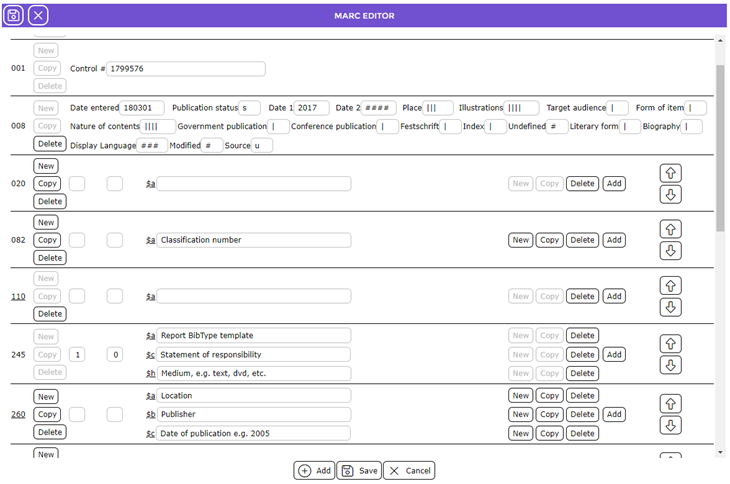
- Click the Save icon
 and the Resource Detail screen for the new record will display.
 - Navigate to Cataloging > BibTypes.
- Click on the number link that corresponds to the BibType you wish to use. The Bibtype’s Detail screen will display.
- Click on the Select Resource link in the Resource Template field. The Search for a Resource popup screen will display.
- In the Resource Title field, enter the title or part of the title for the new MARC record you previously created
- Click on the title required from the prediction list then click on the Add button.
- The BibType Detail screen will display, and the title will replace SelectResource as the link in the Resource Template field.
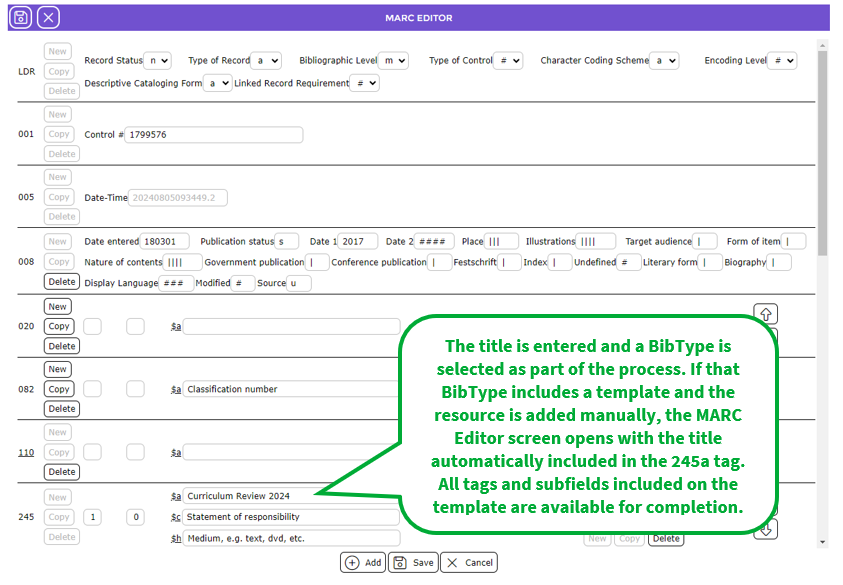
- When the BibType is selected to manually add a new MARC record to the system, staff will just need to enter the applicable data against the applicable tags and subfields included on the MARC Editor screen from the template.
- Staff can replace the default text entered in all the tag and subfield fields to create new record then click the Save button. The new MARC record creates a corresponding resource record while the template remains with its generic title, ready for the next record you wish to create.
TIP:
There may be some tags and subfields included in the “template” that will not require completion. Completing them is not mandatory (the only mandatory tag and subfield is the 245 a tag).
If there is default instruction type data in non-required tag/subfield fields, remove it from those fields before saving. No tags/subfields and instructional text is removed from the template itself when saving the MARC Editor screen after entering the information relevant to the resource being added.
Was this article helpful?
That’s Great!
Thank you for your feedback
Sorry! We couldn't be helpful
Thank you for your feedback
Feedback sent
We appreciate your effort and will try to fix the article