Summary
If a reciprocal Relationship, between two resources needs to be removed, only one Relationship link needs to be deleted. During the next Housekeeping run, the reciprocal link of the reverse relationship link is automatically removed provided the applicable Housekeeping settings are activated.
This guide will provide the steps required to remove a Relationship link from a resource record and identify the Housekeeping option that will remove the related resource’s link.
Remove the Relationship Link from a Resource
- Search for the resource required.
- Click on the corresponding number link to access the resource’s Detail screen.
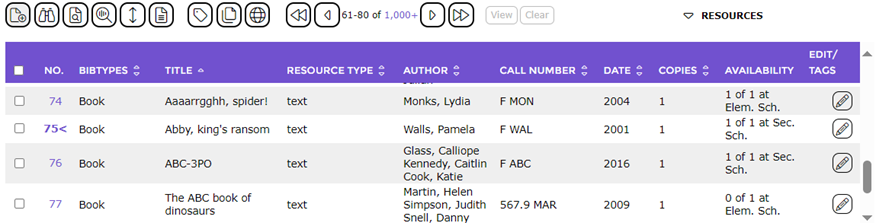
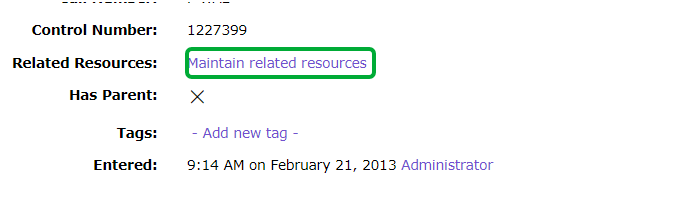
- Locate the Related Resources field and click on the Maintain related resources link.
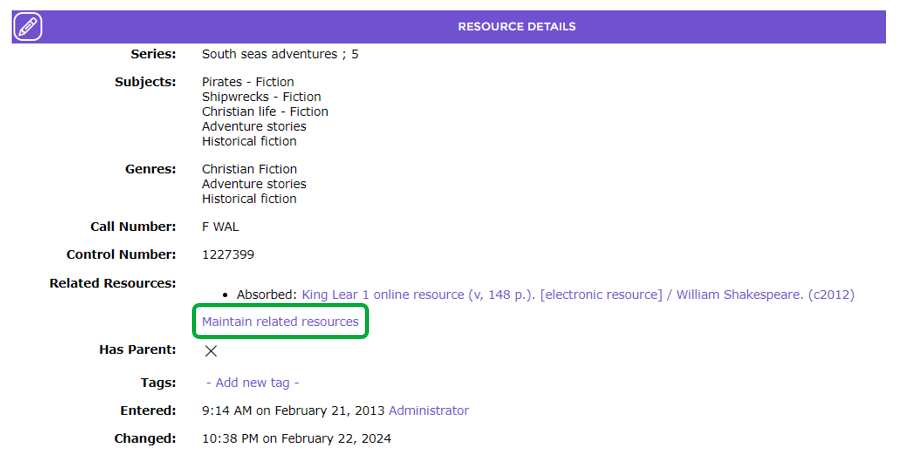
- In the resulting screen, click the Delete (dustbin) icon in the Remove column, next to the title of the related resource, in the Related Resources area.
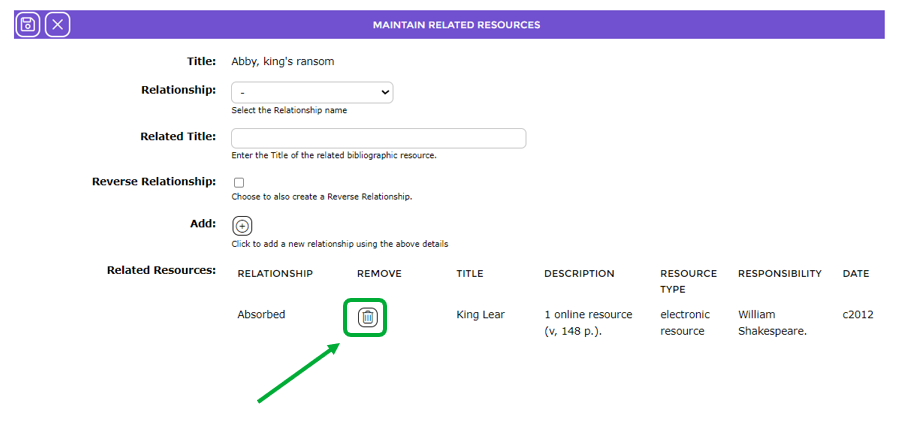
- The title details no longer display in the Related Resources area.
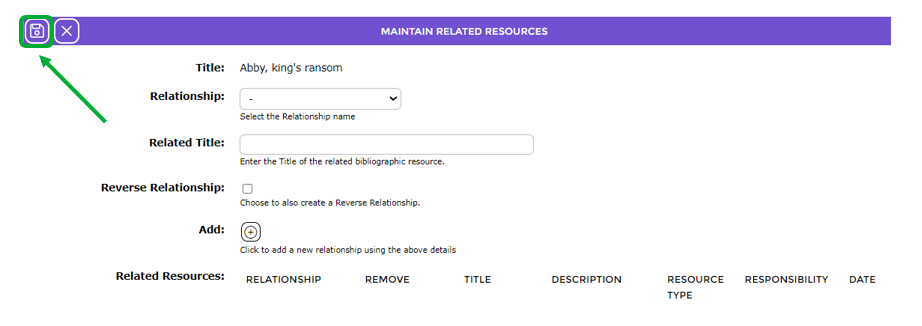
- Click the Save icon to return to the Detail screen.

- The related title link no longer displays in the Related Resources field.
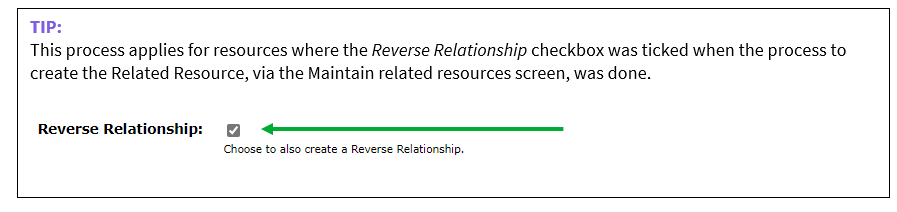
- When the nightly Housekeeping process is run the link on the resource with the reverse relationship, will be removed.
Related Housekeeping Option
As an option, the Housekeeping can also perform two tasks, included within the Related Records Housekeeping process, for the purging of outdated Relationship links. The tasks are:
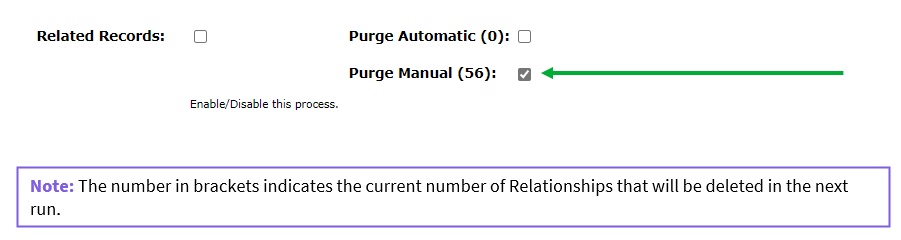
Purge Automatic - The Purge Automatic task will delete the old Relationships for any resources that have been updated via a recent MARC import, and will only retain the new Relationships that were loaded. If you want the deletion to occur for these relationships ensure the corresponding checkbox is ticked. A check indicates the process is enabled.
Purge Manual - The Purge Manual task deletes any Reverse Relationships links for any pair of resources that had one Relationship deleted. If you want the deletion to occur for such reverse relationships ensure the corresponding checkbox is ticked. A check indicates the process is enabled.
If a check does not display in either of these Purge option checkboxes, navigate to System > Housekeeping and click the Edit icon and click in the applicable checkboxes.
Was this article helpful?
That’s Great!
Thank you for your feedback
Sorry! We couldn't be helpful
Thank you for your feedback
Feedback sent
We appreciate your effort and will try to fix the article