Summary
The relationship that is assigned to each MARC tag can be changed.
This guide will identify the default Tag and Relationships supported by the system and provide the steps required to change the Relationship that belongs to a tag.
MARC Relationship Tags List
The following table identifies the MARC tags that specify Resource Relationships. Both the Relationship name and the relationship assigned to each tag can be changed.
Tag |
Relationship |
Reverse Relationship |
760 |
Subseries of: |
Has subseries: |
762 |
Has subseries |
Subseries of |
765 |
Translation of: |
Translated as: |
767 |
Translated as: |
Translation of: |
770 |
Has supplement: |
Supplement to: |
772 |
Supplement to: |
Has supplement: |
773 |
In: |
Constituent unit: |
774 |
Constituent unit: |
In: |
775 |
Other editions available: |
|
776 |
Available in other forms: |
|
777 |
Issued with: |
|
780 (Indicator 0) |
Continues: |
Continued by: |
780 (Indicator 2) |
Continues in part: |
Continued in part: |
780 (Indicator 3) |
Supersedes: |
Superseded by: |
780 (Indicator 4) |
Formed by a union of: |
|
780 (Indicator 5) |
Absorbed: |
|
780 (Indicator 6) |
Absorbed in part: |
|
780 (Indicator 7) |
Separated from: |
|
785 (Indicator 0) |
Continued by: |
Continues: |
785 (Indicator 1) |
Continued in part: |
Continues in part: |
785 (Indicator 2) |
Superseded by: |
Supersedes: |
785 (Indicator 3) |
Superseded in part by: |
Supersedes in part: |
785 (Indicator 4) |
Absorbed by: |
Absorbed: |
785 (Indicator 5) |
Absorbed in part by: |
Absorbed in part: |
785 (Indicator 6) |
Split into: |
|
785 (Indicator 7) |
Merged with: |
|
785 (Indicator 8) |
Changed back to: |
|
786 |
Related data source: |
|
787 |
Related to: |
|
Configure MARC
The Relationship that is assigned to each MARC tag can be changed.
- Navigate to Cataloging > Relationships.
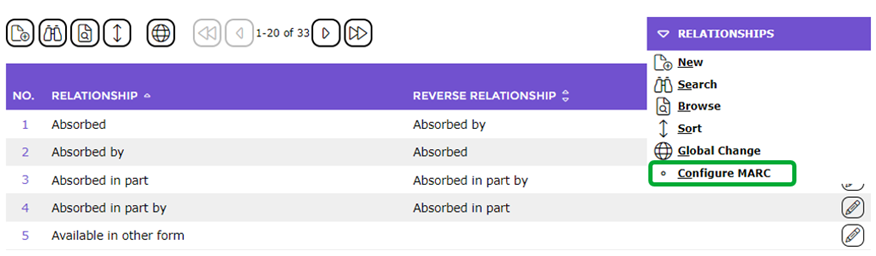
- From the Function menu, click on Configure MARC.
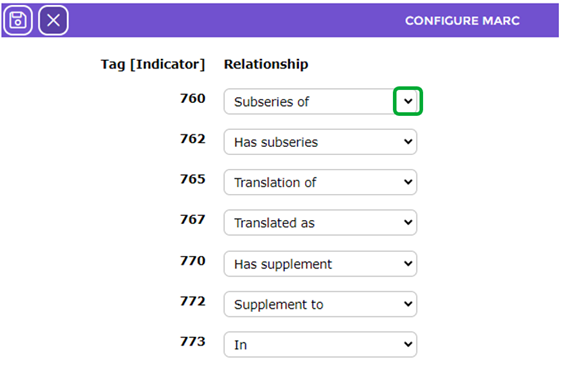
- Each MARC tag in this screen has a list of the Relationship names. Make the appropriate changes to the applicable tags by clicking on the down arrow at the end of the applicable field.
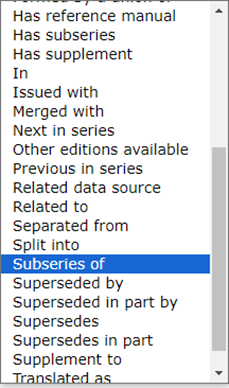
- From the list of relationships that displays click on the one you want.
- When your preference/s have been selected click the Save button.

You will be returned to the Relationships List screen and any configurations made will display for the applicable Relationship.
Was this article helpful?
That’s Great!
Thank you for your feedback
Sorry! We couldn't be helpful
Thank you for your feedback
Feedback sent
We appreciate your effort and will try to fix the article