Summary
The dictionary provides the “were you searching for” suggestions that display, in the Search interface, when Users enter a misspelled word which does not produce any results but, for which, there is one or more terms in the dictionary that includes the misspelling.
There are 3000 default words provided in the dictionary, each with the common misspellings of those words. The Dictionary option is located under the System main menu option on the Management screen. Authorized staff can search for existing words and their common misspellings as well edit and add to existing dictionary words and misspellings.
This guide provides the steps required to edit an existing word and its corresponding misspellings.
Add a Misspelling to an Existing Word in the Dictionary
The following example provides the steps required to add another misspelling to an existing word.
- Go to System > Dictionary > Search.
- Click on the down arrow at the end of the Field Name field and click on your preferred search option, for example, term.
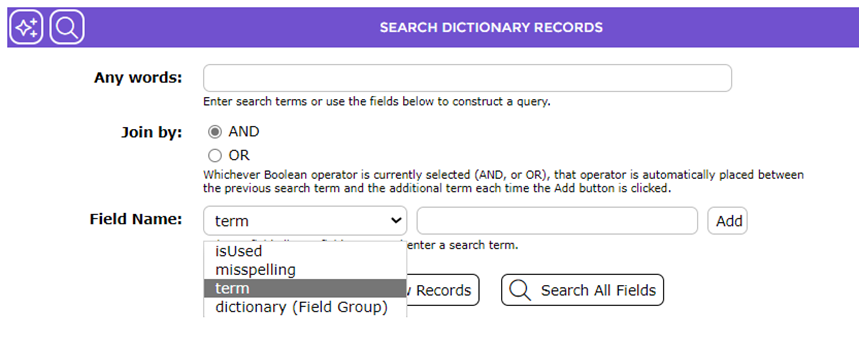
- In the text field to the right, enter the word on which you wish to search, for example agree, and then click the Add button at the end of the field (or hit the Enter key on the keyboard).
- The string - term CO “agree” will display in the any words field at the top of the screen. Click the Search button (or hit the Enter key on the keyboard).

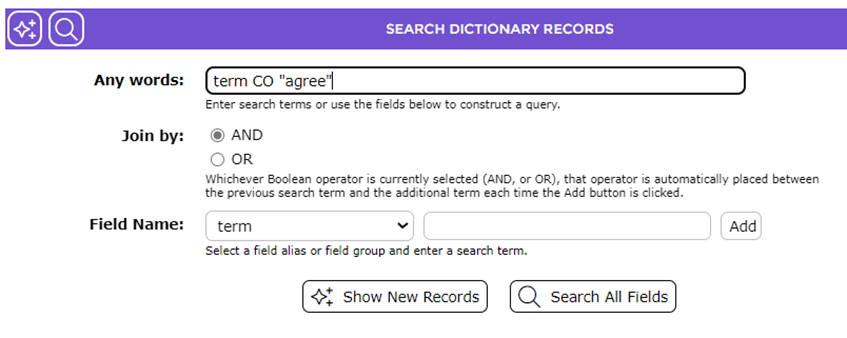
- The List screen will display with the word you searched on and any associated misspellings.
- Click on the Edit icon corresponding to the word. Generally, if you have searched for a specific, existing, term in the dictionary there would only be one result.

- The dictionary term’s Detail screen will display.
- In the Misspellings field, enter the misspelled word you want to associate with the correct word, for example, gree.
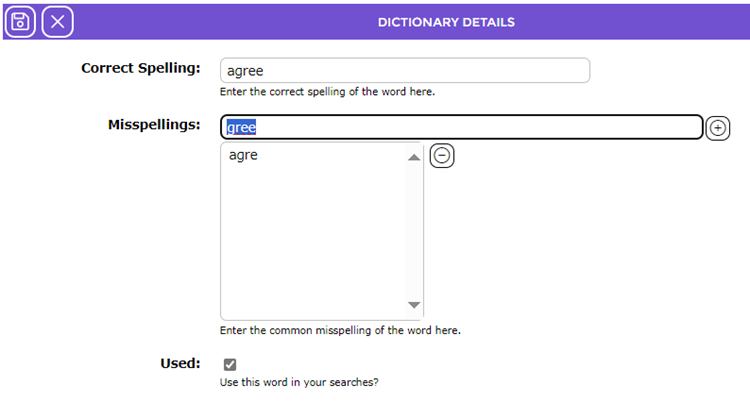
- Click the Add button at the end of the field and the word will display in the list-box below the Misspellings field.
- If there is another misspelling you want to add, to the dictionary word, repeat steps 8 and 9.
- Ensure the checkbox in the Used field includes a Check. If the checkbox does not have a check, the “were you searching for” suggestions will not be offered in the Search interface if any of the associated misspellings are entered as a search term.
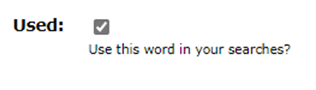
Note: A check displays in the Used checkbox by default.
IMPORTANT: The isUsed Field Name search option in the Dictionary > Search screen can be used to list any dictionary words that do, or do not, have a check in the Used checkbox, in the Edit screen.
|
- When the applicable misspellings have been added, click the Save button.

- In the Details screen, any additional misspellings will be included in the Misspellings field.

- You can click the Delete button to remove the word from the dictionary.
- Click the List button to access the List screen.
If any of the misspellings associated with the correctly spelled term of agree, is entered as a search term in the Search interface, the correctly spelled term will display as link.
Users can click on the term to display a list of applicable titles.
Was this article helpful?
That’s Great!
Thank you for your feedback
Sorry! We couldn't be helpful
Thank you for your feedback
Feedback sent
We appreciate your effort and will try to fix the article