Summary
A dictionary of 3000 default words, and their common misspellings, is available under the System main menu option on the Management screen. If a User enters any of the misspellings in the Search interface, it will prompt the display of the ‘Were you searching for’ option and one or more alternate terms the User can search on. If there are other common misspellings of existing terms used by patrons in the past, authorized staff can add those additional misspellings. If there are other terms, not provided by default, and misspelling of those terms, staff can add those terms and their misspellings to the Dictionary as well.
This guide provides a brief overview of the steps required to locate search terms and associated misspellings using the Dictionary Search screen.
How to Use the Dictionary Search Screen - Overview
There are over 3000 default words and corresponding misspellings. If Users enter a misspelled term in the Search Interface, and it is one of the already added misspellings on a term in the system dictionary, a ‘Were you searching for:’ option will display in the interface and provide alternate, correctly spelled terms. Those terms are displayed as a link, which when clicked will run a search on that correct term.
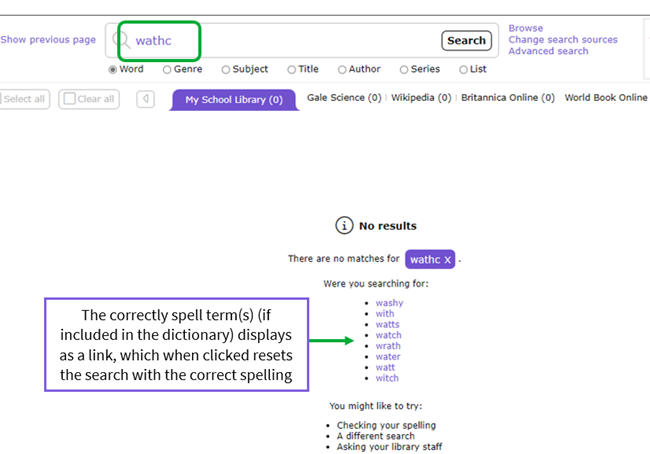
If the misspelled term does not prompt the display of alternate terms, it could be that:
- the misspelled word is not included on the applicable dictionary term
Or
- a dictionary term to which the misspelled term is likely to be added is not included in the default terms included in the system
Or
- the dictionary term is not flagged as “used”.
Staff with applicable authority can add a new term or edit an existing term to include additional misspellings or edit existing terms to flag them as “used”. To check, you will need to use the Dictionary Search screen.
Dictionary Search Screen
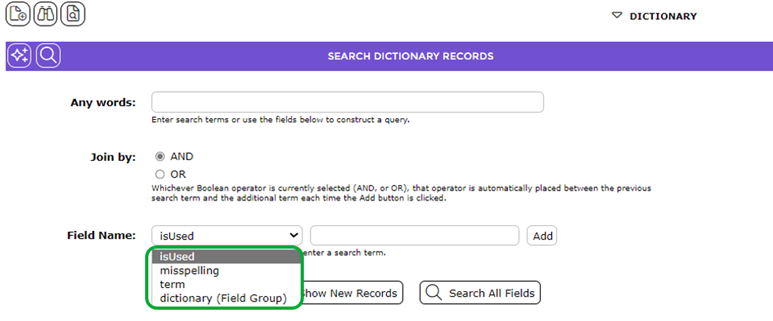
Staff with the applicable User Privileges can use the Search screen to check whether a word and corresponding misspellings exist. There are several field names on which you can search. You can enter a search term in the Any words field only or enter a search term and select an option from the Field Name drop down list to locate an existing dictionary term if you want to add further “misspellings” or identify whether a term already exists and if not add it yourself.
Example Searches
The guide will provide examples of some searches that can be completed in the Dictionary Search screen.
Complete a Search Using the ‘term’ Option
- Access the Dictionary > Search screen.
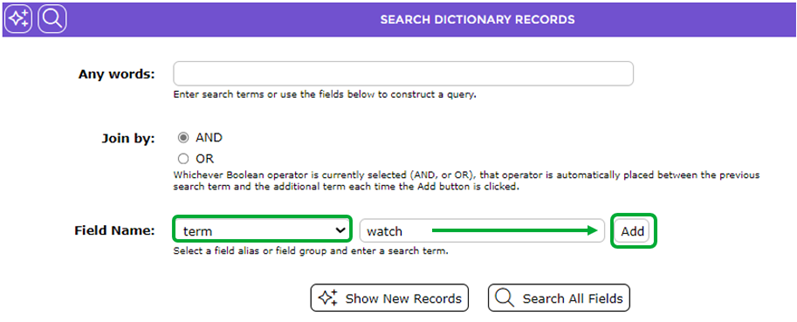
- Select term from the drop-down list in the Field Name.
- Enter the word you want to add in the text field to the right then click the Add button. Note that you can also hit the Enter key on your keyboard.
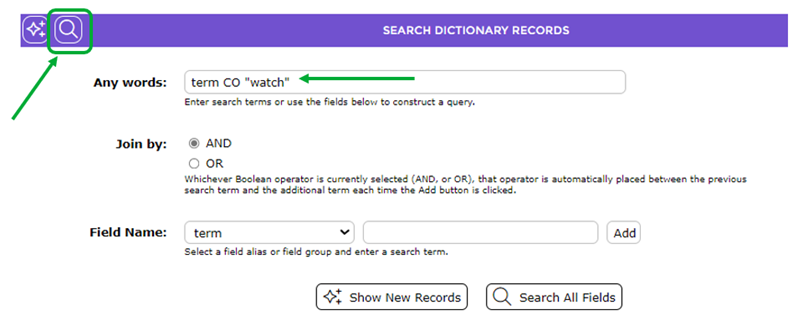
- The search string is transferred to the Any words field.
- Click Search button or hit the Enter key on your keyboard.
- The List screen will display.

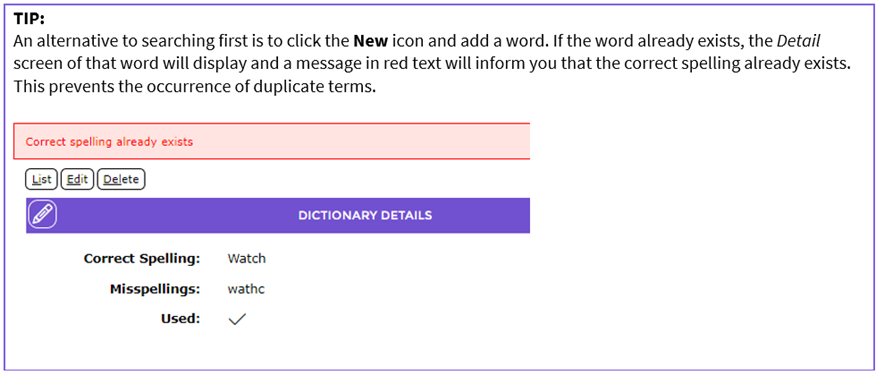
If the term you searched for does not display, authorized staff can add the term to the dictionary by clicking on the New icon at this point. See the How to Add a Word to the Dictionary guide.
Complete a Search Using the ‘misspelling’ Option
You can also find the correctly spelled word by searching on a misspelled term.
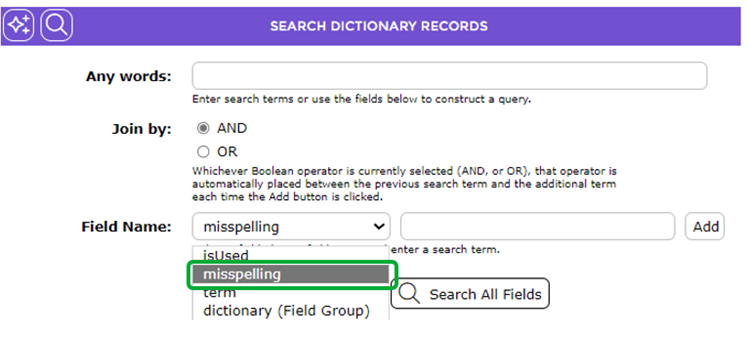
- In the Search screen click on the down arrow at the end of the Field Name field and click on misspelling.
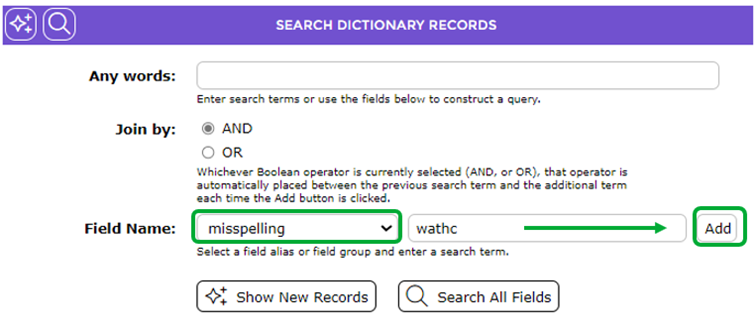
- Enter the misspelled term you wish to search on in the field to the right and click the Add button or hit the Enter key on your keyboard.
- The search string displays in the Any words field.
- Click the Search button or hit the Enter key on your keyboard.
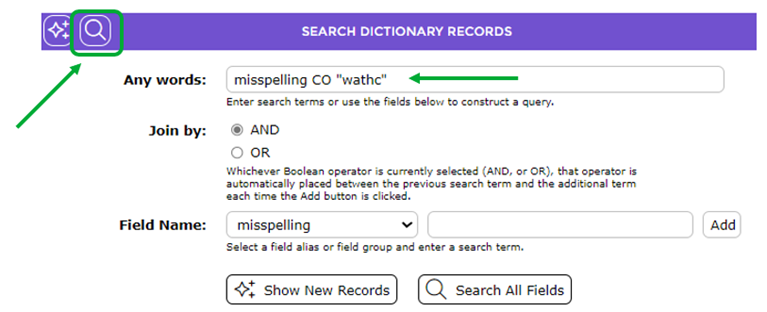
- The List screen, with the dictionary term to which the misspelled word is added, will display.

Search for Dictionary Words Using the ‘isUsed’ Option
All of the default terms, provided by the system will have the checkbox ticked by default and it is recommended that, when adding new words to the dictionary, the Used checkbox is clicked in, as part of that process, so a check displays.
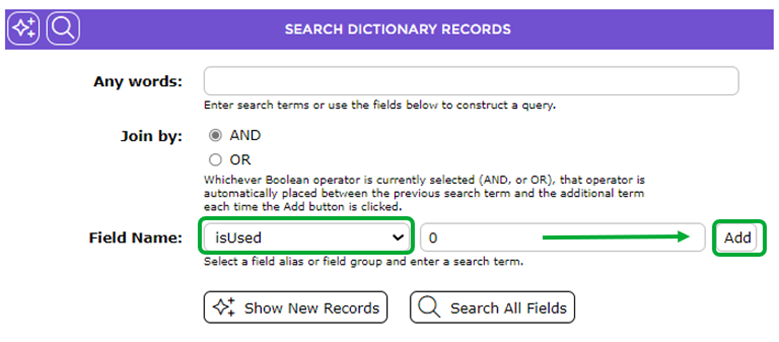
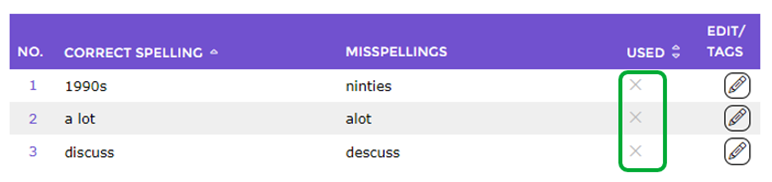
There may be some records for newly added words, with the applicable misspellings, where the checkbox next to Used was not clicked in when it was added to the dictionary. This means the “Were you searching for” option will not display in the Search interface. To get the list of dictionary words, that do not have the Used checkbox ticked, use the isUsed field search option. The value to enter in the field to the right is 0 (zero).
- In the Search screen click on the down arrow at the end of the Field Name field and click on isUsed.
- In the field to the right enter 0 (zero) and click the Add button. Note that you can also hit the Enter key on your keyboard.
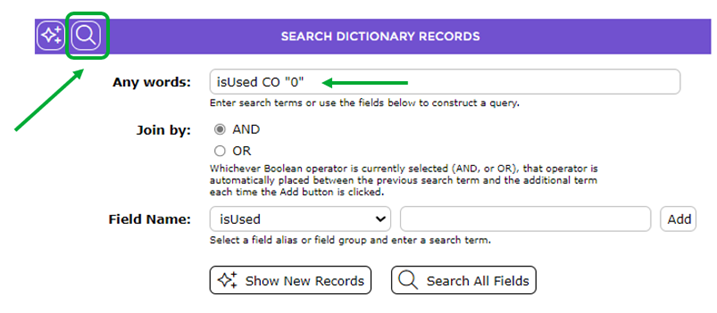
- The search string will display in the Any words field. Click the Go button. Note that you can also hit the Enter key on your keyboard.
- Any words that do not have the Used checkbox ticked will list.
Edit a Dictionary Term Record to Activated the Used Checkbox
- Click on the Edit icon corresponding to the applicable word in the List screen displayed after searching for unused dictionary records.
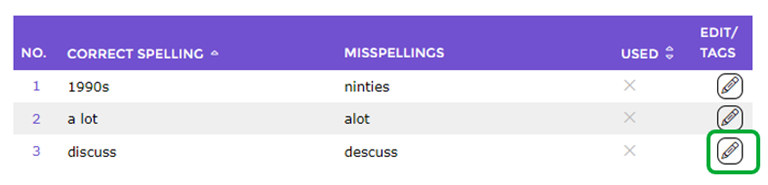
- In the Edit screen click in the blank checkbox next to Used to display a check.
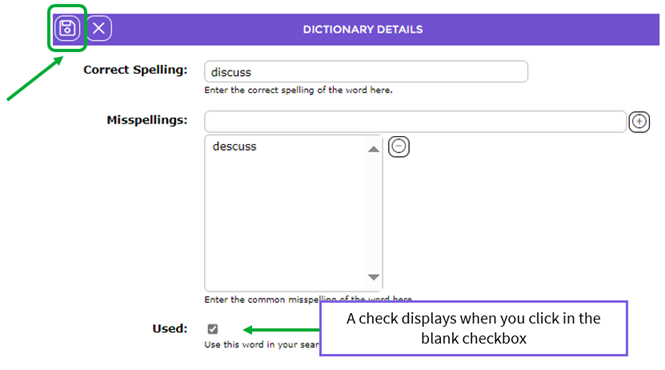
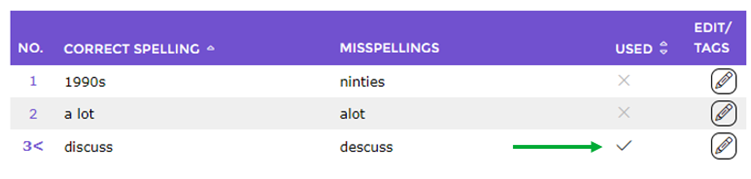
- You will be returned to the List screen where a green check now displays in the Used column.
For further information on the Used checkbox see the How to Add a Word to the Dictionary guide.
Was this article helpful?
That’s Great!
Thank you for your feedback
Sorry! We couldn't be helpful
Thank you for your feedback
Feedback sent
We appreciate your effort and will try to fix the article