Summary
A dictionary of 3000 default words, with their common misspellings, is available under the System main menu option on the library Management screen. Authorized staff can search for existing words and their common misspellings and add further misspellings to existing words and add further words and misspellings to the dictionary. The terms in the dictionary provide the ‘Were you searching for:’ suggestions that will display in the Search interface when users enter a misspelled word that does not produce any results but for which, there is one, or more correctly spelled terms in the dictionary on which the misspelling is included.
This guide provides the steps to add a word that is not already in the dictionary.
Add a New Term to the Dictionary
New terms and any common misspellings used by or likely to be used by your patrons when searching for resources can be added to the dictionary.
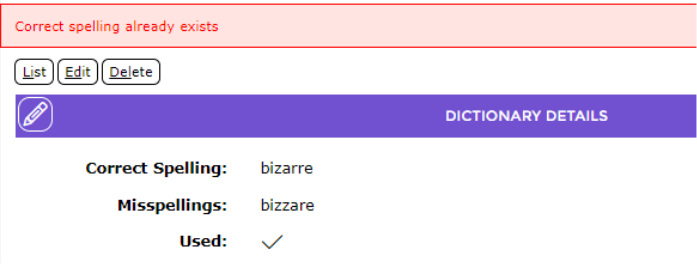
TIP: The system will not permit a duplicate entry of a correctly spelled term. If you have not done a search, to confirm whether the term you are about to add does already exist, and you complete the Add screen then click Save, the Detail screen of that term will display and include a message telling you “the correct spelling already exists”.
1. Navigate to System > Dictionary.
2. In the List or Search screen, click on the New icon (you can also select New from the Function menu or type ne as preferred).


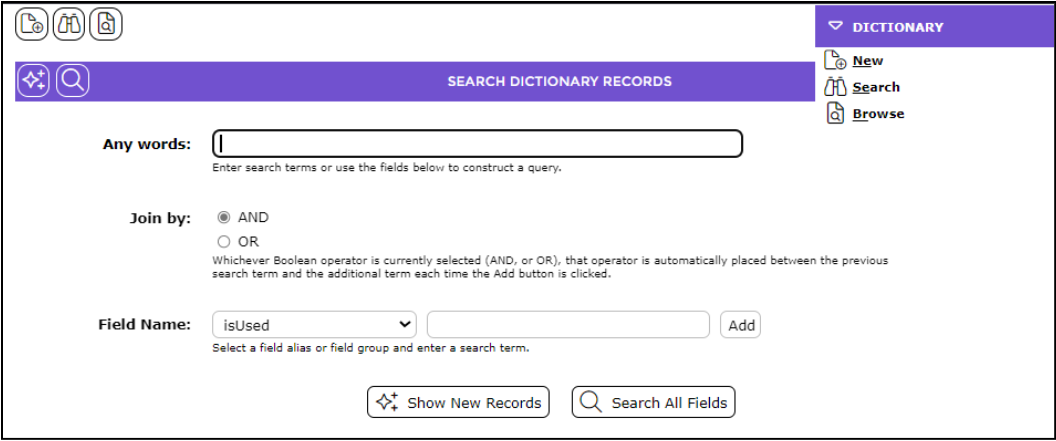
3. The screen below will display an example.
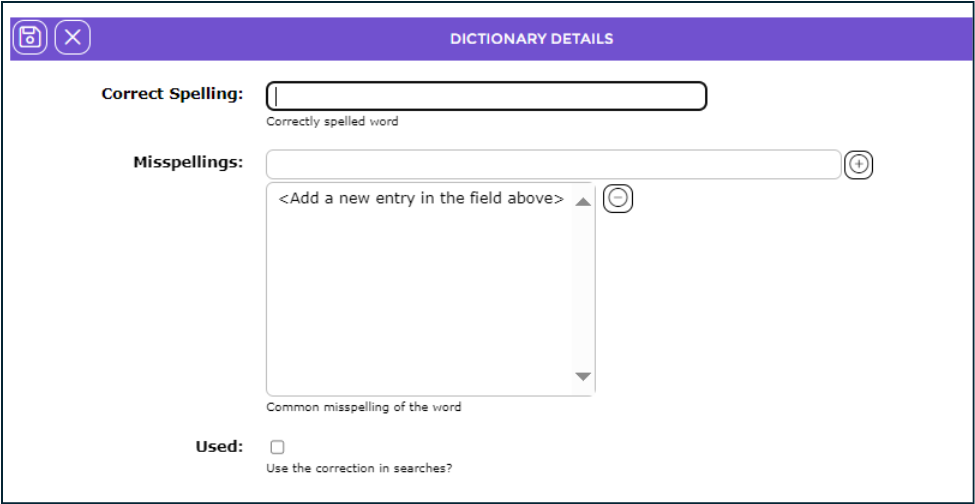
4. In the Correct Spelling field, enter the word you wish to add to the dictionary, for example, bizarre.

5. In the Misspellings field, enter a common misspelling of the word to tie to the correctly spelled word, for example bizarre, then click the Add icon at the end of the field.


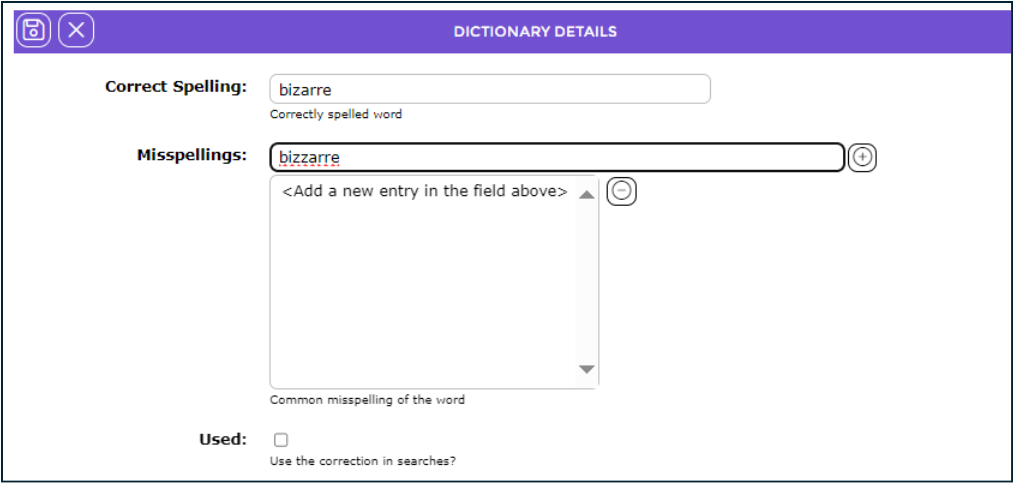
6. The misspelled word will display in the list-box below the field.
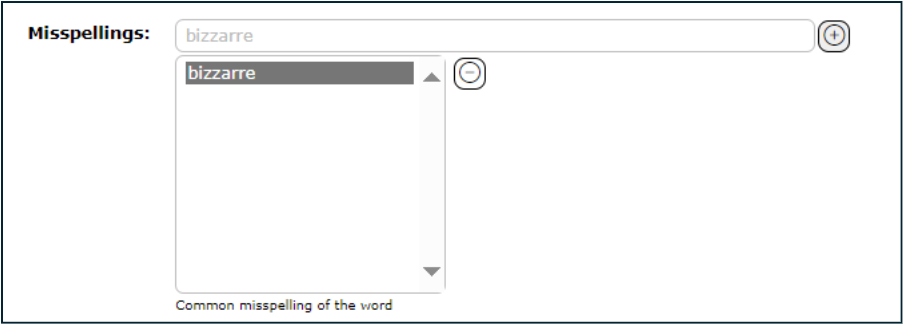
7. If there are any further misspellings you wish to include, repeat step 5.
8. Ensure you click in the checkbox next to the Used option. This ensures the “were you searching for?” option will display if a patron enters one of those misspellings you have added for ‘bizarre’.
9. When all the misspellings are added click the Save icon.


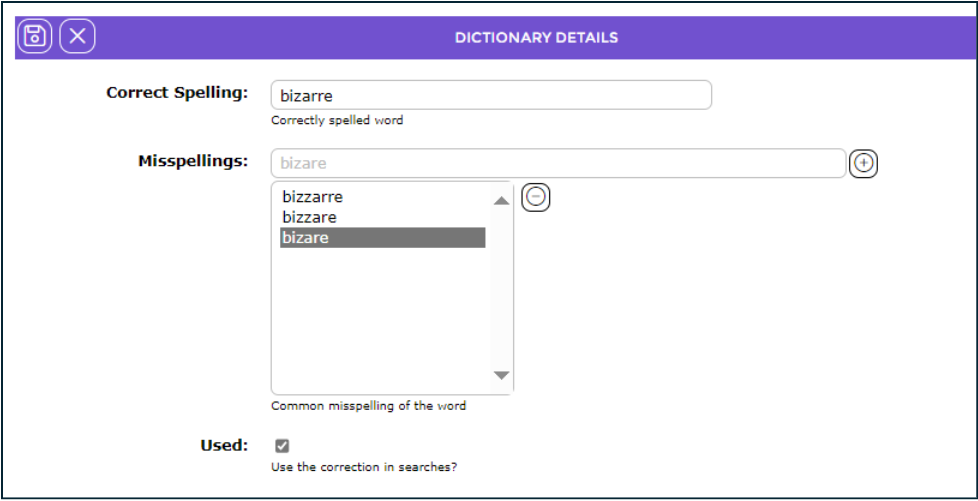
10. The Dictionary Details screen of the newly added word will display. It includes the misspellings you just entered.
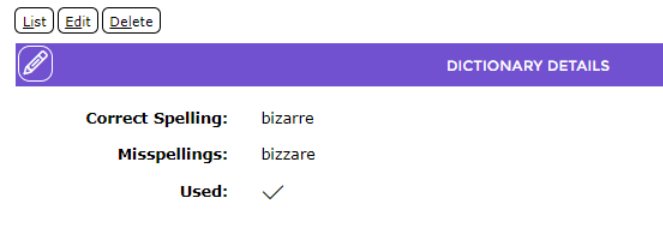
11. To add further misspellings to the new dictionary word, click the Edit button, repeat step 5 then click the Save button.
Check ‘Were you searching for:’ Displays in the Search Interface
This example will use the misspelled term, bizzare.
1. Enter one of the misspelled words in the Search interface, for example, bizzare.
2. Click the Go icon.
3. The suggestion of bizarre, which is the correct word, on which that misspelling is entered, will display under the ‘Were you searching for:’ section.

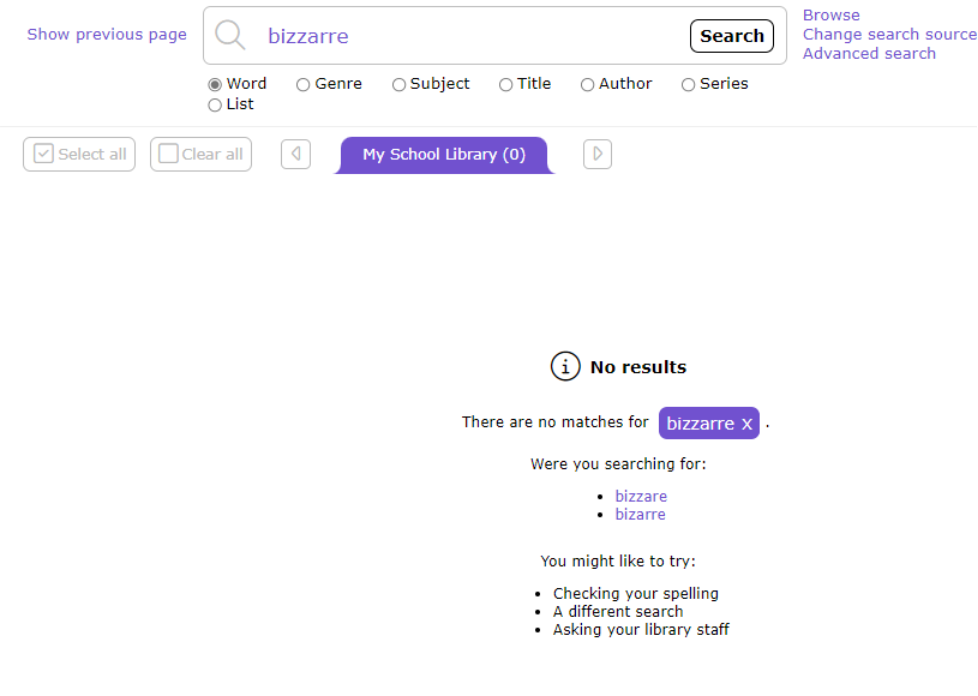
TIP: There are two common reasons why Were you searching for? will not display:
The Used checkbox on the correct spelling entry in the dictionary is not ticked
or
The misspelling is not included by default or not yet added to the correct term/s by staff
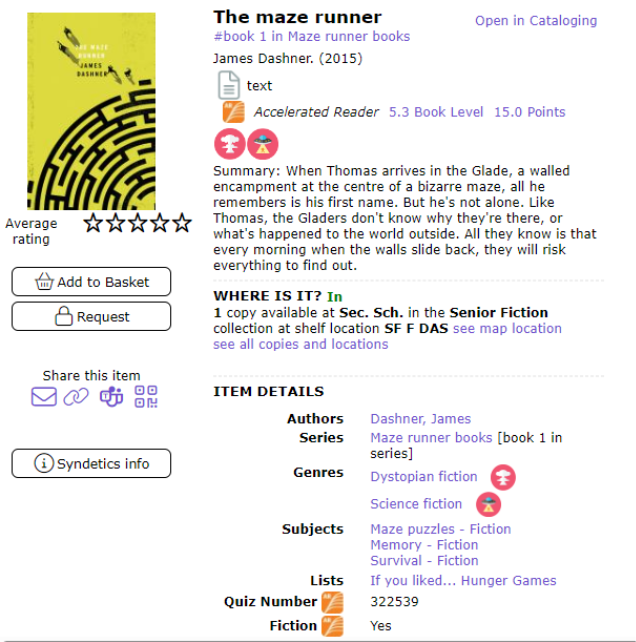
4. The correct term is a link which, when clicked, will display all resources on which the correct word is included somewhere in the record.
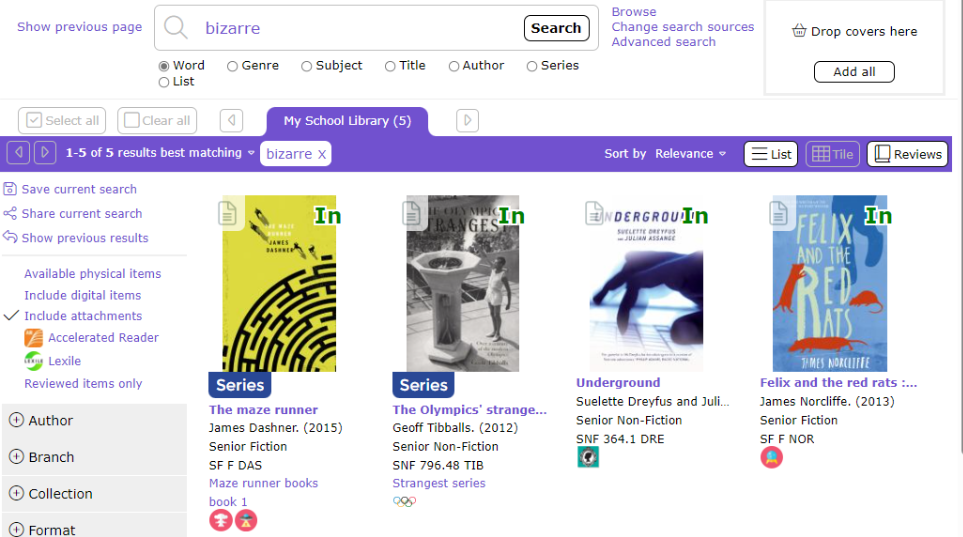
You may need to access the Detail screen of the records to locate the search term.

Was this article helpful?
That’s Great!
Thank you for your feedback
Sorry! We couldn't be helpful
Thank you for your feedback
Feedback sent
We appreciate your effort and will try to fix the article