Summary
A BibType is a mandatory requirement when creating resource records and a default type can be set for automatic selection.
This guide provides an overview the Entity (screen/page) and the corresponding Page Types and Names that are included in the Entity.
Overview
A list of system provided BibTypes can be accessed via Cataloging > BibTypes. Additional BibTypes can be created and deleted as applicable.
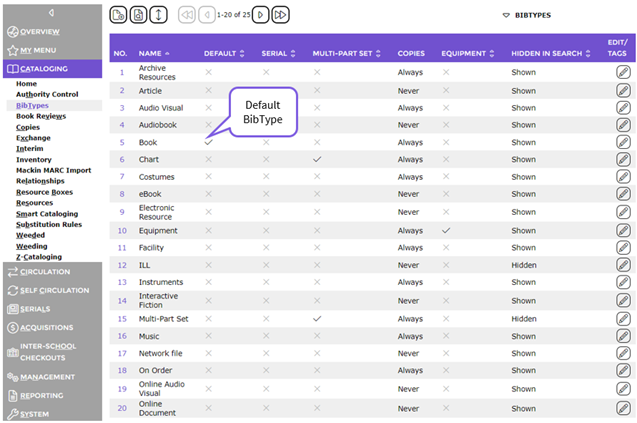
A check, displayed in the Default column cell, identifies the default BibType.
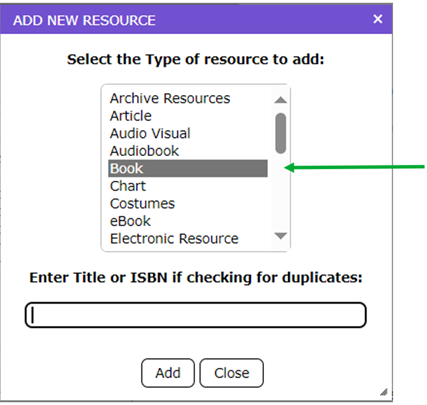
If the system set default of Book is not applicable because, for example, the most new materials added to the system are serials, set Serials as the default instead. The default is highlighted in the list-box of the Add a new resource popup screen when staff manually add a new resource to reduce the number of times that BibType is selected. A different BibType can be selected in the Add New Resource popup screen whenever other resources, being added to the system do not conform to the default BibType.
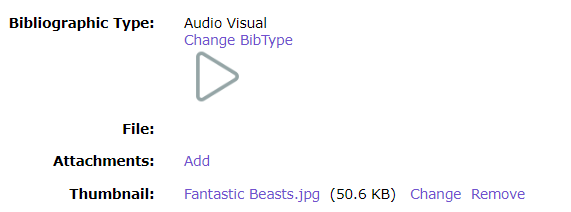
The BibType selected on resource and interim resource records determines what fields are available for completion, and whether they are compulsory to complete, on those records. An image can be added, which will display in the Search interface, and a default Resource Type selected for the BibType.
The How to Create a BibType guide provides a fuller explanation of the fields in a BibType Add/Edit screen.
BibType Entities
The BibType field is included in the Add, Edit, and Detail of the resource and interim resource records in Cataloging. Those screens are also referred to as Page Types while modules in which the BibType Page Types are included, for example catalog (catalog), is an Entity Name.
The example will use the Entities and corresponding Page Types that apply to the BibType of Book.
- Navigate to Cataloging > BibTypes.
- Click on the number link corresponding to the BibType of Book.
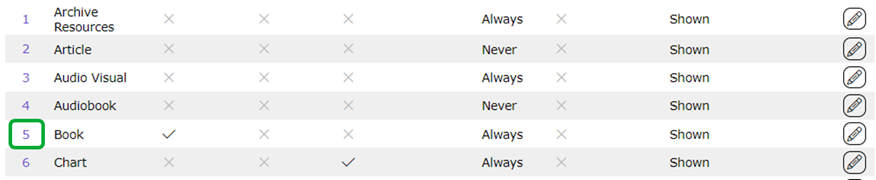
- The Detail screen of the Book BibType will display.
- The grid located towards the bottom of the screen will contain a line entry for each type of Page (screen) that applies to resources with that BibType.
- The first six Areas are for resource records with a BibType of Book, while there are three for Interim records with this BibType.
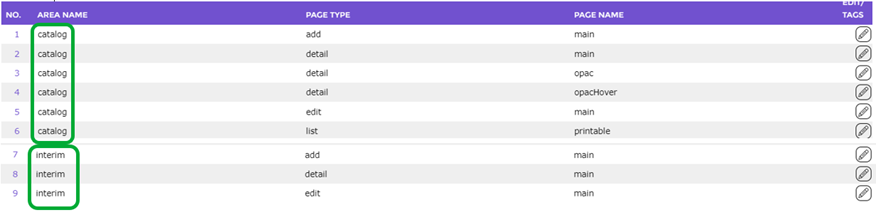
The Entity controls which fields display on the Page Types, for example List, Add or Detail or Edit screen associated with that Entity:
- List – the BibType determines which field information displays on the List screen in Cataloging
- Add – the BibType determines the fields available for completion when a new resource is added to the system.
- Detail – this screen type determines the fields that are included in the Details screen in Cataloging, and the Detail and Hover screens in the Search interface
- Edit – the edit screen type controls the fields available for completion when an existing resource is updated.
Clicking a corresponding number displays the relevant Page Type Detail screen and includes the screen’s applicable fields in the order they display in that screen.
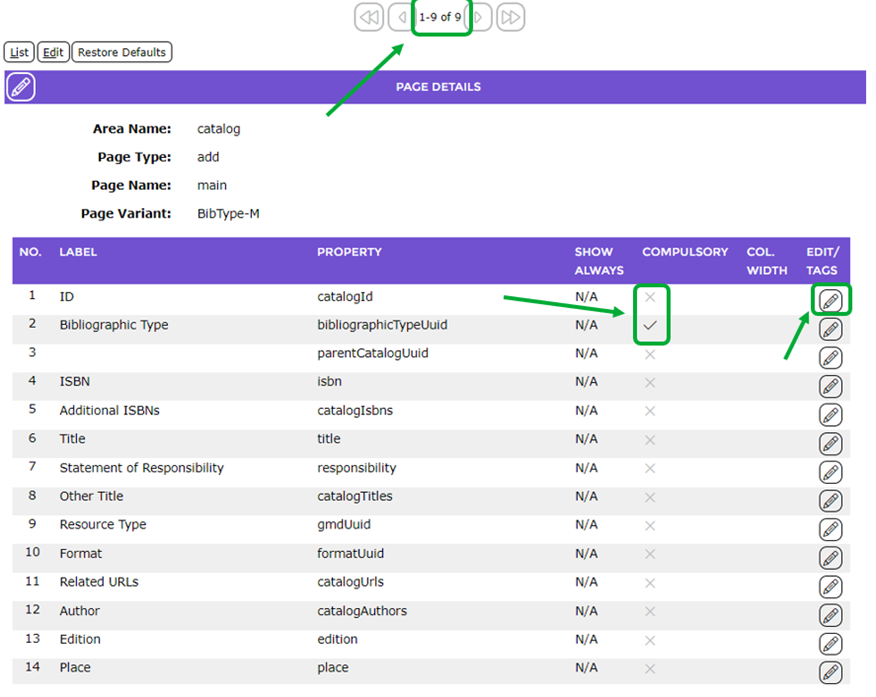
Clicking on the Edit icon corresponding to a particular field will enable staff to edit the Compulsory setting if required.
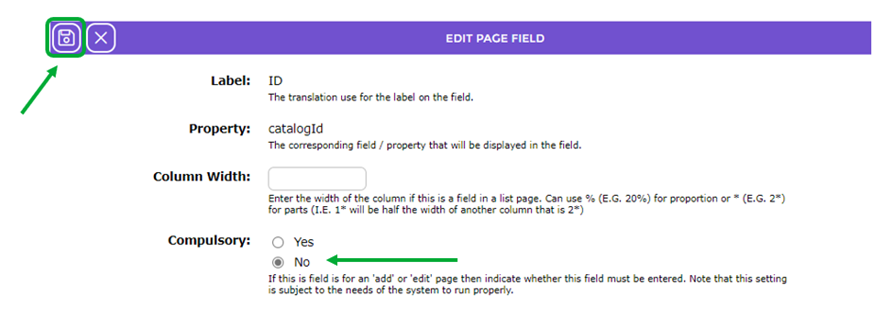
The Save button must be clicked for any edits made to Entity Page Type settings.
Was this article helpful?
That’s Great!
Thank you for your feedback
Sorry! We couldn't be helpful
Thank you for your feedback
Feedback sent
We appreciate your effort and will try to fix the article