Summary
The Merge function enables staff to remove duplicate records from the catalog. It transfers any holdings included on the record to be merged if applicable.
This guide will provide the steps required to merge resource records. A separate guide provides the steps required to complete a search.
Merge Resource Records
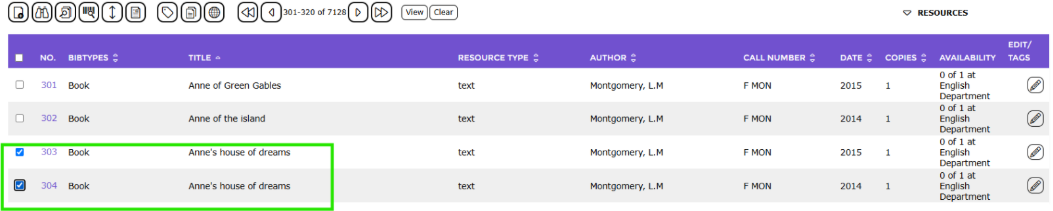
1. Complete a search for the duplicate titles. Select which resources you wish to merge by clicking in the checkbox.
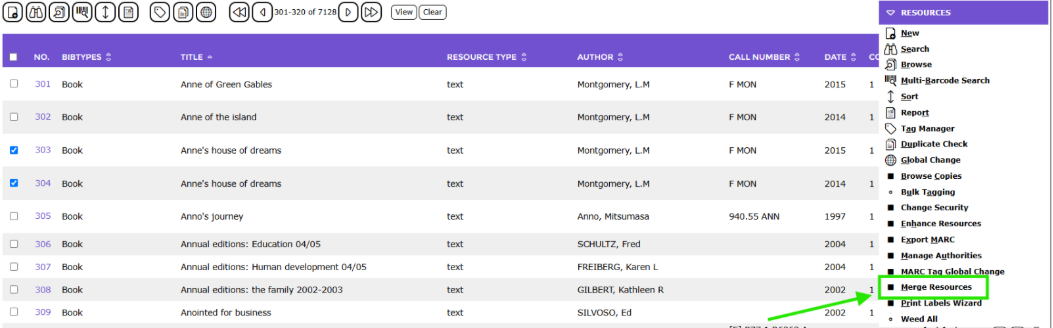
2. From the Resources Function menu click on Merge Resources.
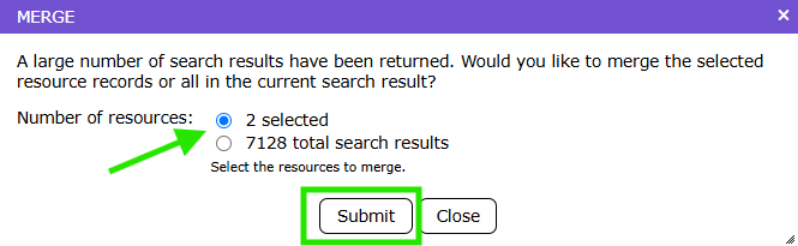
3. Confirm you have selected the appropriate number of resources to merge and click Submit.
4. The List screen will refresh and display listing any copies that may be merged into the target resource.

The screen includes several columns containing information on the resources that will help staff to identify which is the target resource, that is the one into which the other/s records will be merged. The information includes:
Title
Description
BibType
Date
ISBN
Resource Type
Author
Copies

5. Click in the Select circle next to the target record to be merged into. Note that the Accept button is greyed out until the radio button next to the target record is clicked in. Click on the Accept button.

6. The screen will again refresh and display the record/s that are to be merged with the target record selected in the previous screen. Click in the applicable checkbox/es then click the Accept button. Be aware that you will not be able to merge titles which are of different BibTypes.

Note: If the record is incorrect the user can click the Cancel button to return to the original List screen which included all the records that were to be subject to the merge process.
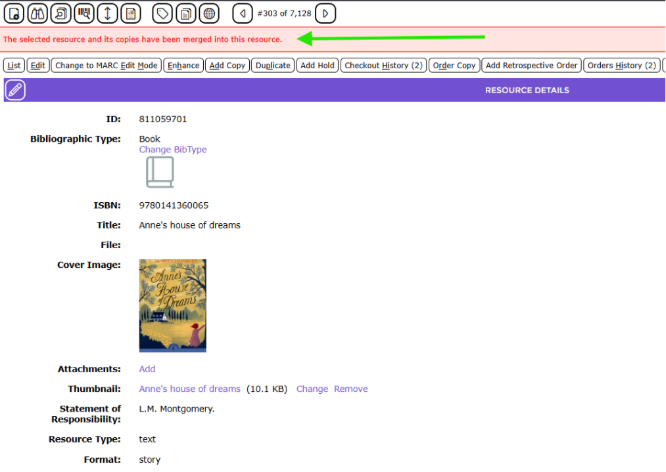
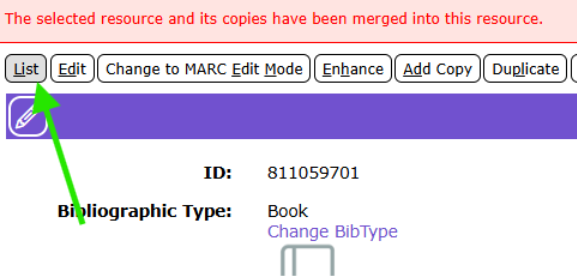
7. The Detail screen of the target resource will display. A message in red text indicates that the selected resource and its copies have been merged into “this” resource.
8. To check that the record/s that were merged into the target resource no longer exist, return to the list.
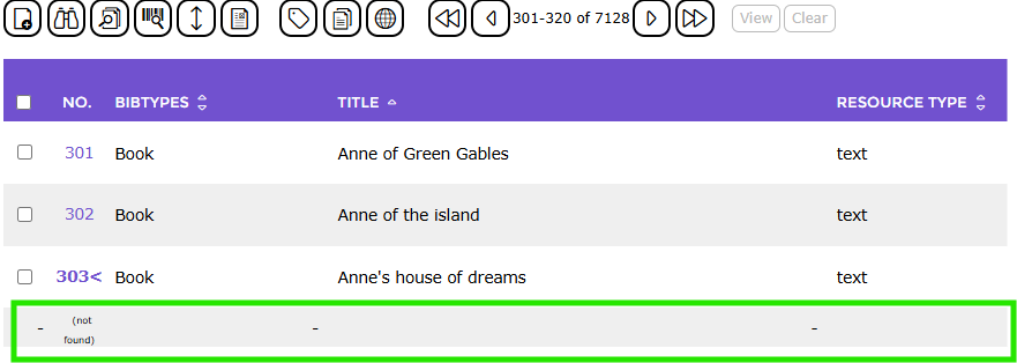
The row where the title previously was located now displays as (not found). You can confirm this as well by performing a search.
Was this article helpful?
That’s Great!
Thank you for your feedback
Sorry! We couldn't be helpful
Thank you for your feedback
Feedback sent
We appreciate your effort and will try to fix the article