Summary
Copies, tied to resources have their own record. Searching copies may be required to identify copies with a particular status as part of the on-going process of managing the library’s resources. The Copies Search screen, accessed via the Cataloging main menu, provides a number of search options that are different to those found in the Resources Search screen.
This guide will provide an overview of the Copies search screen and examples of an Advanced and a Simple search.
The Copies Search Screen Options
The following table identifies the search options available in the Copies Search screen:
Search Option |
Description |
Any words | All of the fields in a resource including Title, Author, and Subject are searched for a match to the search term entered in this field.
It is not mandatory to enter a search term. A search can be completed by selecting specific options from the selection options and then clicking the Go icon.
|
Barcode | Entering the applicable barcode in this field immediately narrows to the search to a specific copy.
|
Call Number
| Entering a start and end call number for a range will narrow the search between those call numbers. Leaving the end call number blank will result in the start call number being wildcarded.
|
Any Words Operator | Users can search on more than one term using either the AND or OR operator. For example: Cats AND Dogs Cats OR Dogs
|
Missing/Disposed Prior To: | To search for copies flagged as Missing or Disposed prior to a particular date, enter the applicable date in this field. The Calendar icon can also be used to add the date.
This type of search is used in conjunction with the applicable Status when, for example, a report on such copies is required. |
Collection | Copies tied to one or more Collections can be searched on. Select the applicable Collections from the list-box.
|
Not Loaned After
| Enter a date where the resource was not loaned after. This could be due to weeding.
|
Branch | A search can be completed for copies tied to one or more Branches. Select the applicable Branch or Branches from the list-box.
|
Status | Select the applicable Status from the Status listbox to return a results list of copies with the selected Status.
This option is often used in conjunction with Missing/Disposed. It is also often used to identify In Transit, In Rotation and On Hold prior to running the related reports.
|
RLC | Copies tied to resources with a specific Resource Loan Category.
|
Date Received | Enter either a specific date that matches in both boxes to narrow search down to a specific day or put in a range to narrow search down to the range of dates received.
|

Example Search Using Selected Criteria (Advanced Search)
The following steps are those taken to return a list of copies with a Status of Missing located at the Stow Branch prior to the date of 31/07/2015.
For this example, the Any Words field remains empty. The search options chosen will depend on what you are searching for and why.
- Navigate to Cataloging > Copies and the Search screen will display.
- The date selected using the Calendar icon in the Missing/Disposed field is 12/23/2015.
- The date format follows the preferred default setting.
- In the Collection list-box, Junior Fiction has been highlighted.
- In the Status list-box, Missing has been highlighted.
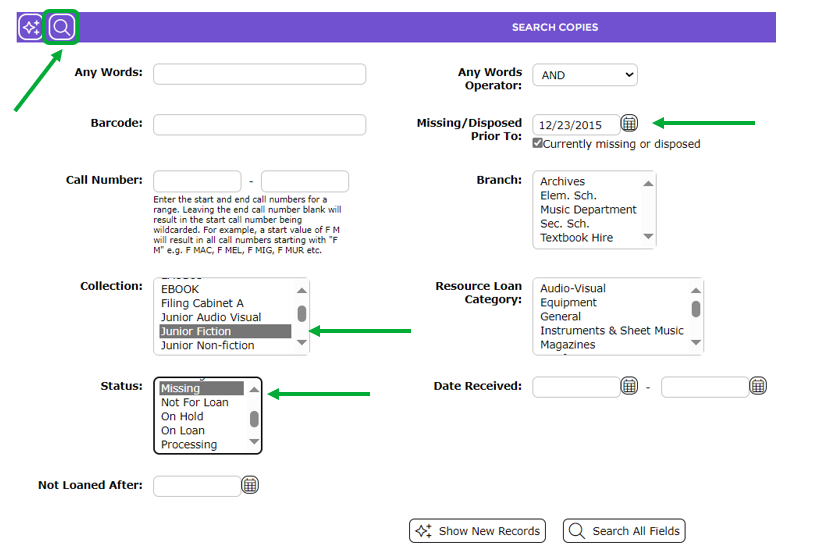
- Once all the criteria have been selected the Search icon or button is clicked.
- The Result screen will display. All copies that fit the criteria entered in the Search screen will list.
Simple Any Words Search Example
A simple search is done by entering a term on which you wish to search in the Any words field. If no other criteria are applied, and the term is very general, for example, environment, the number of copies returned in the result list may be significant particularly for libraries with large catalogs.
- In the Any Words field, enter the term on which you wish to search, for example, environment.
- Click the Search icon or button.
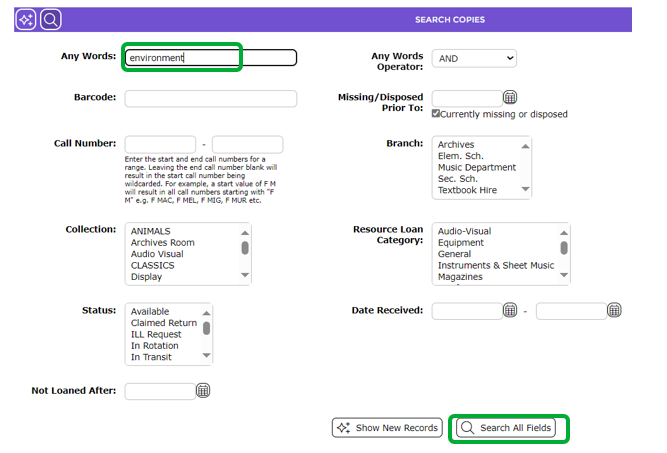
- The List screen will include all copies in the catalog that include the term.
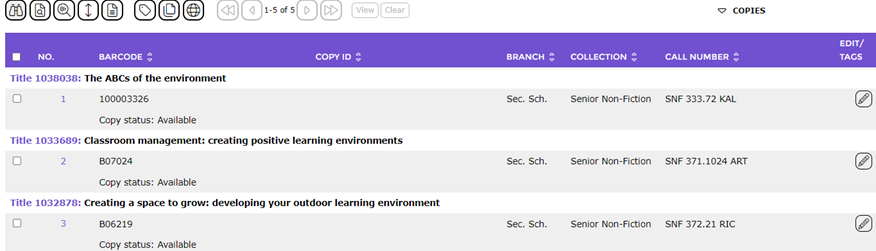
Once the list of required copies has been returned from a search, processes such as reporting, weeding, or re-ordering can be undertaken.
Search for Copies by Call Number
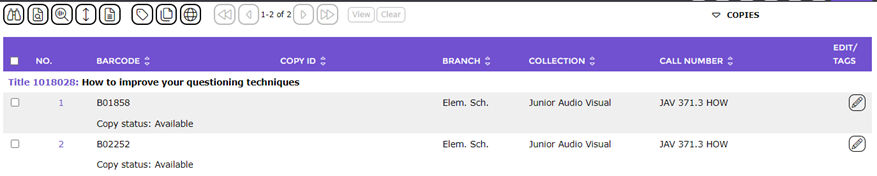
In the following example, a search on copies starting with a call number number of 371 that are in the Corbett branch and have a Resource Type of text will be done.
- Navigate to Cataloging > Copies > Search Copies screen.
- In the Any Words field enter call number =”371.*”
- In the Branch list-box click on the branch required, in this example, Elem. Sch.. Note that selecting a branch is not mandatory if you just want a list of all resources within the system with the call number number.
- Click the Search icon or button.
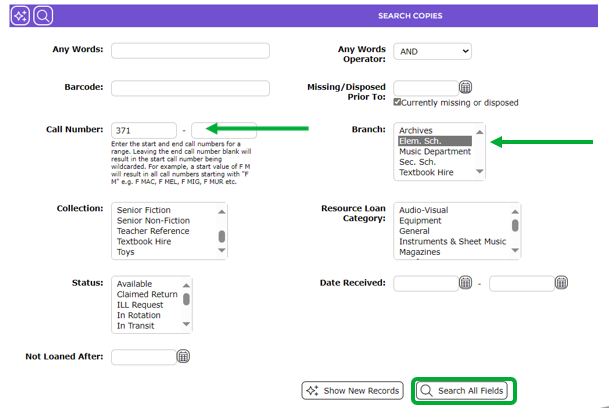
- The Copies > List screen will display and include only copies that match the search term and options selected in the Search Copies screen.
Was this article helpful?
That’s Great!
Thank you for your feedback
Sorry! We couldn't be helpful
Thank you for your feedback
Feedback sent
We appreciate your effort and will try to fix the article