Summary
Several patron reports are available that will identify, for example, which patrons have loaned which titles in the past, or the value of items currently on checkout to patrons or provide a list of current patrons. The data on reports will generally depend on the type of search you completed.
This guide will provide the steps to running a Full Patrons report. Several other help guides provide the steps to running some of the other patron reports. There is also a generic guide on how to run a report that gives you the standard steps required to run a report and a guide on how to complete a patron search.
How to Run a Full Patrons Report
As is the case with the process to run most reports, a search for the applicable list of records must first be completed. The search undertaken is determined by the type of patrons to be included in the report, for example, all current patrons with a Patron Type of Student or patrons with a specific department or homeroom tied to their record.
1. Complete a search in the usual manner.
2. In the List screen, click on the Reports icon.


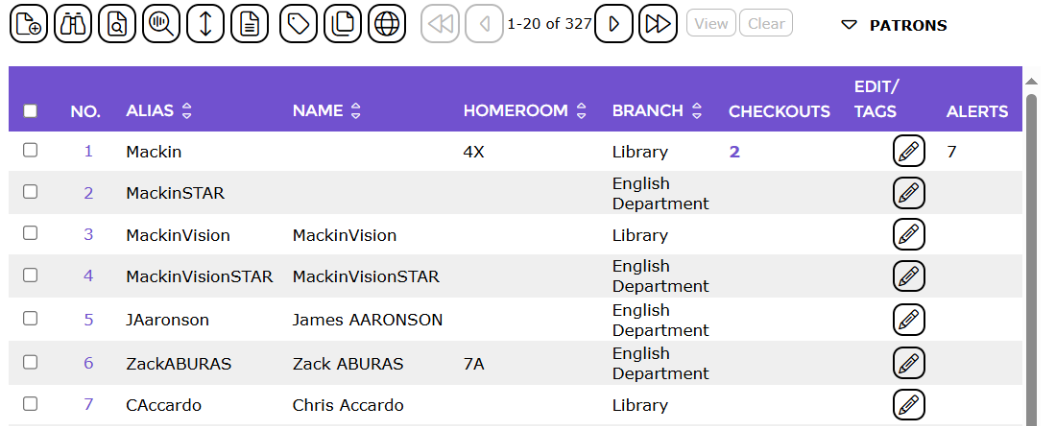
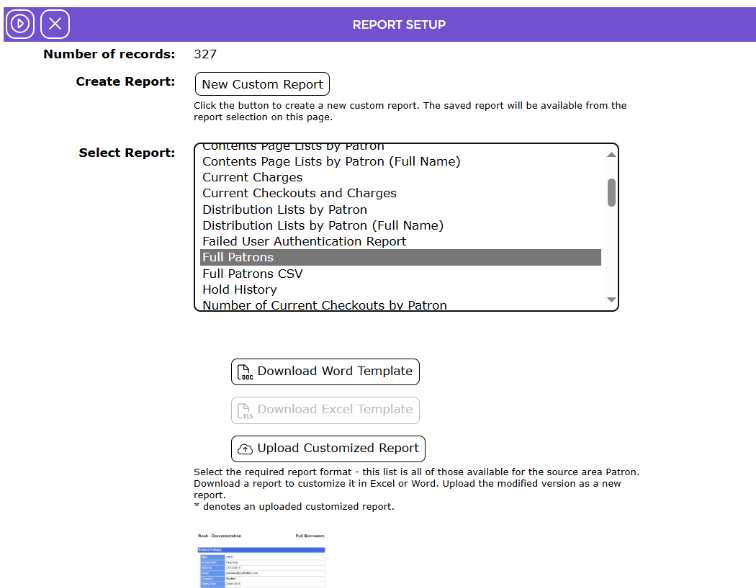
3. The Report Setup screen will display.
4. Scroll through the reports included in the Select report list-box to locate the Full Patrons and click on it.
5. When the report is clicked on an Example field displays. It contains a report preview image. Click on the image to enlarge it.

6. Click on the down arrow to select your preferred option if the default selection is not the format required.
There are two fields included by default in the Sort by list-box. In the Fields list-box are several other fields that can be selected as additional sort options for the records included in the report.
7. If there are additional fields available on which to sort the report's data by, they will display in the Available Fields list-box. Click on the field required in the Fields list-box, then click the left facing arrow button to transfer the field to the Sort by list-box.
Note: It is not mandatory to select additional sort fields but for some records, such as patrons, it may be advisable to do so as there may be several patrons with the same name.
By default, the sort by option is Ascending. This is indicated by ASC appended to the field names in the list-box.
8. To sort the records in descending order, click on the applicable red link located below the Sort by list-box.
9. Click the Go button.


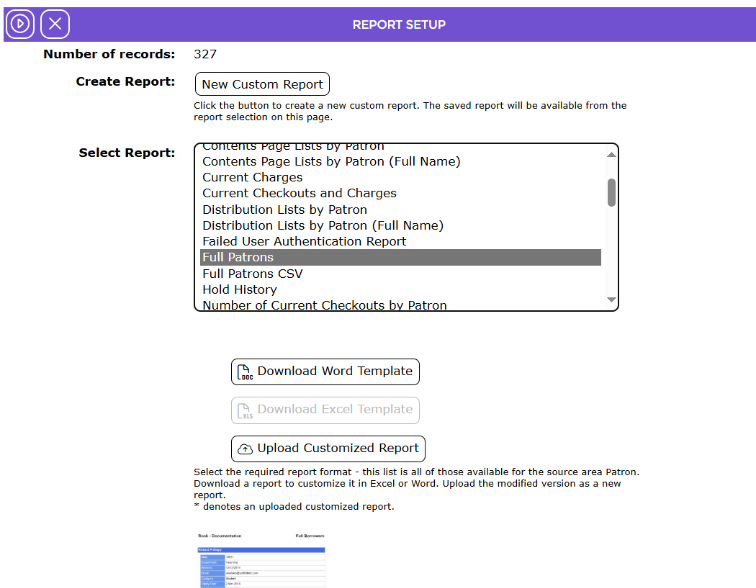
10. The Reports screen will refresh and when ready the Download Full Patrons report link will display.
11. Click on the Download Full Patrons report link.

12. The File Download popup screen or Do you want to open… panel will display. Both options include the Open, Save, and Cancel buttons.
13. Click on the Open button to print the report to the screen or if preferred, click on the Save button and save the report to a location on the computer. Ensure that the location is accessible. Click Cancel if you do not wish to run the report.
14. To return to the List screen click on the Return to Patron List icon.

15. To schedule the report click on the Schedule icon. See the How to Schedule a Report guide to do so.

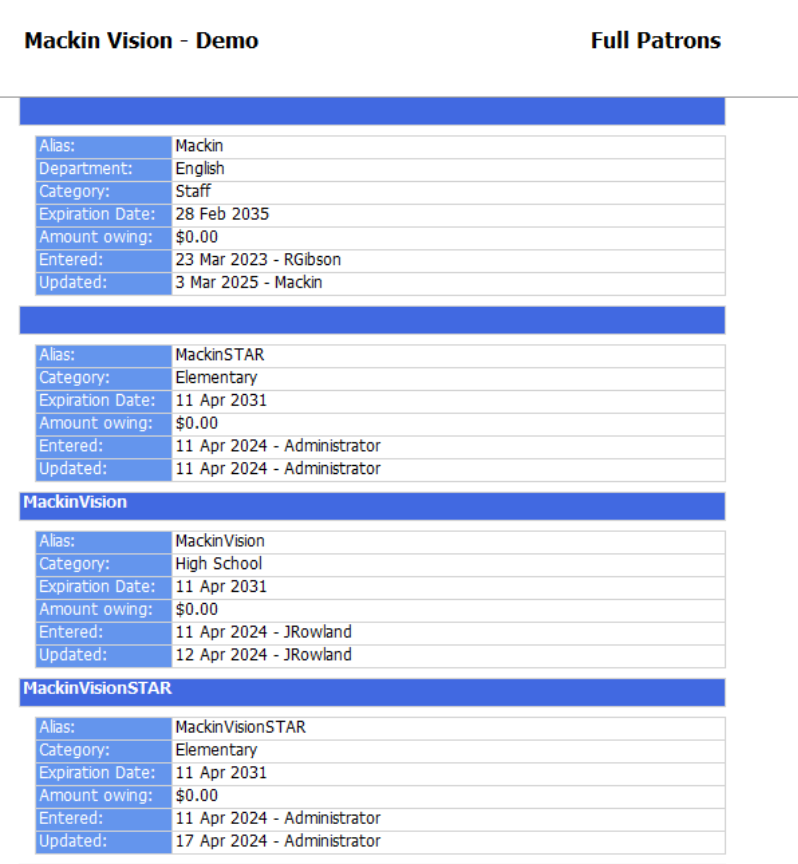
The report includes:
patron name
alias
department if applicable
address
email
category
membership expiration date
any amount owing
date the patron record was created and last updated.
Example Report Screen
Was this article helpful?
That’s Great!
Thank you for your feedback
Sorry! We couldn't be helpful
Thank you for your feedback
Feedback sent
We appreciate your effort and will try to fix the article