Summary
Library staff can switch between the Resources and Copies List screens in Cataloging. This functionality is dependent on the activation of two User Privileges and the value set in the Maximum Size List parameter.
This guide will provide the privileges and parameter that relate to this functionality and the steps required to switch between the Resources and Copies List screen.
Related Parameter and User Privileges
To ensure that the required Function menu options of switching options of Browse Copies and Browse Resources will be available, the current List Size must be less than the value set in Parameter No. 1200 Maximum List Size. For example, if the value in the parameter is 1000 and the Results List screen contains less than 1000, the functionality is available.

Go to System > User Privileges > Cataloging.
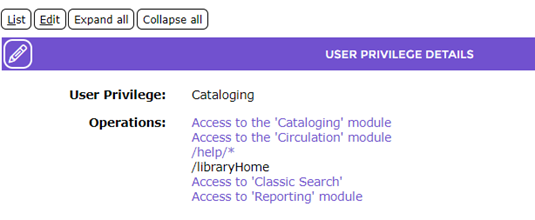
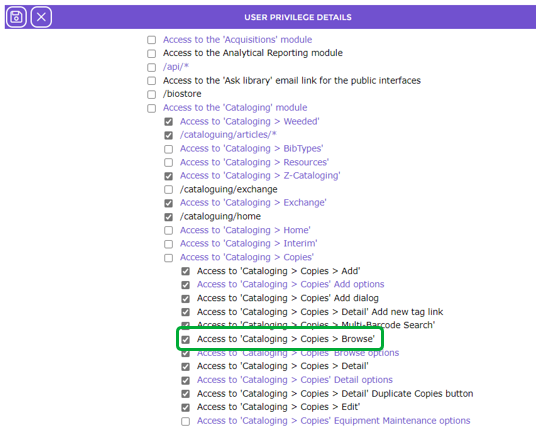
Ensure the following two User Privilege operations are activated, (that is the corresponding checkboxes contain a check) for any staff who have access to functions in the Cataloging module:
Cataloging > Copies > Browse
Cataloging > Resources > Browse Copies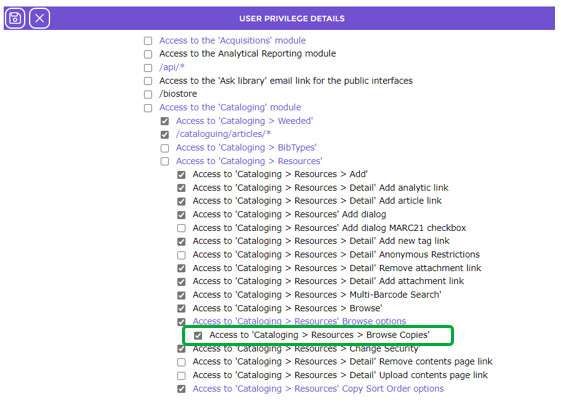
Switching Between Resources and Copies
If a staff user completes a search in Resources, the Function menu option will be Browse Copies. If the search is done in Copies, the Function menu option will be Browse Resources.
- Complete a search in Cataloging > Resources in the usual manner.
- In the resulting List screen click on the Function menu and click on Browse Copies.
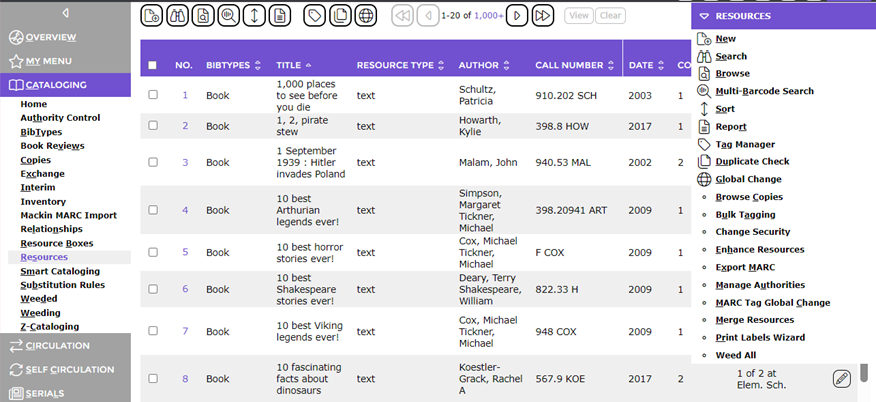
- The Copies List screen will display. It will only include copies tied to any of the resources in the Resources List screen.
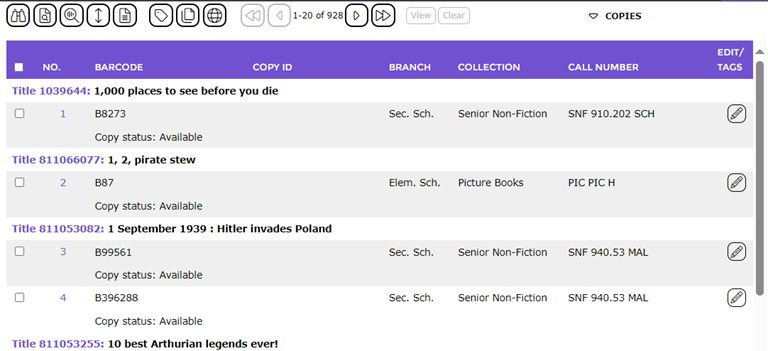
In the above example screen, 928 copies are listed. This indicates that many of the resources in the Resources List screen did have copies attached.
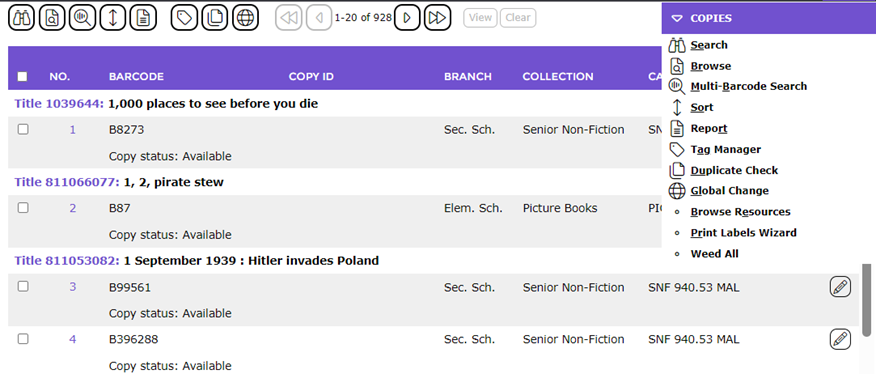
- To switch back to the Resources List screen click on the Copies Function menu and click on the Browse Resources.
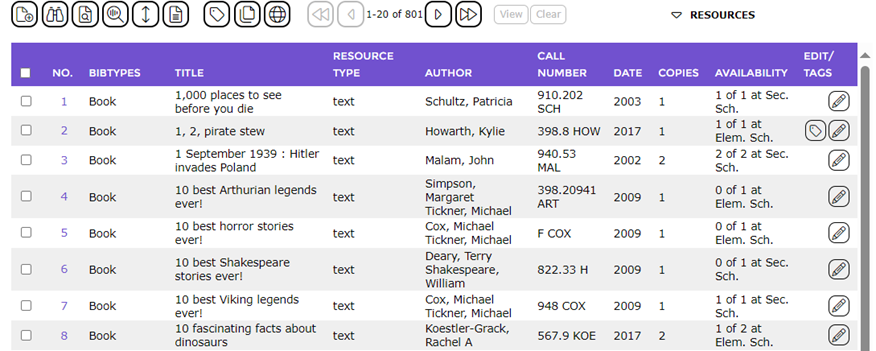
- The Resources List screen will display but note that only resources with copies are now included in the screen.
Was this article helpful?
That’s Great!
Thank you for your feedback
Sorry! We couldn't be helpful
Thank you for your feedback
Feedback sent
We appreciate your effort and will try to fix the article