Summary
Tags can be added to records that have a commonality, for example, copies to be reviewed or weeded or added to a reading list. Staff can then search for the list of copies with a tag in common. A tag can be added to one or more copies and more than one tag can be added to one or more copies. Note that tags can be added to resource and patron records as well.
This guide will provide the steps required to add a tag to a copy. Separate guides provide the steps required to complete a copy search, add a tag to a list of copies and add tags to Patron and Resource records.
Add a Tag to a Copy Record
In the following example, a new tag will be created as part of adding a tag to a copy. Staff can also select an existing tag.
- Search for and access the Detail screen of the copy record, to which a tag will be added.
- Click on the Add new tag link in the Tags field.
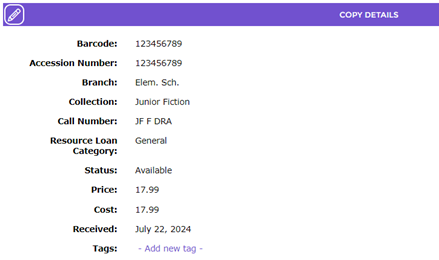
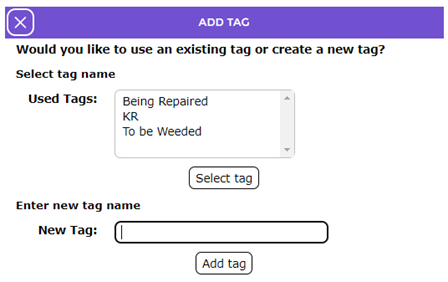
- The Add tag popup screen will display. This screen enables staff to select an existing Tag or create a new one.
TIP:
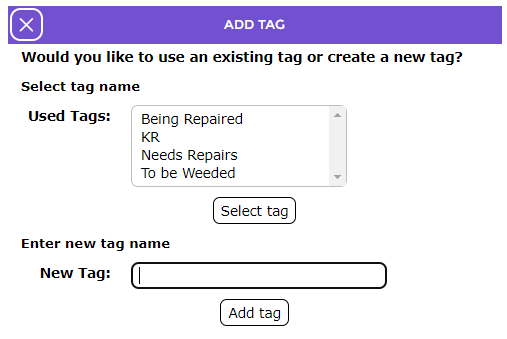
You can create a new tag or select an existing tag via Add tag popup screen. If the tag required already exists, it will list in the top list-box in this screen. Users can add an existing tag to a record by highlighting the required tag and clicking the Select tag button.
- In the New Tag field, enter the name of the new tag, for example, Needs Repairs, and then click the Add tag button.
- The copy Detail screen will display. The tag name is now included as a link in the Tags field.

- The tag will be available for selection on another copy record when the Add new tag link, in the Tags field of the copy, is clicked.
Was this article helpful?
That’s Great!
Thank you for your feedback
Sorry! We couldn't be helpful
Thank you for your feedback
Feedback sent
We appreciate your effort and will try to fix the article