Summary
Resources can be added individually to existing Reading Lists, as part of the process to add a resource to the catalog.
This guide provides the steps required to add a resource to a reading list. Separate guides provide the steps required to create a permanent and temporary reading list.
Add Resources to a List Individually
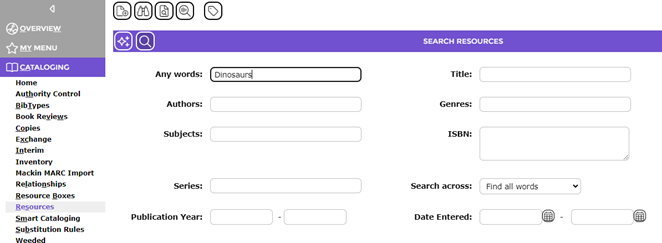
- Navigate to Cataloging > Resources and complete a search in the usual manner.
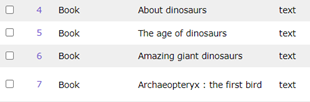
- Access the Details screen of the applicable resource.
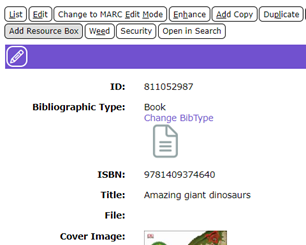
- Click the Edit button.
- Locate the List field.

- Enter the first few letters of the List name and any lists matching the part term will display in the list box below the field.
- Click on the Plus icon next to the required List.
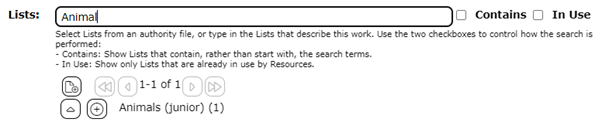
Note: New lists can be created from the screen by clicking on the New icon in the List field.
- The selected List will display in the list-box below the List field.
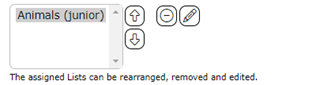
Note: Clicking List Edit icon enables staff to edit the term if required, for example, if there is a typing error.
- Click on the Save button.
- The resource will now be included on the List.
Was this article helpful?
That’s Great!
Thank you for your feedback
Sorry! We couldn't be helpful
Thank you for your feedback
Feedback sent
We appreciate your effort and will try to fix the article