Summary
The number of Translation keys for terms and field labels on most screens in the system can be identified via the screen itself. Once the Translations option is turned on the key for the terms can be easily identified by clicking the Translations Link. Staff, with the required permissions, can complete a translation of the applicable field label or term.
IMPORTANT: Be aware that once a translation is completed, it will apply to any occurrences of that term throughout the system. So, if, for example, the existing term of Alias is changed to Barcode, anywhere the term of Alias occurs will now display as Barcode.
This guide will identify how to access the list of translation keys related to a screen the user is in via the Translations xxx link and then translate a term. A separate guide provides the steps required to completing a translation using the Find translation for selected text link.
Access the Translation Keys Related to a Particular Screen
The example will use the patron Detail screen.
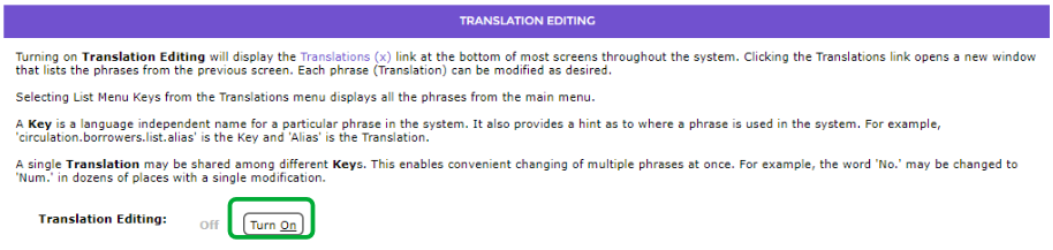
1. Navigate to System > Translations and click the Turn On link
2. Navigate to the screen in which the term or label you wish to change is located, for example, a Patron Detail screen.
3. Scroll to the bottom of the Patron Detail screen and click on Translations (206).

4. A popup Translations List screen will display.
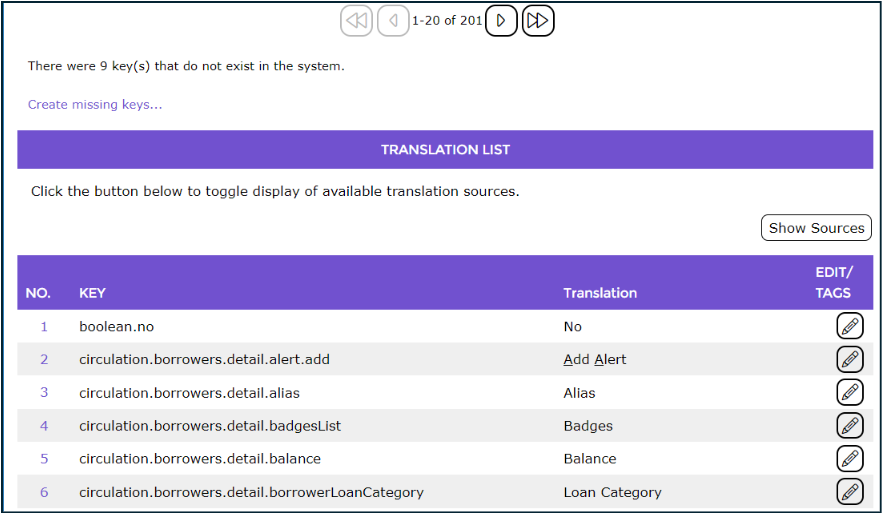
5. Users can scroll through or use the Back and Forward arrows to identify all the applicable keys.
To Use the Translations List Screen to Translate a Term
Staff with the applicable user privilege operations activated can edit a translation from this List screen. It reduces the need to search for keys via the System > Translations > Search screen
1. In the Translation List screen click on the Edit icon to go directly to the Edit screen.

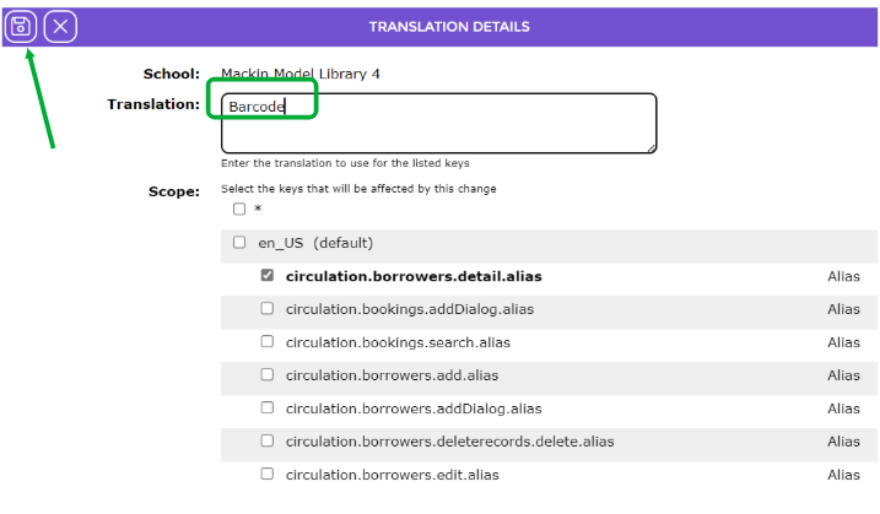
2. Change the existing term, in the example above the term is Alias, to your preferred term by highlighting the existing term and typing in the new one, for example Barcode, then click the Save icon.
3. You are returned to the Translation List screen. Click the Close at the bottom of the screen to return to the patron Detail screen.

4. Exit the patron Detail screen then access any patron Detail screen to refresh the screen. The translated term replaces the default term.
Was this article helpful?
That’s Great!
Thank you for your feedback
Sorry! We couldn't be helpful
Thank you for your feedback
Feedback sent
We appreciate your effort and will try to fix the article