Summary
If you are wanting to customize your own Format terms, they will first need to be set up via the Translations option. It is advisable that you limit the number of character for the new term to ensure the term fits on the relevant Olly button.
This guide will provide the steps required to create your own customized format term translation key.
Adding a Translation for the Term
Access to the System > Translations option is only available to users with the applicable edit User Privilege operations.
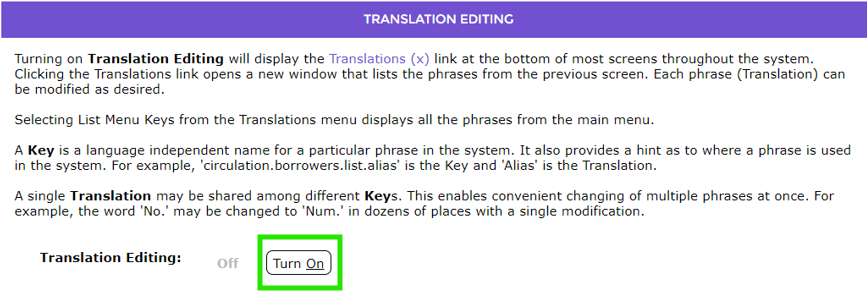
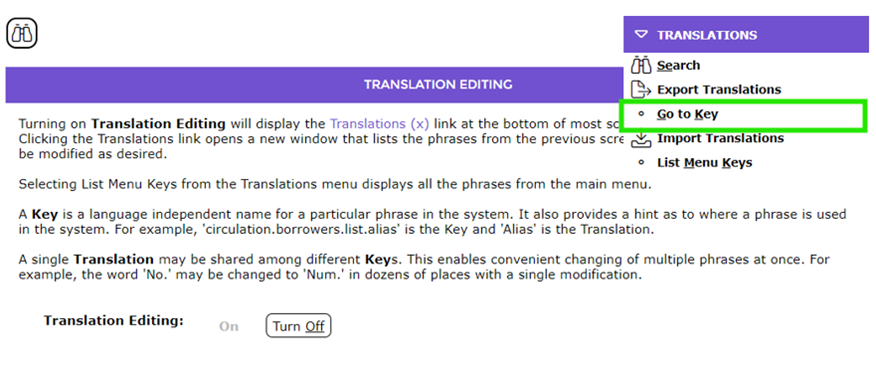
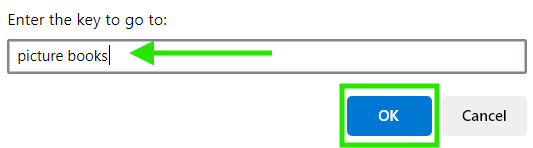
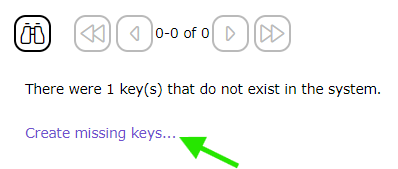
7. The screen refreshes to display the term you entered in the Go to Key message popup, and a corresponding ticked checkbox will display. If the key is correct, that is no typing error click the Create button.
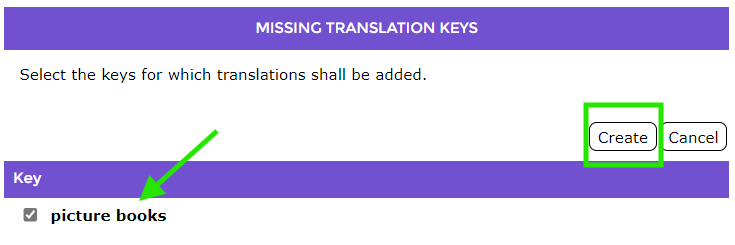
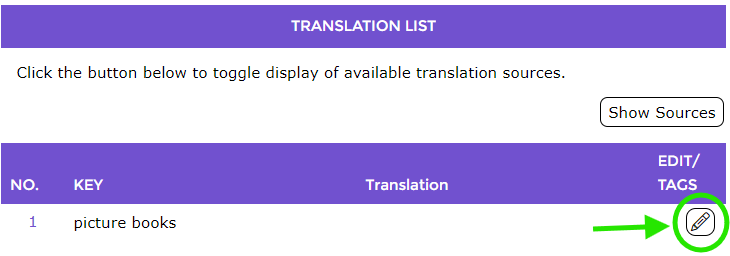
8. The key is now created. If in the future you wish to change your custom term of picture books to some other term, the key is now available for translation.
Was this article helpful?
That’s Great!
Thank you for your feedback
Sorry! We couldn't be helpful
Thank you for your feedback
Feedback sent
We appreciate your effort and will try to fix the article