Summary
A Reading List is a list of resources tied to an existing or newly created term. Any Reading Lists to which resources are tied can be accessed by library Patrons via the Browse by Lists option in the Search interface. A list can be selected on the resource Add/Edit screen individually or a list can be added to applicable resources in bulk.
This guide will provide the steps required to add a list of titles to an existing reading list via the Manage Authorities Function menu option on the Resource List screen. Separate guides provide the steps required to complete a search. There is also a guide providing the steps required to create a new list via the Manage Authorities option in Resources.
Add a List of Titles to a Reading List via the Manage Authorities Function menu Option
- Navigate to Cataloging > Resources > Search.
- Complete a search for the titles you wish to add to the reading list.
- In the Resources List screen, hover over Function and from the menu list click on Manage Authorities.
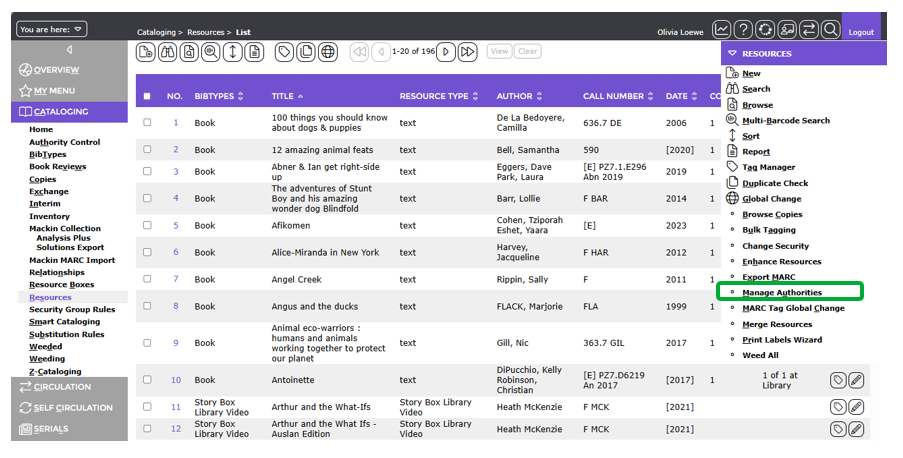
- The Manage Authorities screen will display.
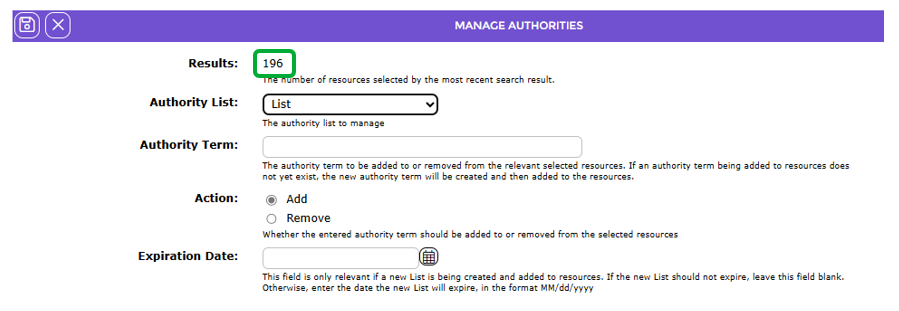
- The Results field will confirm the number of titles, for example 196, returned from the search performed before accessing this screen.
- Ensure List displays in the Authority List.

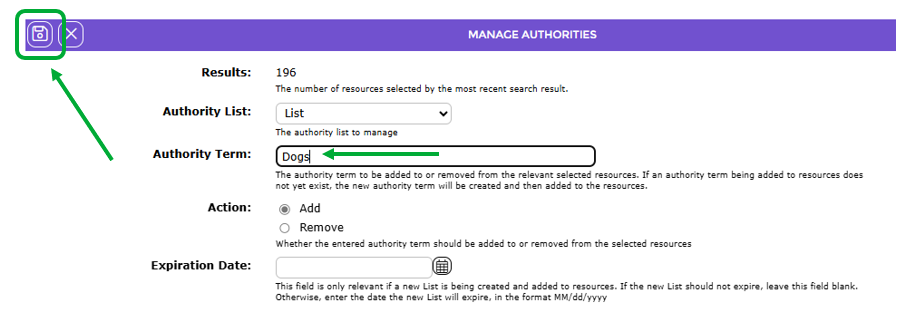
- In the Authority Term field, enter the name of the existing list, for example Dogs, to which you want to add the titles.
- If the radio button next to Add in the Action field is not active, click in it.
- If the list does not have an expiration date and the reading list is to be a temporary one, enter the date in the Expiration Date field or click on the Calendar icon and select the required date. Do not enter a date if the reading list is to be permanent
- When all the details have been completed click the Save button.
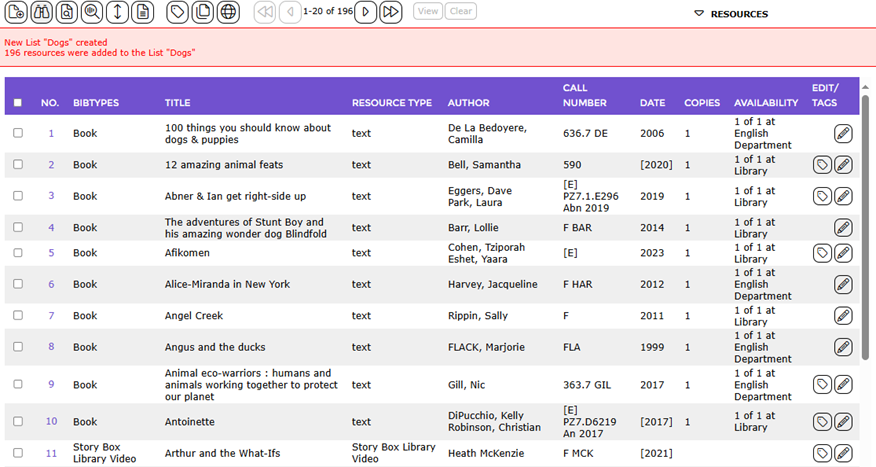
- The Resources > List screen will display and a message in red text will confirm that those 196 titles were add to the List “Dogs”.
Was this article helpful?
That’s Great!
Thank you for your feedback
Sorry! We couldn't be helpful
Thank you for your feedback
Feedback sent
We appreciate your effort and will try to fix the article