Summary
If permitted, patrons can checkout and return items via the Self Circulation option. There may be exceptions to the rule when patrons have overdue items or charges outstanding, for example overdue or hold or replacement changes.
This guide provides the steps required to checkout and return items.
| Sounds can be played when checkouts and returns are successfully completed in Self Circulation. In Management > Parameters, parameters 3043 'Custom Checkout Success Sounds' and 3044 'Custom Return Success Sound' allow for customized sounds to be selected, uploaded and played in Self Circulation. |
Checking out Items via Self Circulation
- Check that the Checkout screen is open. You can tell if “Enter Patron ID” appears above the field at the
top left of the screen and the heading Current Checkouts is displayed on the right.
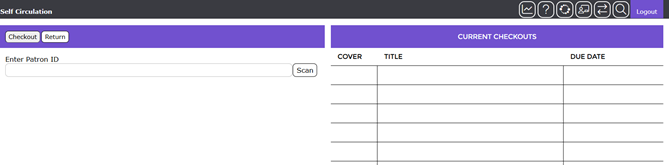
Note: If the Return screen is displayed, just click on the Checkout button to open the Checkout screen. |
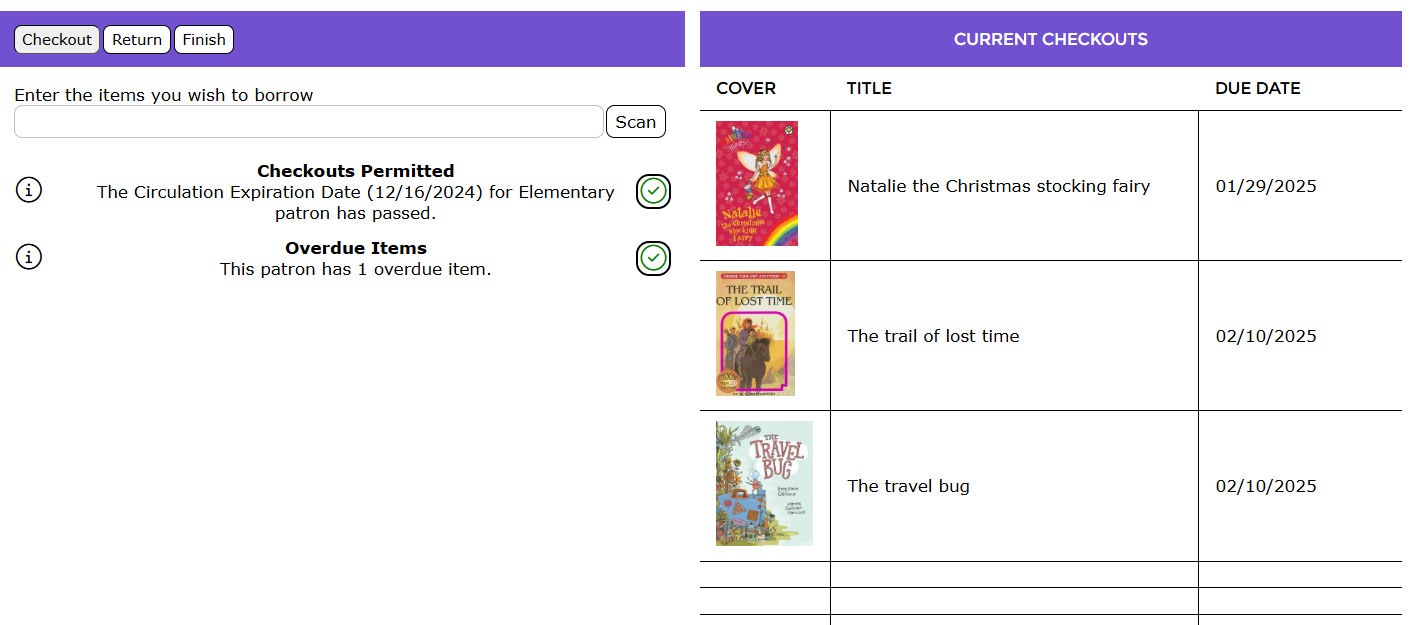
- Scan your patron card barcode or start typing in the patron's name. There may be messages that display. If you have any current checkouts, they will appear in the Current Checkouts section to the right along with their due date. Your details will display in the fields at the bottom left of the screen.
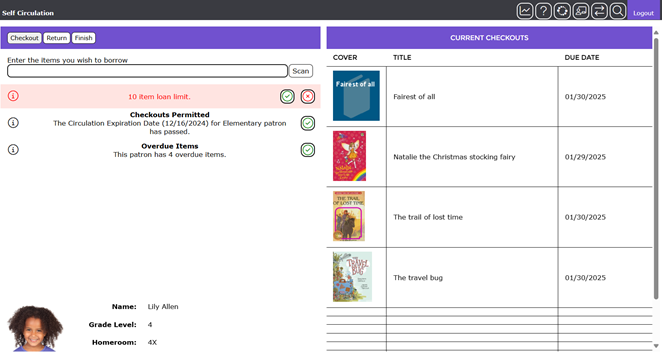
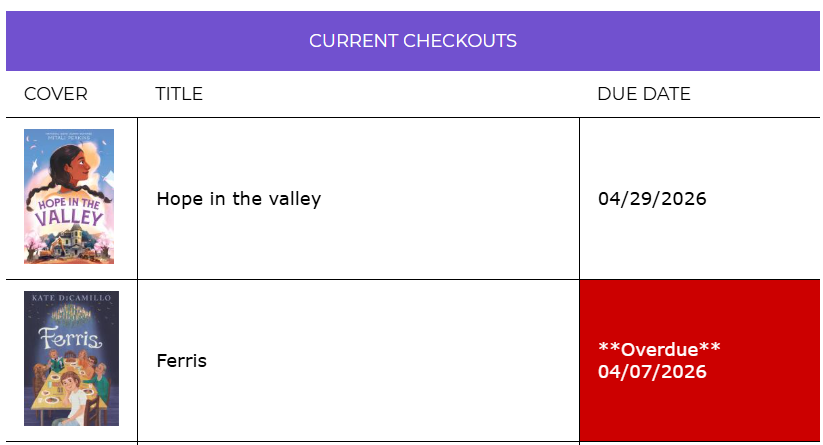
NOTE: Overdue checkouts will be highlighted in red.
- Scan in the barcode of the item you wish to check out.
- If you are not permitted to checkout an item, the message “Checkout Not Permitted” will display.
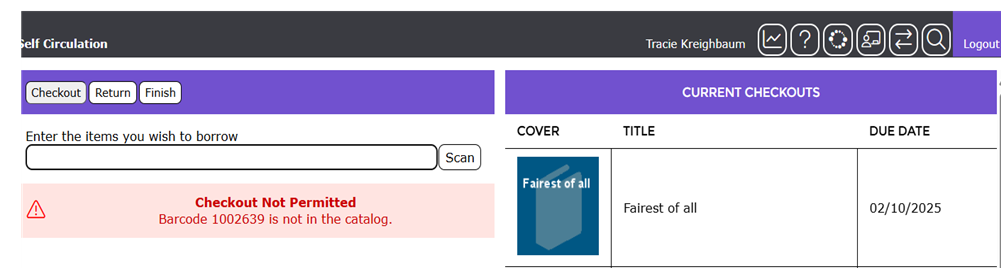
Tip/Note: A message may display if the patron has overdue checkouts, or the item is not permitted to be checked out. If there are overdue checkouts, the patron cannot check out any items until the overdue items are returned. |
Return Checkouts
- Click on the Return button.

- Scan each of the items you currently have checked out.
- The item name and barcode will display in the Recently Returned Items section and any messages will display in the left hand side panel.
- Any applicable messages will display. For example, if any fines or charges are waived. You can click on the Check to acknowledge the message.
Be Aware: If it is library policy that you cannot return items on which there are fines applicable, or you cannot return overdue items and cannot checkout further items until they are returned via the Circulation Desk, you cannot continue using the Self Circulation option.
If you can continue:
- Click on the Checkout button.

- In the Checkout screen scan in your patron card barcode.
- Then scan in the barcode of each of the items you wish to checkout.
- The title and barcode of each item will display in the Current Checkouts panel.
When the barcodes of all the items you wish to checkout have been scanned, click the
Finish button.

- Your details and checkouts will be removed from the screen.
Was this article helpful?
That’s Great!
Thank you for your feedback
Sorry! We couldn't be helpful
Thank you for your feedback
Feedback sent
We appreciate your effort and will try to fix the article