Summary
The Teacher's Library Portal interface has been added with class-specific functionality of interest to teachers. It is accessible via the navigation button at the top right of the MackinVision screen.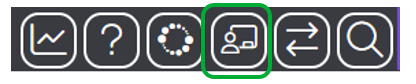
The Teacher's Library Portal has been designed to be used with either a computer (by either scanning or typing the barcodes), or a cell phone or tablet with camera.
Setup access to the Teacher’s Library Portal
The following setup is required for teachers to have access to the Teacher’s Library Portal.
- Parameter 5870, 'Enable Teacher's Library Portal', needs to be set to ‘Yes’.

- Each user must have the 'Access to the 'Teacher’s Library Portal' module' permission enabled.
To simplify this process, a new User Role called ‘OPAC with Teacher’s Library Portal’ has been created. Teachers with basic OPAC permissions also requiring access to the Teacher’s Library Portal should be allocated this new User Role.
Otherwise, teachers with more complex user roles should have the 'Access to the 'Teacher’s Library Portal' module' permission added to their existing user role. 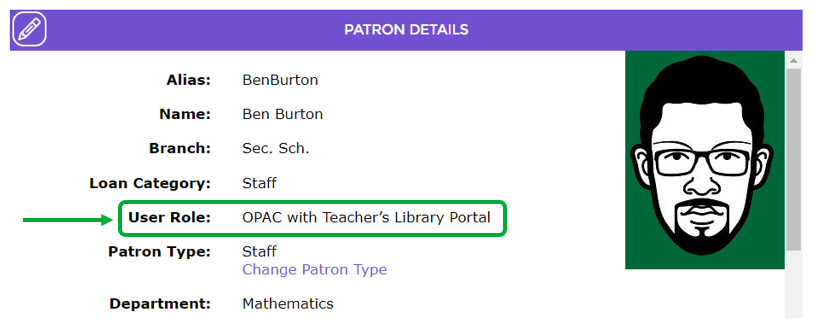
Welcome page
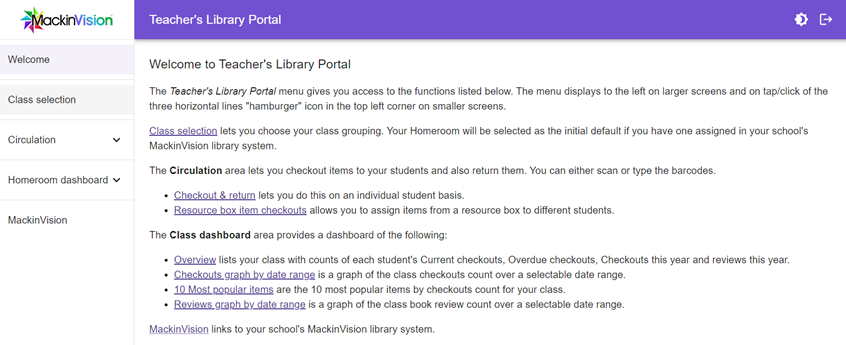
The Welcome page provides a basic overview of the functionality available via the Teacher’s Library Portal. The portal allows teachers to select a class and do the following:
- Checkout and return items to and from class members
- Reassign items from a resource box on loan to themselves to class members
- View class dashboard reports of current checkouts, overdue checkouts, checkouts this year, reviews this year, checkouts and reviews graphs by date range, and the 10 most popular items for the class.
Class Selection
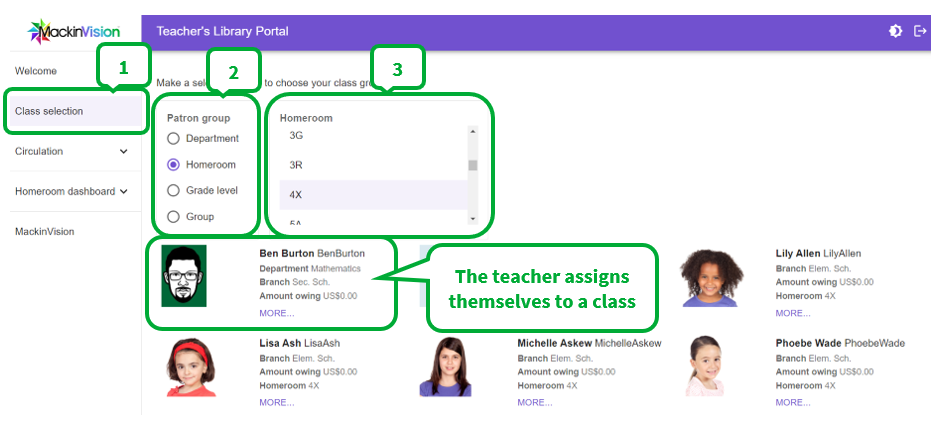
Class selection lets you choose a class grouping so that you can checkout or return to that class, as well as see reports associated with that class.
Your homeroom will be selected as the initial default if you have been assigned one in your school's MackinVision library system.
If the class you require has not been selected by default, you can do so using the following process:
- Select Class Selection
- Select Patron Group. In this instance you should select Homeroom.
- Select the appropriate Homeroom from the list.
Circulation
The Circulation area lets you issue items to your students and also return them. You can either scan or type the barcodes on your computer. Alternately, you can checkout and return using your device camera.
- Checkout & return lets you do this on an individual student basis.
- Resource box item checkouts let you assign items from a resource box to different students.
The fields and the order in which the fields are displayed on the Checkout & return screens can be adjusted, if required, by using the System >Pages functionality. Please refer to How to adjust the Checkout & return screens in Teacher's Library Portal.
Checkout and Return
Checkout
To checkout a resource to a student, the teacher uses the following process:
- Select Circulation > Checkout & Return
- Select Checkout
- Select a student from the list
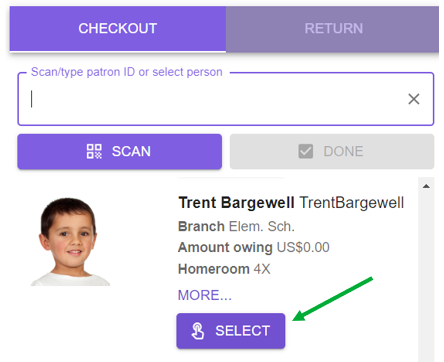
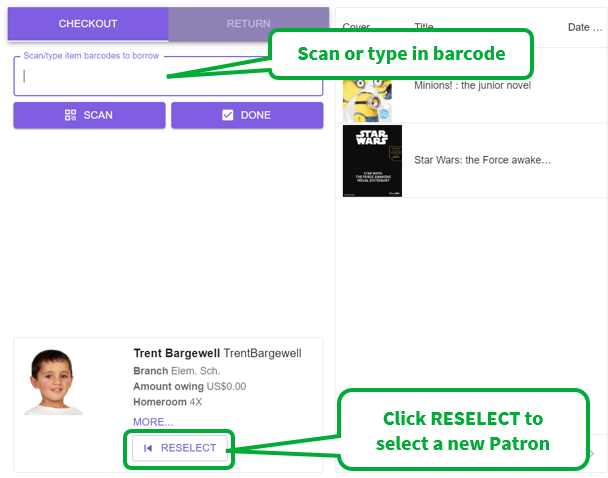
- Scan or type in the barcode of the item to be borrowed.
- Click on the RESELECT button to return to the list of students.
- Repeat steps 3 – 5.
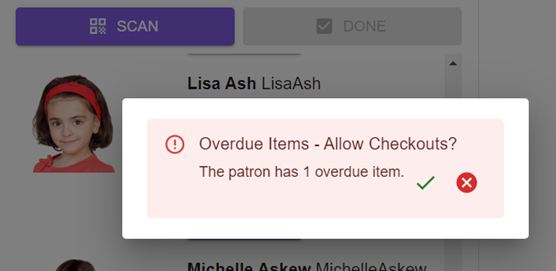
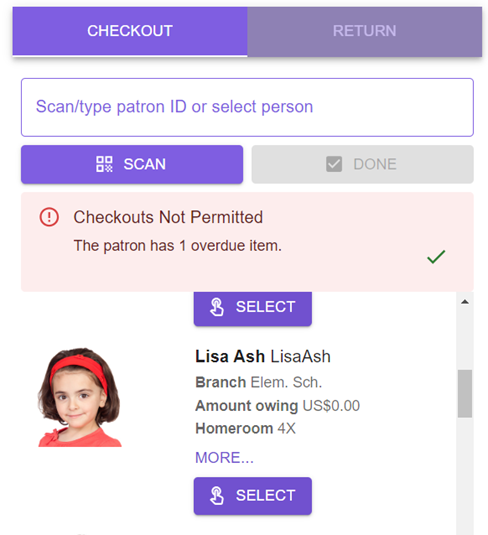
Depending on the User Privileges assigned to your teaching staff, the teacher may or may not be allowed to process checkouts if the student has an overdue book.
Return
To return a student’s resource, the teacher uses the following process:
- Select Circulation > Checkout & Return
- Select Return
- Scan or type in the barcode of the item to be Returned. The Title of the item will appear in a drop-down list below the barcode.
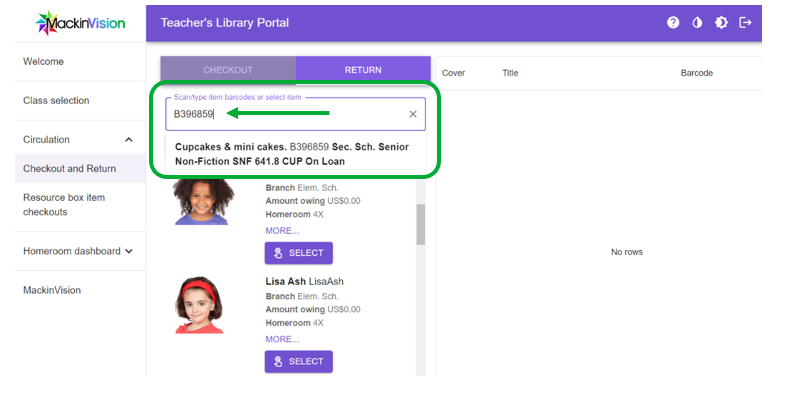
4. If using a barcode scanner, it will automatically process the return. If typing in the barcode you will need to also press the Enter key.
5. A list of returned items will appear on the right-hand side. 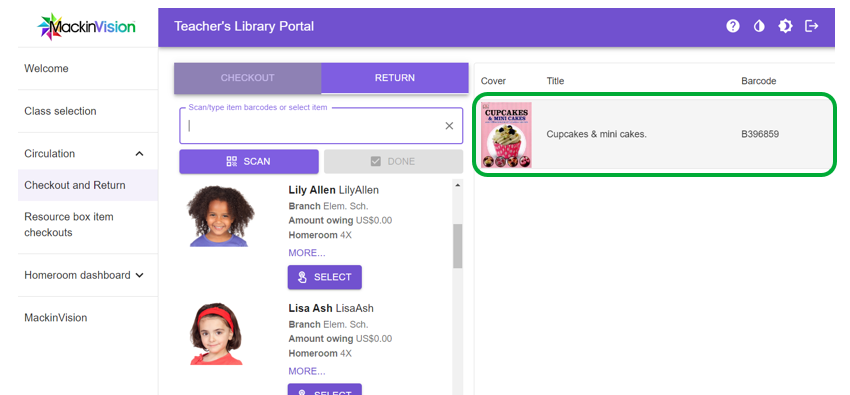
Resource Box item checkouts
To checkout an item to a student from a resource box that has been assigned to the teacher, the teacher uses the following process:
- Select Circulation > Resource box item checkouts
- Select the Resource Box
- Select a book from the list of items in the Resource Box
- Select a student from the list of class members
- Repeat steps 3 & 4
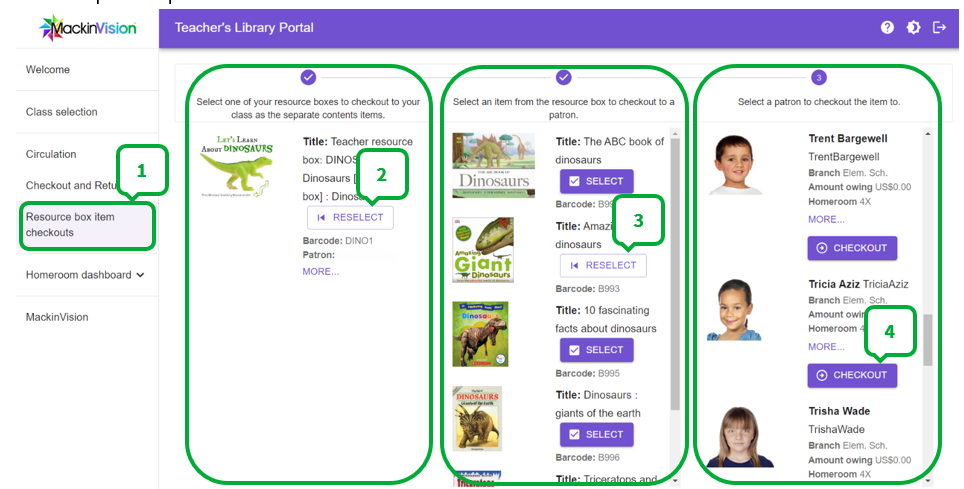
The name of the student, whom the book has been loaned to, will appear below the title and barcode of the book.
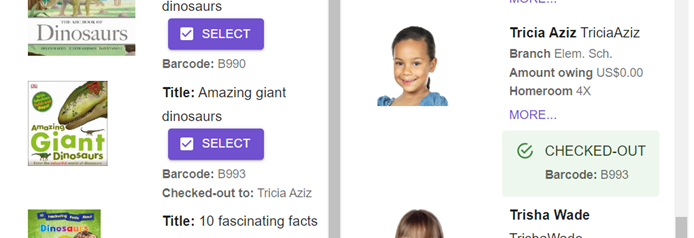
Resource Box item returns
To return a Resource Box item (via the Checkouts & Returns tab), the teacher uses the same process as when returning a non-resource box item.
- Select Circulation > Checkout & Return
- Select Return
- Scan or type in the barcode of the item to be Returned. The Title of the item will appear in a drop-down list below the barcode.
- If using a barcode scanner, it will automatically process the return. If typing in the barcode you will need to also press the Enter key.
- A list of returned items will appear on the right-hand side.
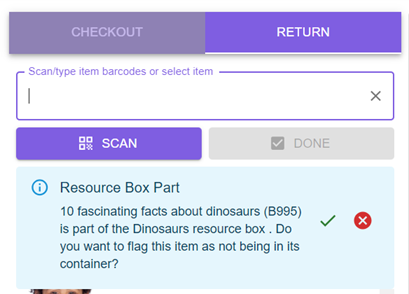
A message states that the item is part of a Resource Box, including the name of the Resource Box. The item has been returned but not removed from the Resource Box.
Class Dashboard
Overview
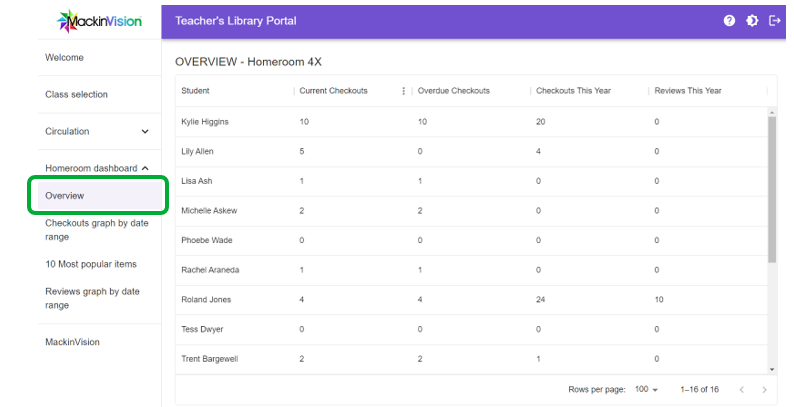
Overview lists your class with counts of each student's current checkouts, overdue checkouts, checkouts this year and reviews this year.
Checkouts graph by date range
Checkouts graph by date range is a graph of the class checkout count over a selectable date range.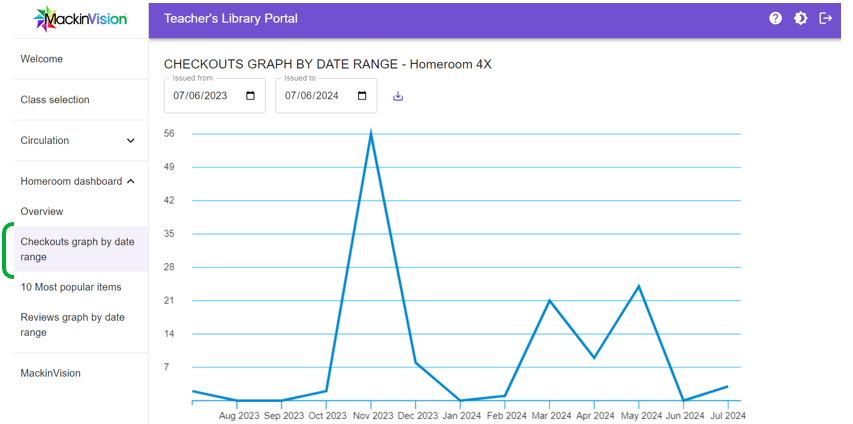
10 Most popular items
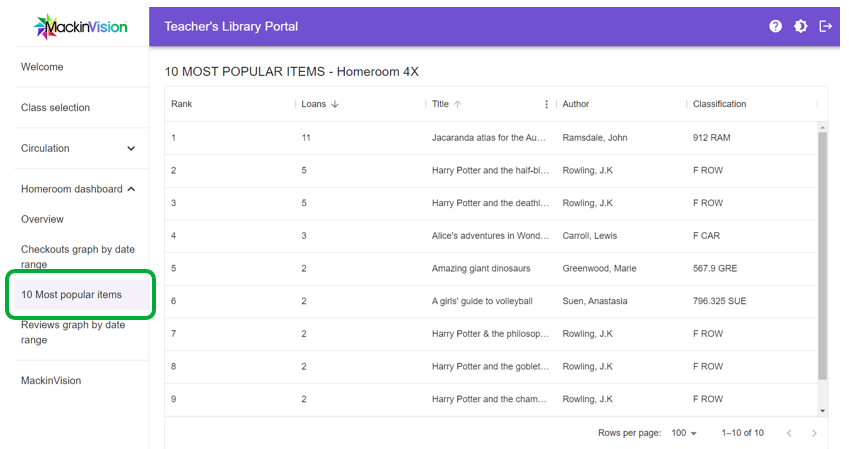
10 Most popular items are the 10 most popular items by checkout count for your class.
Reviews graph by date
Reviews graph by date range is a graph of the class book review count over a selectable date range. 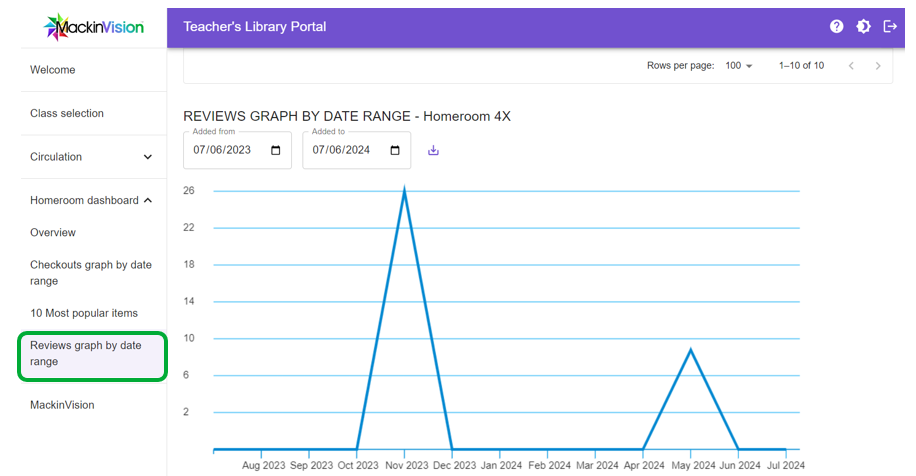
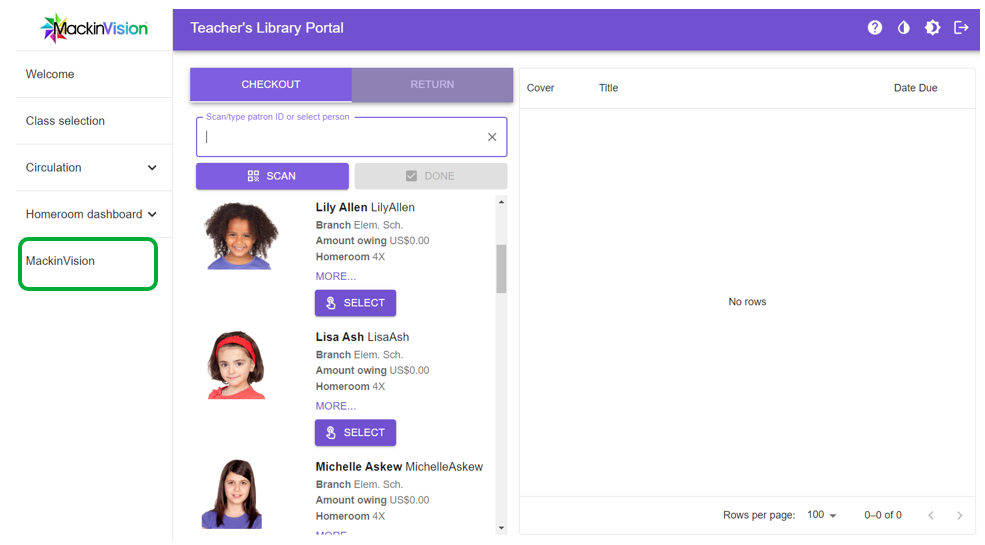
MackinVision
Clicking on the MackinVision tab links you back to your school’s MackinVision library system.
Was this article helpful?
That’s Great!
Thank you for your feedback
Sorry! We couldn't be helpful
Thank you for your feedback
Feedback sent
We appreciate your effort and will try to fix the article