Summary
It is possible to configure a specific report to run each night and then email the resulting report to one or more defined patrons. There are several parameters that must be completed to enable the functionality.
This guide will identify the parameters to set to configure the selected report to enable the functionality. Separate guides provide the steps to run several different reports related to Cataloging Circulation. Patrons and Copies etc.
Configuring a Report
If, for example, a daily report on checkout statistics is required to be emailed to a specified staff member, this can be done by completing the requisite parameters.
1. Navigate to Management > Parameters. Search for Parameter No. 1600 – Enable Daily News Report. This parameter must be set to Yes and save to activate the related parameters of 1601 and 1602.
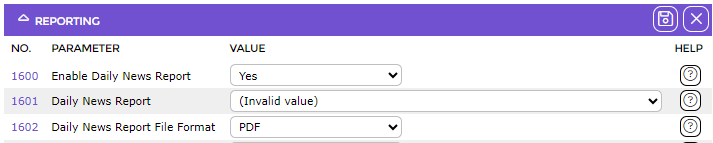
2. Find Parameter No. 1601 – Daily News Report. Click on the down arrow at the end of the parameter field and click on the required report, for example, [Review] Book Reviews.

Note: There are a significant number of reports from which to choose.
3. Find Parameter No. 1602 – Daily News Report File Format. From the drop down menu select the format of the report. The options are PDF, WORD and Excel.
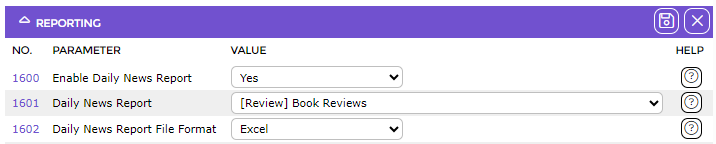
4. Click the Save icon if any changes are made to the parameters.
Related Support Parameter
Parameter No. 1650 – regularProcessEmailClientSearch defines the search for patrons who will receive the daily news report email. Only patrons with set emails within this search will receive emails and one or more email addresses can be entered.
If this parameter is left blank (which is the default) then all patrons with an email address will be emailed. This is a Support parameter and access to, and editing of, this parameter requires a staff member with the applicable User Privilege activated. The parameter should only be changed in consultation with a Support representative.

Related Housekeeping Process
1. Ensure a Check displays next to the Email Report option on the Housekeeping screen. If a Cross displays, click on the Edit button, locate the option and click in the corresponding checkbox.
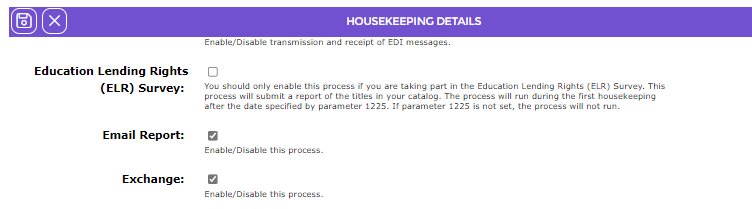
2. Remember to save the edit.
Was this article helpful?
That’s Great!
Thank you for your feedback
Sorry! We couldn't be helpful
Thank you for your feedback
Feedback sent
We appreciate your effort and will try to fix the article