Summary
Staff can place a hold on items via the resource or copy Detail screen. Logged in patrons can place a hold via the Search interface if permitted.
This guide provides the steps required to add a hold to a resource record.
Add a Hold via the Resource Record
- Complete a search for the required resource record.
- Click on the corresponding number link to access the Resource Details screen.
- Click on the Add Hold (or Current Requests (x)) button.
TIP: If holds already exist on a resource, a Current Requests button that include a number in brackets will display. The number indicates how many requests are already placed on the resource.
|

- The Holds Detail screen will display.
- Enter the first few letters of the patron’s name or alias, in the Patron field and click the one required from the displayed prediction list.
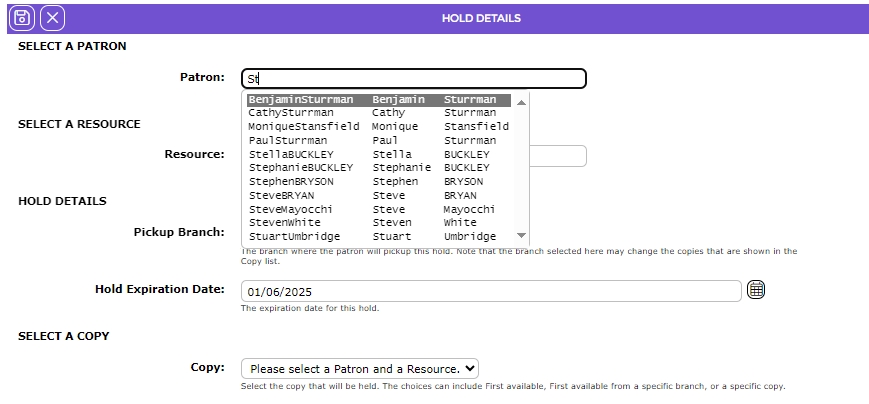
The Resource field will contain the title by default.
- Once the patron has been selected/entered in the Patron field, their home branch displays in the Pickup Branch field.

- If there is more than one branch, and the patron can collect the item from a different branch, click on the down arrow at the end of the Pickup Branch field and click on the applicable branch from the drop down list.
- The default expiration date displays in the Hold Expiration Date field by default. This can be changed, if required, by manually entering the new date or using the Calendar icon.
- By default, First Available displayed by default in the Copy field when the patron alias was entered. Click on the down arrow at the end of the field and select from the list of options if the default selection is not the preferred option.
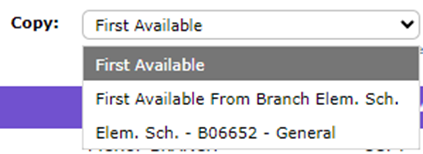
TIP: A hold for a patron can be placed on more than one copy if, for example, a copy is held at their branch and another branch. |
10. If the library system consists of more than one branch, and In Transit functionality is activated, a pickup branch can be selected.
- When all the details have been completed click the Save button.
- The Holds Details screen will display.
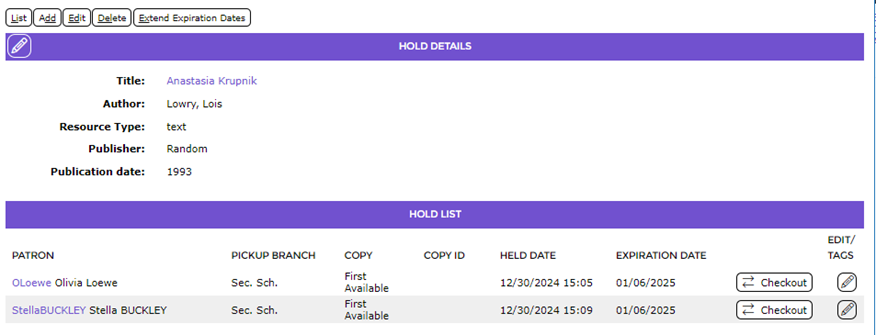
Note: If applicable, the Patron Branch and Homeroom fields can be added to the Hold Detail screen using Page edit.
13. Click on the title to return to the Resource Details screen.
- If the hold button was previously labeled Add Hold it will now read Current Holds (x) and include the number 1 in brackets. The number will increment each time another hold is placed on the title.
Edit a Hold – Edit the Expiration Date Example
Extending the expiration date can be done at the time the hold is being placed, or at a later date. You may need to change the expiration date if, for example, the expected delivery date of a resource has been delayed or the resource copy becomes overdue/missing and a copy is to be sourced from another library.
- To change the hold’s expiration date from the Resource Detail screen, click on the Current Holds (x) button to access the Hold Details screen.
- The Edit icon corresponding to the hold in the Hold List section of the Hold Details screen.
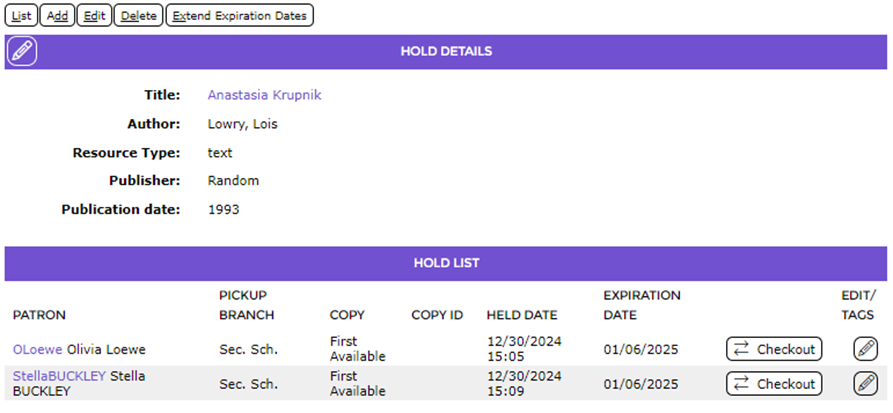
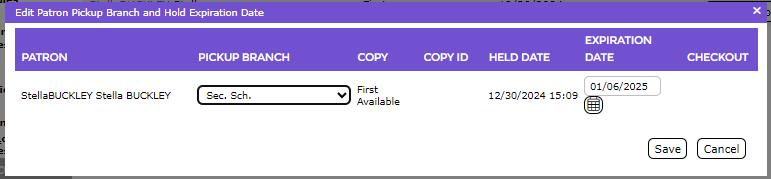
- The Edit Patron Pickup Branch and Hold Expiration Date popup screen will display.
- To extend the hold either enter the date manually in the Expiration Date field or use the calendar to select the date elements then click the Save button.
- You are returned to the Hold Details screen.
- To return to the Resource Details screen click on the title.
Message When a Reserved Item is Returned
The Process Hold popup box displays in the Circulation Desk when a copy, which is currently on request, is returned.
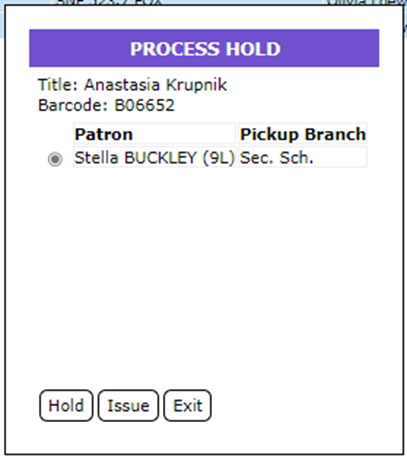
Circulation Desk staff can:
- Click on the Hold button to send the patron an email notification if they have an email address. If they do not have an email address, a hold notice report becomes available for printing.
- Click on the Issue button to issue the reserved item straight away.
- Click on the Cancel button to cancel the notify process. Clicking the Cancel button does not cancel the hold itself.
Was this article helpful?
That’s Great!
Thank you for your feedback
Sorry! We couldn't be helpful
Thank you for your feedback
Feedback sent
We appreciate your effort and will try to fix the article