Summary
Staff can add a hold for a patron via the Circulation Desk.
This guide will provide the steps required to request a title via the Circulation Desk. Separate guides provide the steps required to add a hold via the Search interface and a resource record.
Adding a Hold via the Circulation Desk
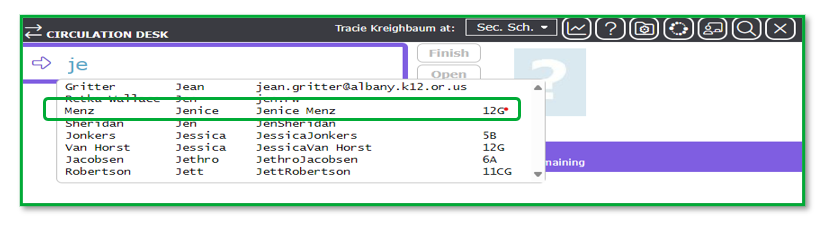
- Scan in or manually enter the patron’s barcode. Staff can also enter part of the patron’s surname and click on the applicable patron from the prediction list that displays.
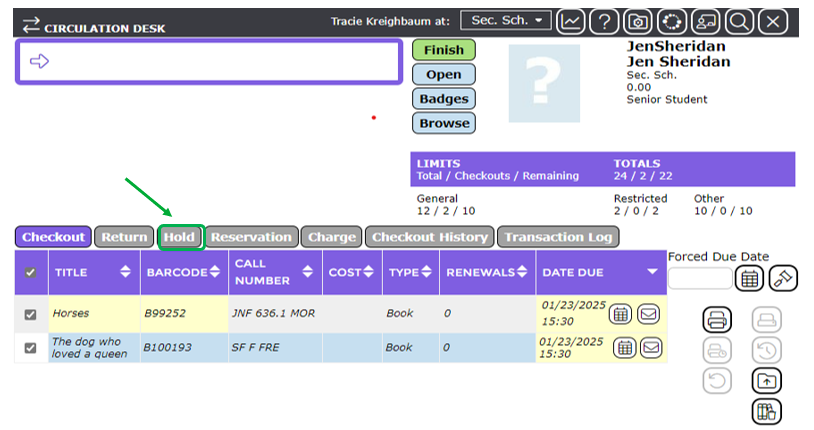
- Click on the Hold tab.
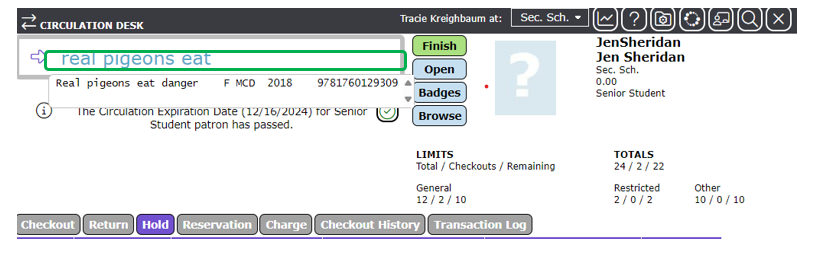
- Type in part of the title in the entry field at the top of the screen and click on the applicable title from the prediction list.
- The Add Hold popup screen will display.
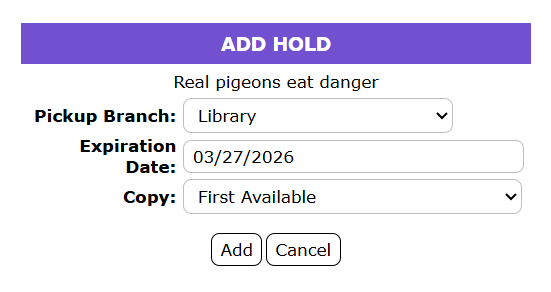
The screen includes the requested title, the branch of the logged in staff member, the hold expiration date, while First Available is selected, in the Copy field. Any of the default information, in the Add Hold screen’s fields, can be changed if preferred.
5. If all the details are correct, or any edits completed, click the Add button.
6. The hold now displays in the Hold tab.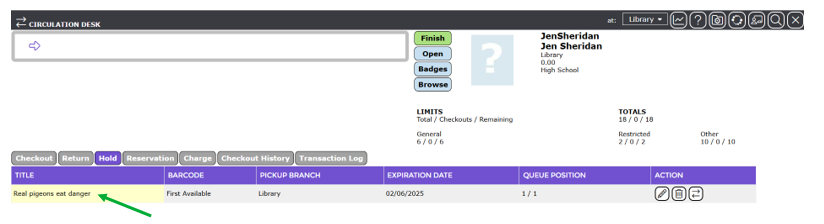
Confirming the Hold is tied to the Patron Record
- Click the Open button in the Circulation Desk screen to access the patron’s Detail screen.

- In the patron Detail screen, click on the Current Holds button.
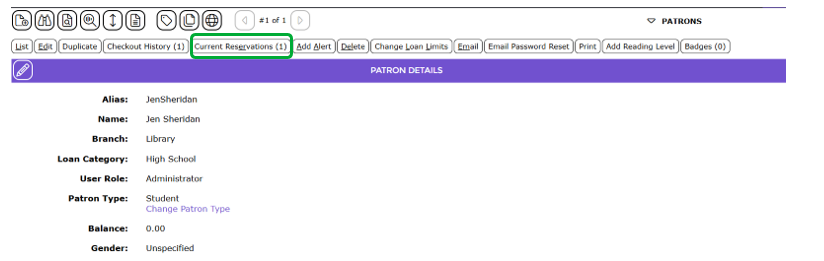
- The Hold List screen will display and contain only that hold.
- Click on the number link to access the Holds Detail screen.

- Confirm that the patron, for whom you placed a hold on the title, displays in the Hold Details screen.
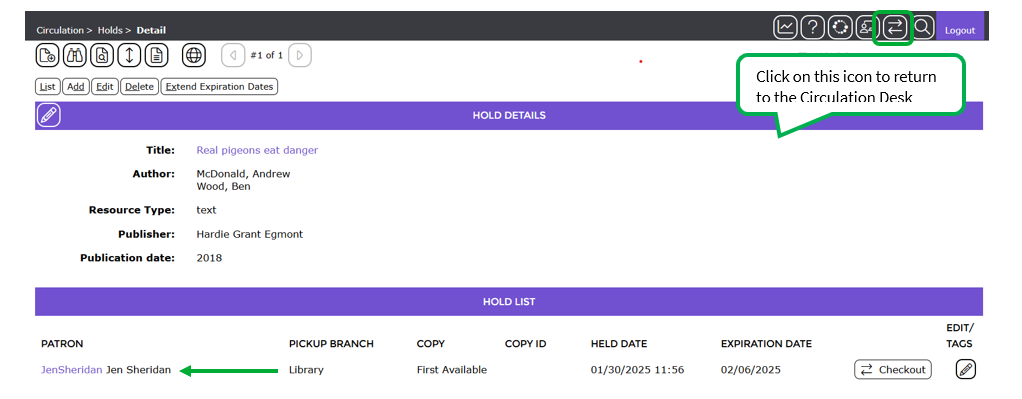
- Click the Circulation Desk icon in the top right hand corner of the screen to return to the Circulation Desk.
Was this article helpful?
That’s Great!
Thank you for your feedback
Sorry! We couldn't be helpful
Thank you for your feedback
Feedback sent
We appreciate your effort and will try to fix the article