Summary
Library staff create shared or public Interests to which they can add patrons and to which logged in patrons can subscribe. One or more Interest Group must be selected as part of creating a shared interest. Staff can add patrons individually or in bulk to a Shared Interest while logged in patrons can subscribe to those Shared Interests via the Interests option in My Portal on the Search interface. An email notification is sent to patrons subscribed to Interest/s when any resources, matching the interest/s are added to the catalog.
This guide will provide the steps required to set up a Shared Interest. It will also provide information on the Alert and Email notification process for Patron tied to a Shared Interest.
Create a Shared Interest
Before you can create shared interests, you must firstly create one or more Interest Groups. For information on Interest Groups please see the How to Create Interest Groups help guide.
- Navigate to Circulation > Interests.
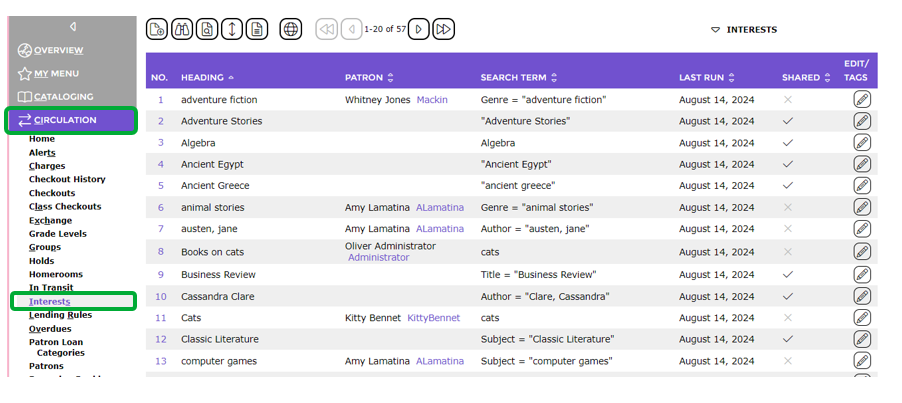
- The List (or Search) screen will display.
- Click on the New icon (or select New from the Function menu or type ‘ne’).
- The Interest Details screen will display.
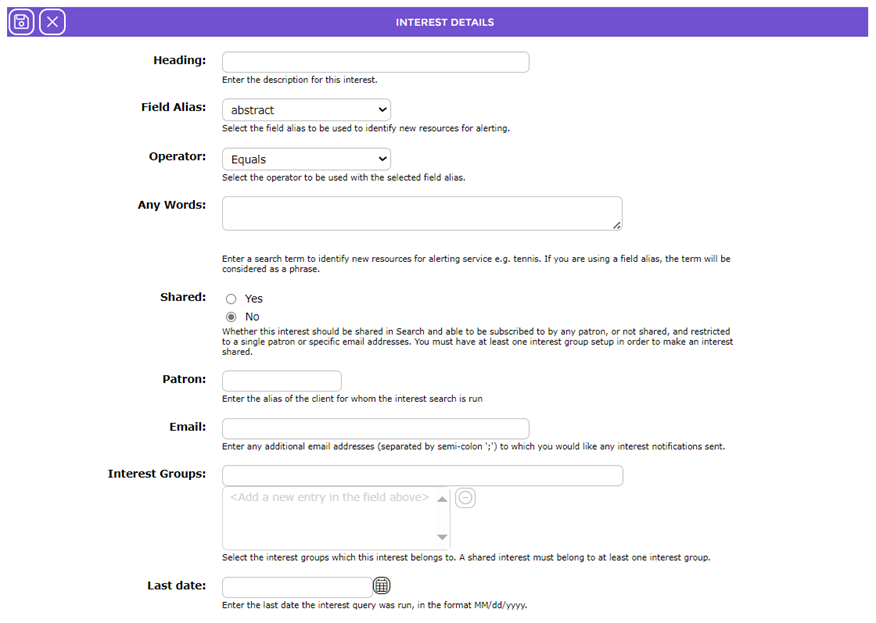
The following table includes the field name and description of the information required:
Field |
Description |
Heading | In this field, enter a description of the Interest. This will display in the Subject heading text of the notification email sent when any newly added resources have been identified as matching the interest.
|
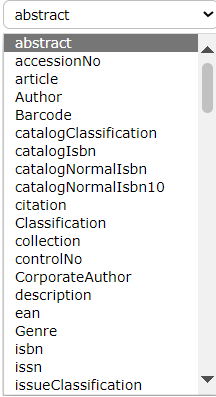
Field Alias | Click on the down arrow at the end of the field and click on the Field Alias you want. The fields listed are those available on resource records.
If no selection is made from the Field Alias field’s drop down list, the term entered in the Any words field will not be restricted to apply to a specific field. This will result in an ‘any word’ style search.
If you want the term entered in the Search Term field to relate specifically to a particular field click on the down arrow and highlight the applicable Alias from the drop down list, for example Subject.
|
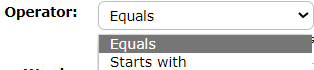
Operator | There are two options from which to select in the Operator field, Equal and Starts With. The operator selected will apply to the search term entered in the following Any words field to identify matching newly added resources.
Note that is no Field Alias option is selected the Operator field is grayed out as only the default of Equals applies.
|
Any Words | Enter the search term that will be used to identify any matching newly added resources, for example, indigenous peoples. If a field alias has been selected the term will be treated as a “phrase”.
|
Shared | Click in the Yes radio button if the interest can be subscribed to by:
Note: Interest Groups must be established before creating any Shared Interests.
|
Patron | If the Interest is to be private, the applicable patron’s barcode would be entered in this field. The patron field is grayed out if Yes is selected in the Shared field.
Note: A Private Interest is one that is set up for a specific patron only.
|
Leave this blank for a Shared Interest and all subsequently subscribed patrons, with an email address, will be notified when there are new matching resources.
If the Interest being created is Private, enter the applicable Patron’s email address.
| |
Interest Groups | Type in the first few letters of an existing Interest Group and click on the applicable group from the resulting prediction list.
The Interest group will display in the list-box below. One or more Interest Groups must be selected for any Shared Interest being created.
Note: This field is grayed out it the Interest being created is a Private Interest.
|
Last Date | Enter the date the last interest query was run. The date can be either manually added or the calendar icon can be used to select the applicable date. Any resources added between that date and ‘today’ will be identified by the housekeeping regular process.
|


- Once all details are completed click the Save button.

- The Interests Detail screen of the newly created Interest will display.
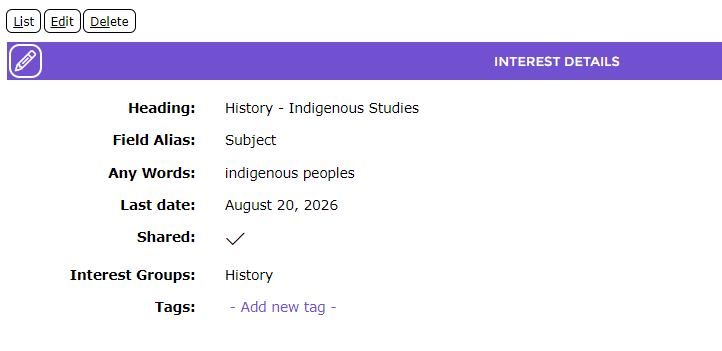
If there are any matching resources that will be included in the next Housekeeping run (based on the date entered in the Last Date field on the Interest) a View Resources button will display.
The button will include a number in brackets indicating the number of resources. Those resources will be included on the notification email sent out once the Housekeeping process is run. Clicking on the button will display those matching resources.
Once any patrons are subscribed to the Interest a Subscribed Patrons button, with the commensurate number in brackets will also display.
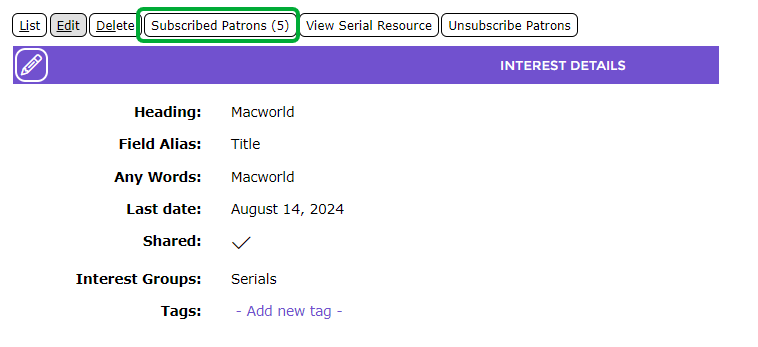
It will display those patrons when clicked. Here is also an Unsubscribe Patron button available.
Additional Information: If the Shared Interest is a serial, a View Serial Subscription link button will display on the Interest Details screen. If there are any subscribed patrons, a link will display.
To view the list of patrons subscribed to the Serial Interest click on the applicable link.
Clicking the View Serial Subscription button will take the user to the Serial’s Subscription Detail screen.
The Serial Interest Group selected can be identified in the Email Notification field on the Subscription Detail screen:
|
Overview of Interests Email Notification and Alert
When any newly added resources matching any Interest, “public” or “private”, tied to a Patron, an email notification will be sent. Information on the email includes:
- Any Interest Groups and Interests, tied to the Group, for which new resources have identified. Under these are the Titles of any the matching resource/s which are a link which when clicked by the Patron will display that resource record in the Search interface
- A link which when clicked will display all matching resources in the Search interface
- Each Interest and Interest Group to which new resources have been matched are also clickable links which will take the Patron to the Interest or Interests Group in their Interests option in the My Portal section in the Search interface.
Was this article helpful?
That’s Great!
Thank you for your feedback
Sorry! We couldn't be helpful
Thank you for your feedback
Feedback sent
We appreciate your effort and will try to fix the article