Summary
The Interest Groups are part of the Current Awareness functionality. Library staff can establish Interest Groups to which associated Shared Interests are linked and to which Patrons can be tied, individually, or in bulk. Interest Groups must be created first as they are required for selection on any Shared Interest that is to be created.
This guide provides an explanation of how to create an Interest Group.
Create an Interest Group
- Navigate to Circulation > Interests.
- The List screen (or Search screen depending on a parameter setting) will display.
- Select Interest Groups from the Interests Function menu. The option is available from either the Search or List screen.
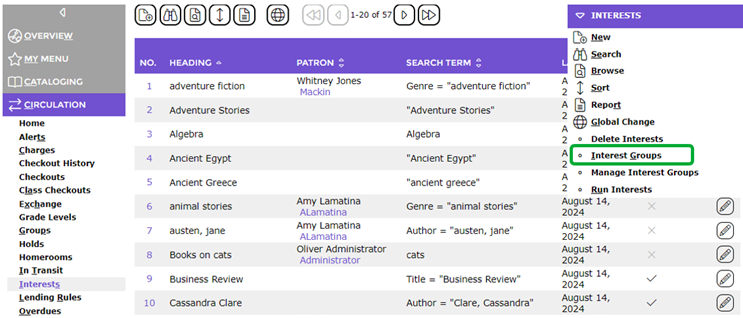
- The Interest Groups List screen will display.
- Click on the New icon (or select New from the Function menu or type ‘ne’).
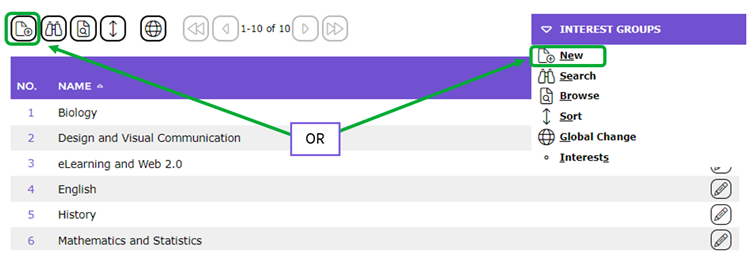
- Enter the Interest Group name in the Name field.
- If there are currently no relevant Interests to be linked to the Interest Group, click the Save button.
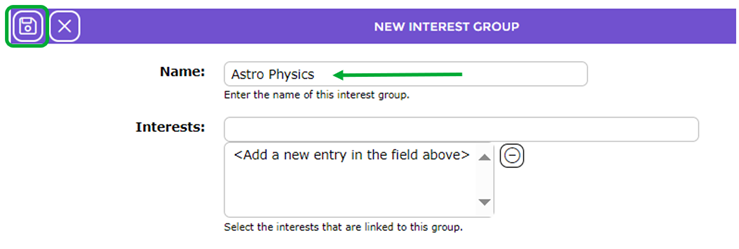

Add Existing Interests to the Interest Group
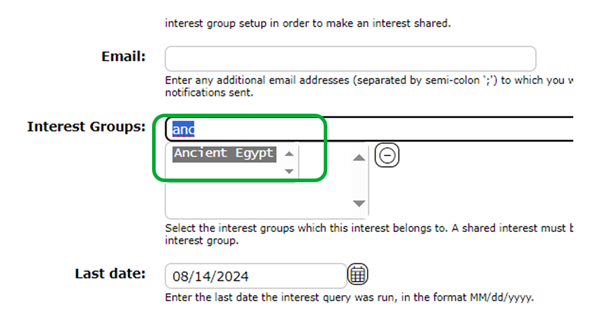
- In the Interest Group Edit screen, type in the first few letters of the Interest and select the applicable interest from the prediction list that displays.
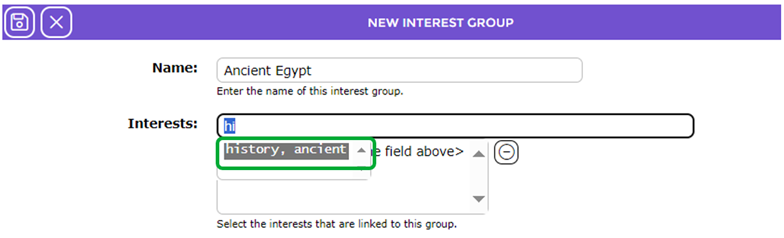
- Repeat Step 1 if you wish to add further relevant interests.
- Click the Save button.
- The Details screen will display. The Interest Group with related Interests tied to it is now complete. Further Interests can be added, at a later date, if applicable.
- Any Interests selected on the group will result in an Interest button displaying on the Details screen. The button will include a number in brackets. The number indicates the number of Interests selected on the group.

- The new Interest Group can be added to existing (and new) Shared Interests via the applicable Interest’s Details screen.
The Interest Group will also display in the Interests option in the My Portal option for Users logged into the Search interface. Logged in Users can subscribe to any of the Interests linked to the Interest Group by clicking in the applicable checkbox in the Edit Interest Groups screen.
Was this article helpful?
That’s Great!
Thank you for your feedback
Sorry! We couldn't be helpful
Thank you for your feedback
Feedback sent
We appreciate your effort and will try to fix the article