Summary
Creating Interests, both shared, to which any patron can subscribe or be subscribed, and private, created for an individual patron, are elements of the Current Awareness feature. While logged in Patrons can still create their own interests via the My Portal Interests option in the Search interface, any shared Interests created by library staff are available for subscription by logged in patrons. Library staff can also create a “private” Interest for a specific patron.
A Housekeeping regular process will identify resources matching Interests and the patron/s notified when any resources, subsequently added to the catalog, match their private interests. This prompts a notification email to the patron, if they have an email address on their record. An alert is added to their Messages option in My Portal.
This guide provides the steps to creating an Interest for a specific patron. Information on other Current Awareness features include a Current Awareness overview, creating Interest Groups, creating Shared Interests, adding patrons to Interest Groups in bulk, how patrons can subscribe to Interests within Interest Groups and how to create their own Private Interest.
Create an Interest for a Specific Patron
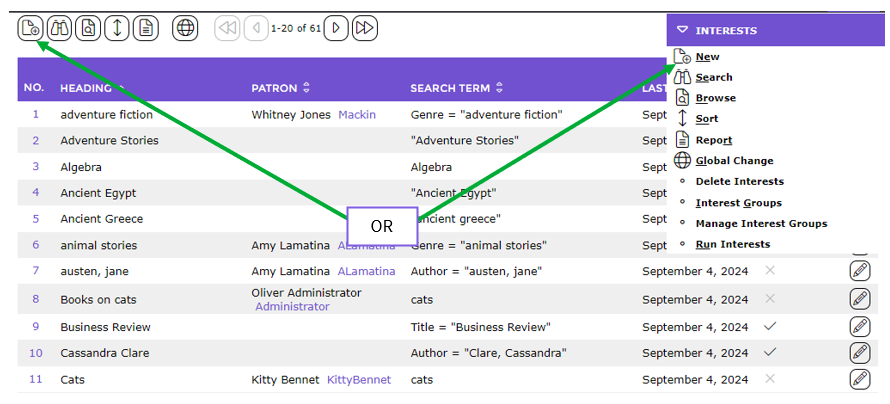
- Navigate to Circulation > Interests to access the Interests List (or Search) screen.
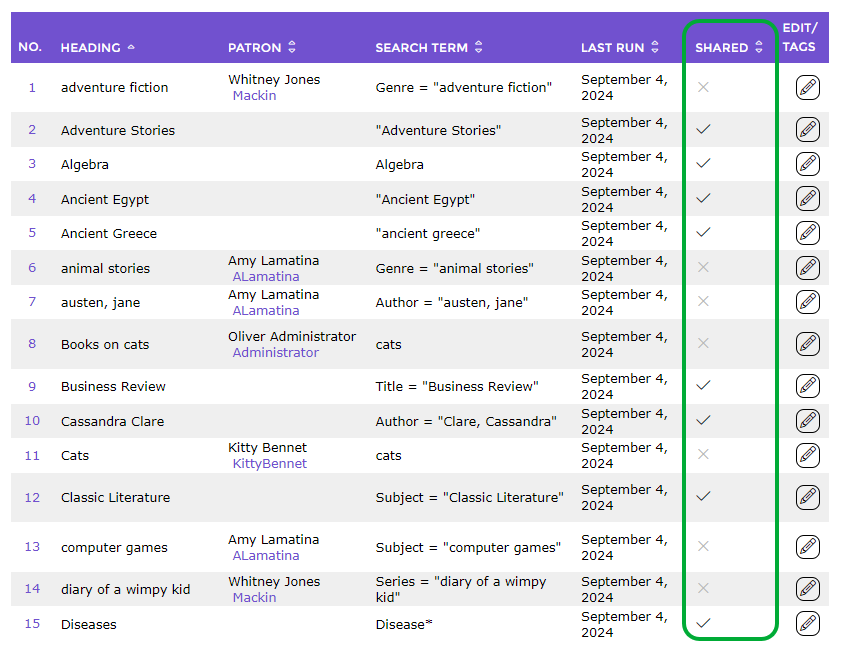
Note: Any existing Interests displaying a Check in the Shared column identify they are Shared (“public”) Interest while those displaying a Cross indicate they are “private” Interests.
- Click on the New icon, or click on New from the Function menu or type ‘ne’.
- The Interests > Add screen will display.
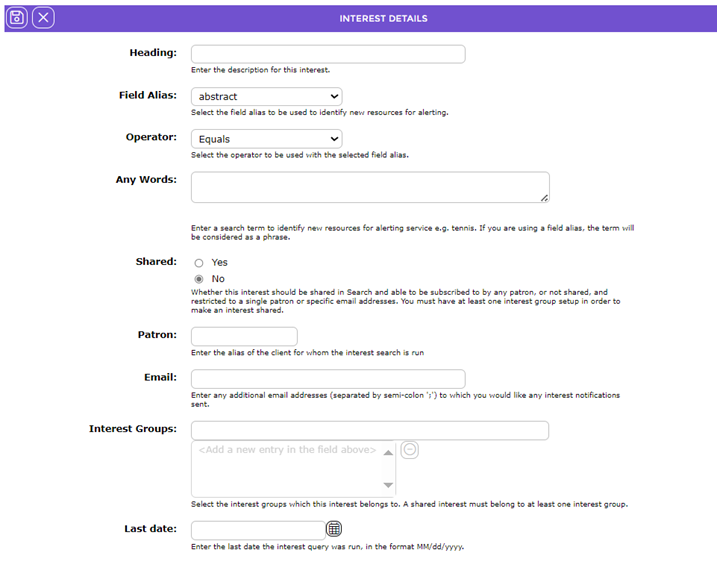
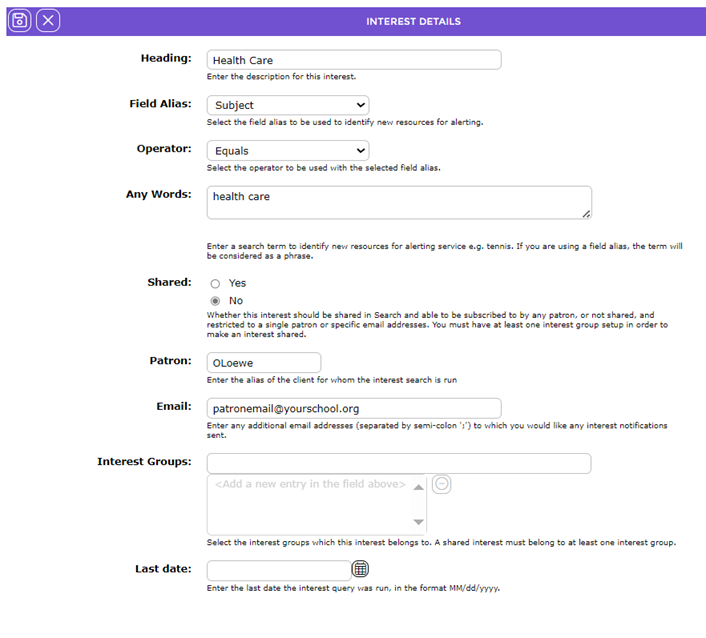
- In the Heading field, enter the name of the Interest, for example Health Care.
- The Field Alias field contains a drop down list. Select the field to be used by the system to identify new resources related to the Interest that will then prompt a patron alert, for example, Subject. It is not mandatory to select a Field Alias.
- The Operator field contains two options Starts With and Equals. The Operator selected will apply to the term entered in the Any word field, and if applicable, the field alias selected, to identify matching newly added resources.
- In the Any words field enter the term used to identify any matching newly added resources, for example, health care. Note that if a selection is made in the Field Alias field, the term will be treated as a phrase.
Note: If no Field Alias option has been selected the system will identify any new resources that contains the term entered the Any word field, irrespective of where the term occurs in those records. If a Field Alias option is selected, for example Subject, the search is restricted to locating resources with the search term in the Subject field of records.
- As the Interest is for a specific patron, ensure the radio button next to No is activated in the Shared field. If it is not, click in the radio button next to No. This will activate the Patron field and “de-activate” the Interest Groups field. This ensures that the Interest is not available for selection by other logged in patrons in the Interests section of their My Portal area.
- Enter the patron’s barcode if known in the Patron field. Alternately, enter the first few letters of the patron surname and a prediction list will display. Click on the applicable patron from the list.
- Enter the patron’s email address in the Email field.
- The Interests Groups list-box is grayed out if the Interest being created is private.
- In the Last Date field, either enter the date in the applicable format or click on the Calendar icon and select a date. The date entered can be “today” or a date in the past. The date updates whenever the Interests Update regular Housekeeping process is completed.
Note: If the date selected is in the past any new resources matching the Interest that were identified in Interests Update regular process, from that date to “today”, may result in a View Resources button becoming available on the Interest screen. It will include a number, in brackets, indicating how many new resources match the Interest from the entered date until “today”.
- When all details have been completed click the Save button.
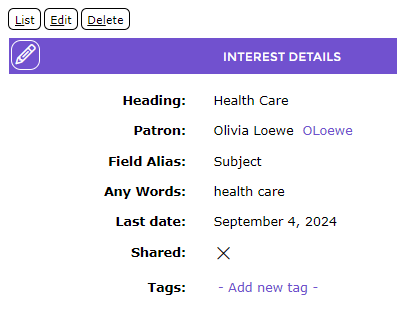
- The Interest’s Detail screen will display.
- The new Interest will be included with other shared and private interests in the Interests > List screen when accessed. A Cross will display in the corresponding cell in the Shared column indicating it is a “private” Interest.
Note: The patron barcode in the Patron column of the List screen is a link to the patron record.
Identify a Patron With Interests
In the Circulation Interests screen private interests are indicated by the inclusion of the patron name and barcode and a cross in the Shared column.
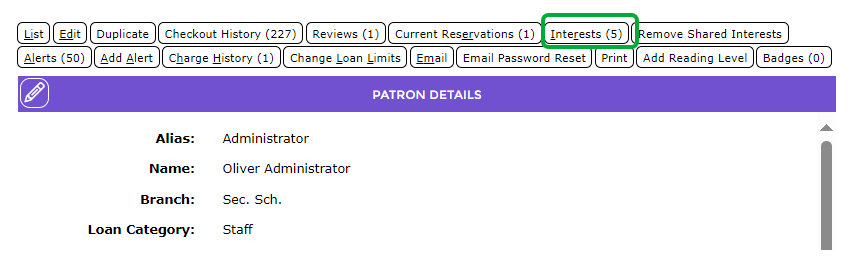
Staff can check the patron’s interests, private or shared that the patron. To do so, click on the applicable barcode to access the patron Detail screen, then click on the Interests button.
The patron’s Interests will list.
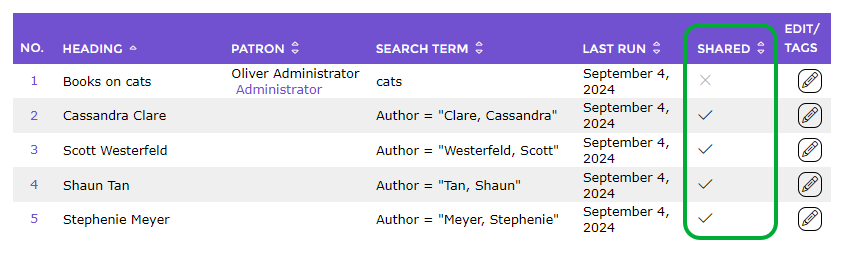
Note that any private interests are also identified in this List screen by a Cross.
Email Notification and Alert Example
Patrons can create their own private Interest as well as subscribe to shared Interests in one or more Interest Groups. When any newly added resources match any “public” or “private” Interest tied to a patron, an email notification is sent, the frequency of which is determined by the setting on the patron record. The email includes:
- Any Interest Groups and Interests, tied to the Group, for which new resources have identified. Under these are the Titles of any the matching resource/s. The titles are links which, when clicked, will display that resource record in the Search interface.
- A ’click here to view…’ link which when clicked will list all matching resources in the Search interface
- Newly added resources that match any Interest and Interest Group clickable links in the email. Clicking on a link will take the Patron to the Interest or Interests Group in their Interests option in the My Account section.
Was this article helpful?
That’s Great!
Thank you for your feedback
Sorry! We couldn't be helpful
Thank you for your feedback
Feedback sent
We appreciate your effort and will try to fix the article