Summary
Resource records can be duplicated via the resource Details screen. The function enables staff to duplicate an existing resource record that has some information applicable to a new resource they want to add to the catalog thereby removing some of the data entry required if creating the record from scratch.
This guide provides the steps required to duplicate a resource record. It also provides an explanation of what happens if a duplicated resource with a MARC record is edited via the Details screen rather than the MARC Editor screen. Separate guides provide the steps required to complete a search, add MARC records via Z-Cataloging, and manually create a non-MARC record. There are also guides with information on Authorities.
What is MARC Cataloging
MARC records evolved to enable a computer to read and interpret data in a cataloging record. While the catalog (or bibliographic) record contains a number of pieces of information such as author/s, subject headings, call number or call numbers, MARC (and more recently RDA) records contain a significant number of additional bibliographic element descriptions entered by qualified library staff according to cataloging rules (either AACR2 or RDA).
Duplicate a Resource
Resource records, both with or without a corresponding MARC record can be duplicated via the resource Details screen. So, if you are creating a new non-MARC record by duplicating an existing one (then editing and/or adding data) make sure the resource is also a non-MARC , that is, it does not have a corresponding MARC record. 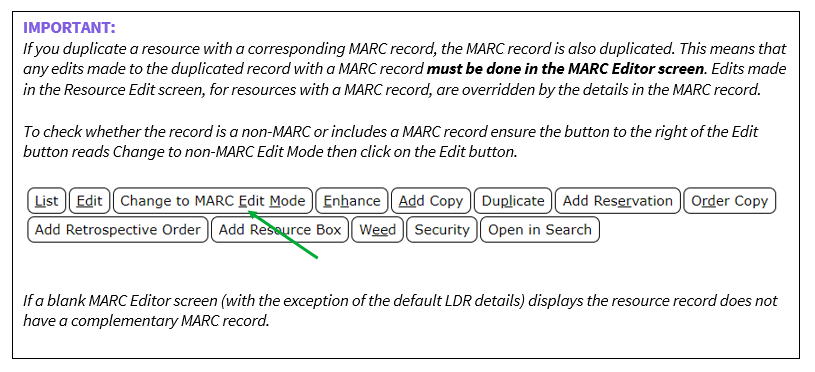
- Navigate to Cataloging > Search. It is recommended that you search using the ISBN or EAN if possible, or title/series.
- In the resulting List screen, click on the number link corresponding to the title required to access the Details screen.
- Click on the Duplicate button.
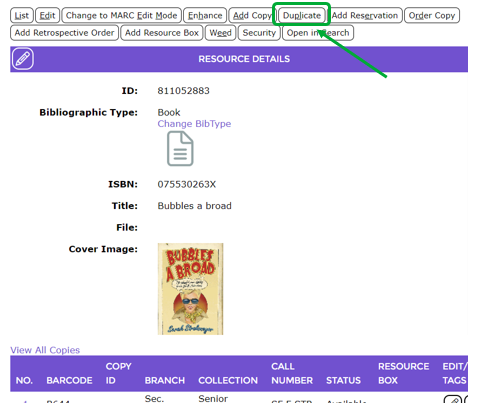
- If the MARC Editor screen does not display (see the section below) edit the details of the duplicated resource as required then click the Save button and a new non- MARC resource is created.
To Check Whether there is a Corresponding MARC Record:
If the library catalog contains both MARC and non-MARC records, and you are wanting to create a new non-MARC resource by duplicating an existing record and editing the details, it is recommended that you check whether the duplicated resource has a corresponding MARC record or not.
- To check whether the resource just duplicated includes a corresponding MARC record click the Save button, before making any changes, to return to the Detail screen.
- Click on the Change to MARC Edit Mode button so it reads Change toNon-MARCEdit Mode, then click the Edit button.
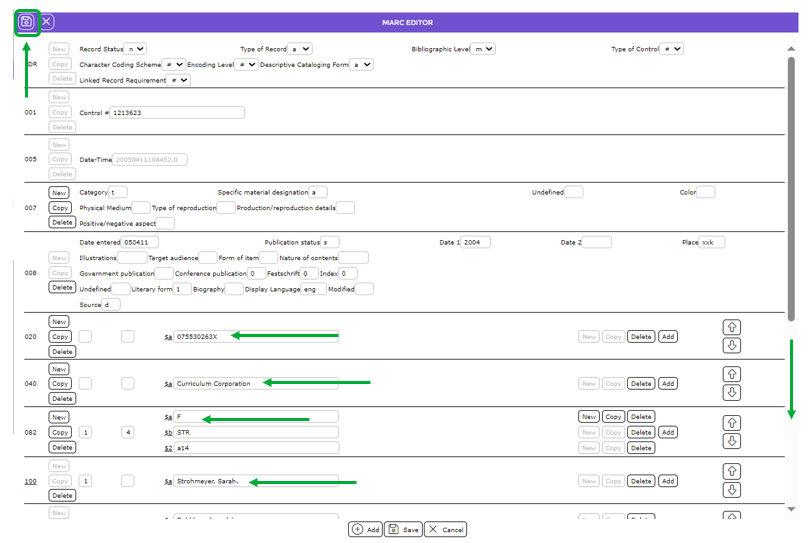
- The MARC Editor screen displays.
- If the duplicated resource has a corresponding MARC record, this screen will contain a number of MARC tags and subfields against which there is applicable bibliographic data.
If the MARC Editor screen includes tags, subfields and corresponding data then edits must be made and saved in the MARC Editor screen not the Resource Details. Edits made in the Resource Details screen, for any duplicated resource with a MARC record, will be overridden by the data contained in the MARC record.
If a duplicated resource does not have corresponding MARC record, the MARC Editor screen will contain no MARC tags and subfields with associated data.
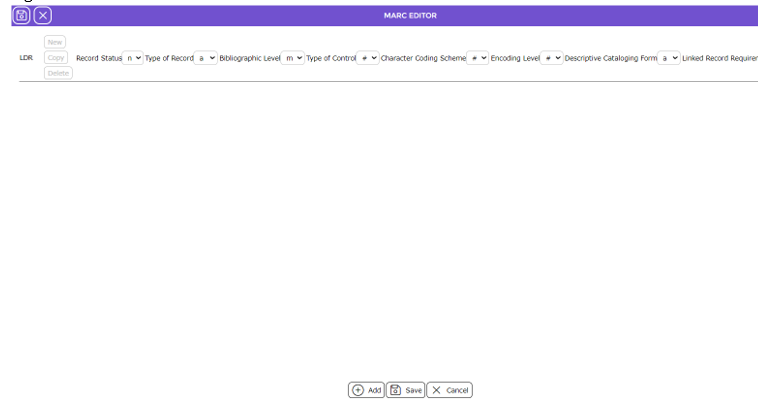
In this case click the Cancel icon, to return to the resource Details screen, then click on the Edit button and make any edits required.
What Happens if a Duplicated Resource with a MARC Record is Edited in the Details Screen
In the following example steps, the duplicated resource has a MARC record. The authors will be changed in the resource Details screen:
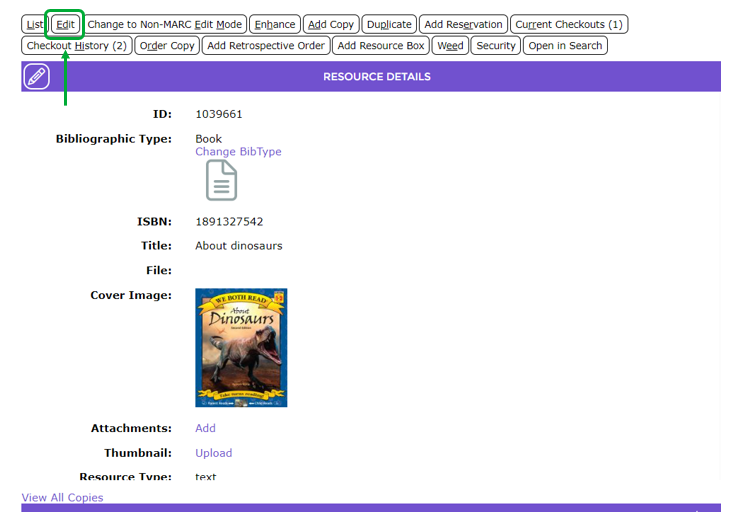
- Click the Edit button on the resource Details screen.
- Locate the Author field.
- Highlight the author that displays in the list-box below the Author field and click the Delete (minus sign) icon to delete the author.
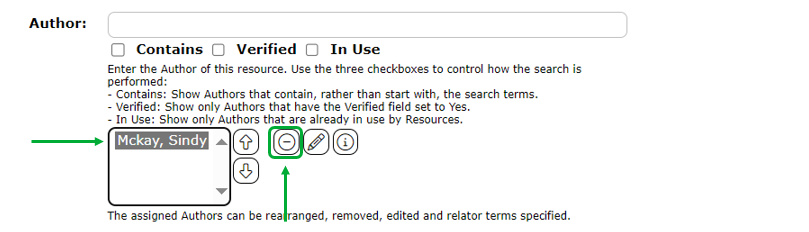
- Repeat for any other authors.
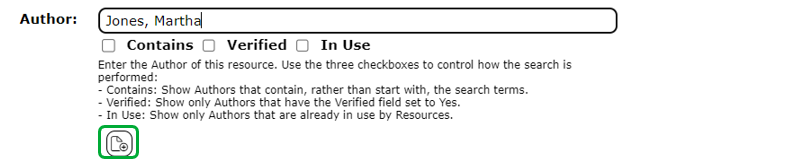
- Enter the name of the author on the resource you have, for example Jones, Martha then click the New icon if the author does not already exist in the Author Authority file.
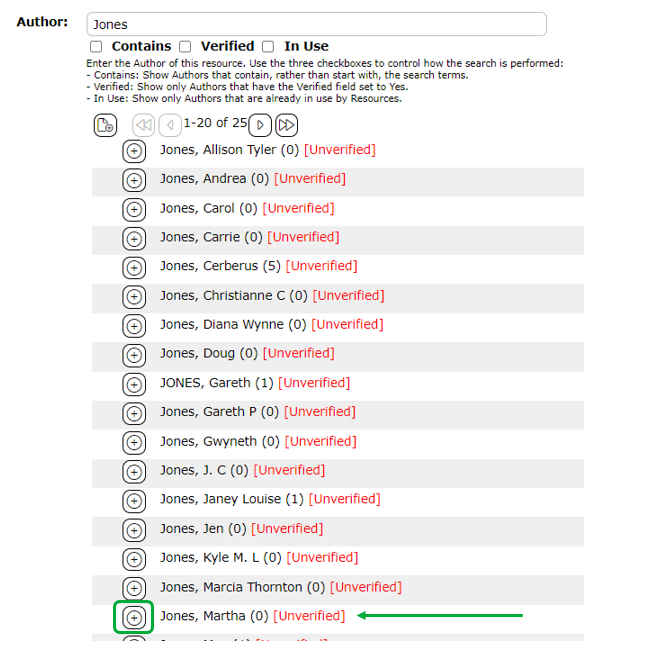
If the author already exists in the Author Authority file, it is included in the list-box that displays below the field. Click on Plus icon next to the author required.
 6. Click the Save icon at the top of the screen.
7. In the resulting Details screen the edited author will display in the Author field. It appears that the edit is successful.
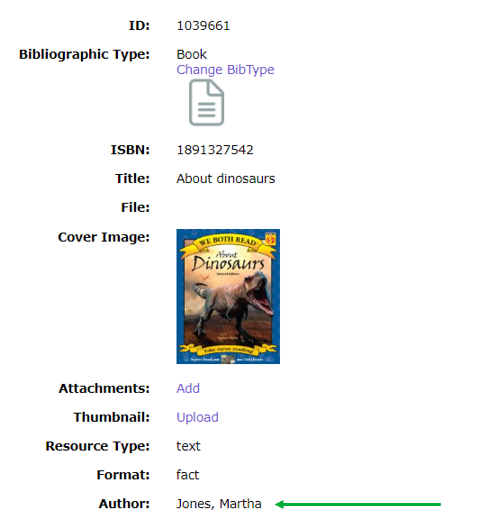
HOWEVER:
Be aware that if the MARC record corresponding to the resource record is subsequently accessed and saved by cataloging staff, any data (in this instance the author), added via the resource Details screen, will be overwritten by the data (in this instance authors) on the MARC record.
As a result, the authors included on the MARC record will still display in the Author field on the resource Detail screen.
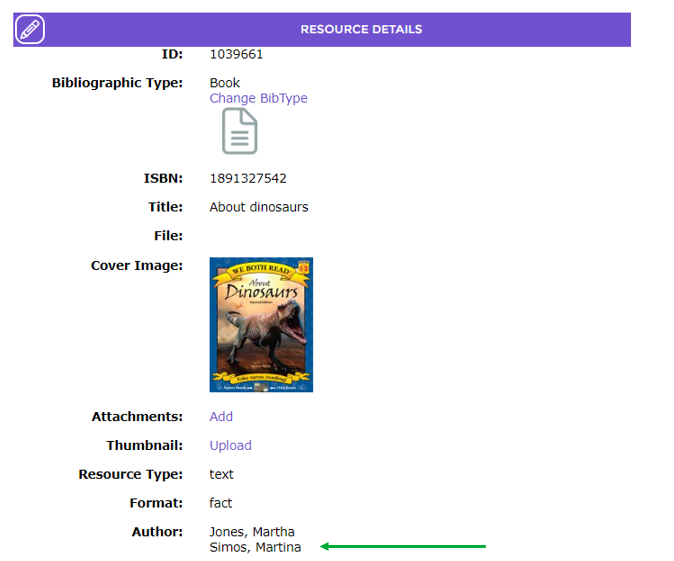
While the author that was added via the resource Detail screen remains in the Author Authority file it is no longer identified as being used on that resource.
Was this article helpful?
That’s Great!
Thank you for your feedback
Sorry! We couldn't be helpful
Thank you for your feedback
Feedback sent
We appreciate your effort and will try to fix the article