Summary
This guide provides an overview of User Privileges. User Privileges consist of a number of activated operations. User Roles, which are a mandatory selection on patron records, are comprised of one or more User Privileges. The User Privilege operations enable the Administrator (library Manager) to refine users’ both staff and library patrons, access to the system.
The Structure of User Permissions
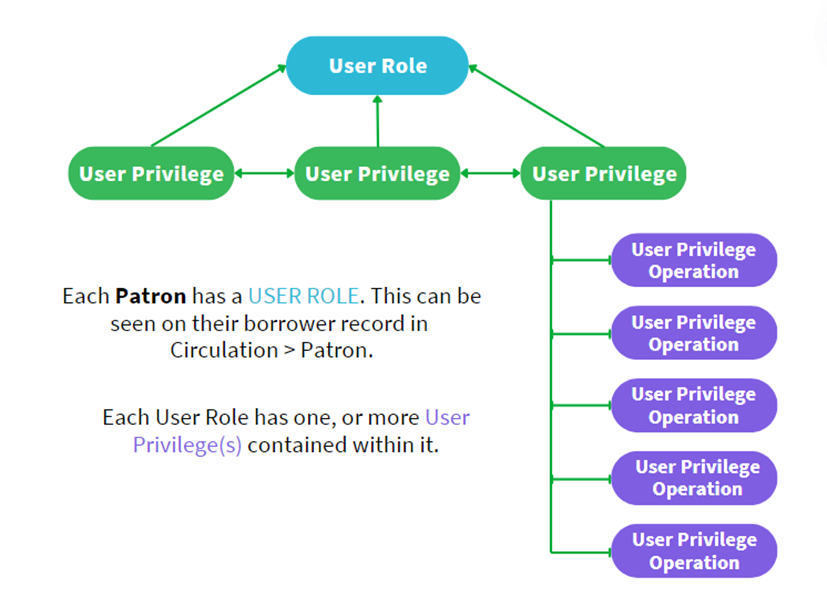
Knowing the structure of User Permissions will allow you to determine how to refine users’ access in your system, and help to understand and diagnose which User Roles, or User Privileges to adjust, if required.
Below is a diagram showing the hierarchy of how User Privileges (permissions) interact.
How to Determine Active User Privileges
An Active User Privilege is any User Privilege that contributes to a User Role. User Roles can contain one or many User Privileges, and are assigned on a per-patron basis.
You can check which User Role is active for a patron simply by searching for, and viewing the patron record via Circulation > Patrons. You can see the User Role field on the patron’s Detail screen.
To edit the User Role of the Patron, click the edit icon. 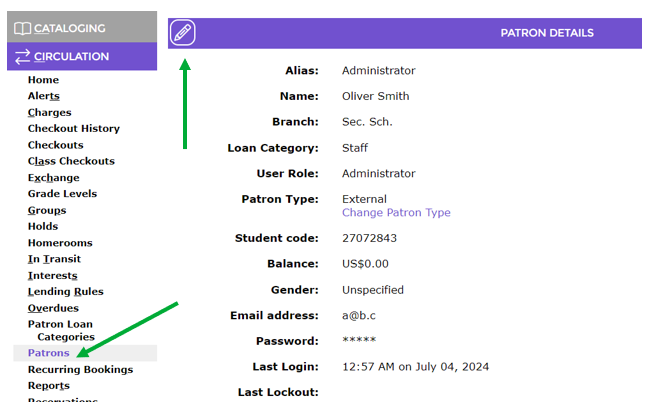
After clicking on the Edit icon, you can scroll through the options for User Role.
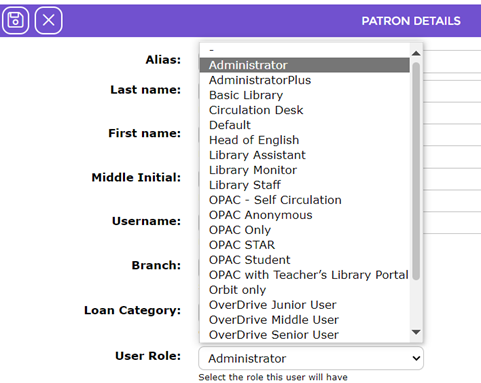
To determine those privileges, return to User Privileges and look under that particular User Role.
To find out which User Privilege Operations are contained in a User Privilege you can search for the User Privilege via System > User Privilege. Clicking the number to the left of the User Privilege name will take you to the Detail screen.
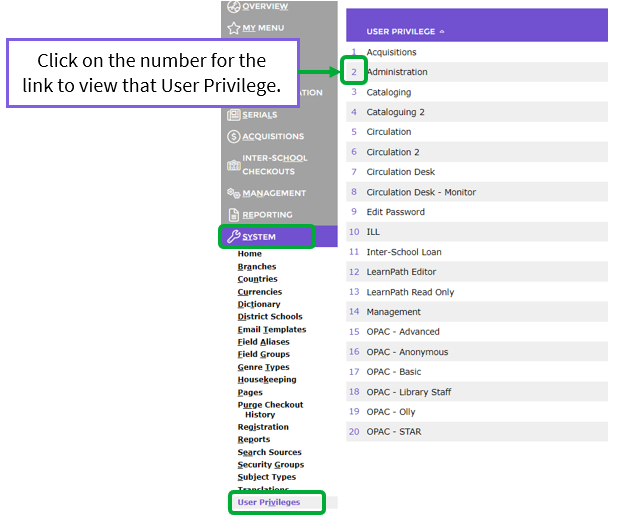
The screen shows only the active User Privilege operations applicable to the User Privilege, in this case, Administration.
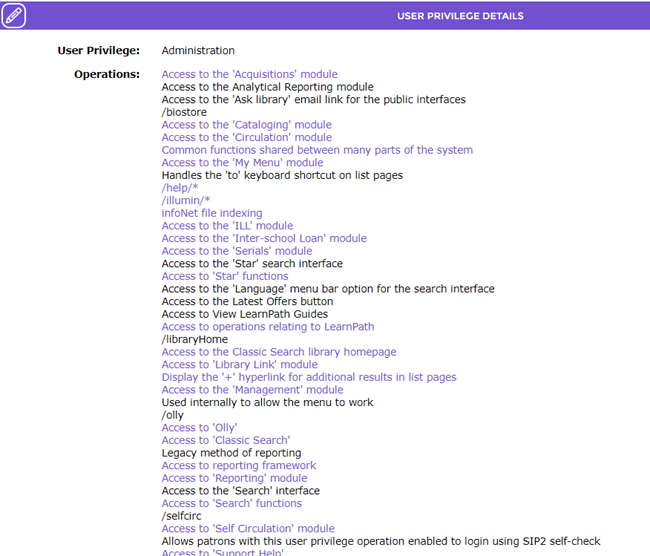
It is important to note that only the enabled User Privilege operations will show on the User Privilege Detail screen. You will not see disabled/inactive User Privilege operations on the User Privilege Detail screen.
User Privilege Operations are grouped in an effort to make them easier to find when looking through them. As such, you can click any of the purple links to expand these groups of User Privilege Operations and see which ones are active.
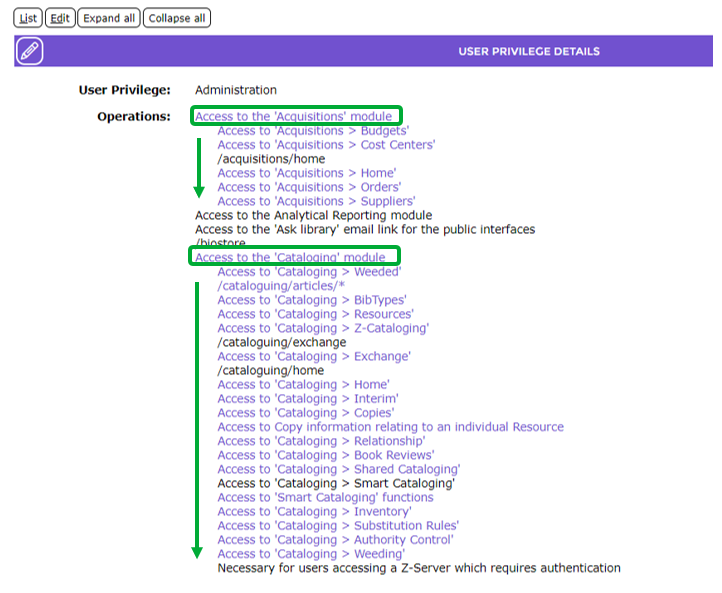
User Roles Containing More Than One User Privilege
If there are multiple User Privileges contained in a User Role, it will be up to you to decide which User Privilege to adjust so it affects the relative User Role you are targeting, and does not adversely affect other User Roles.
The User Role in the image below shows that multiple User Privileges make up the User Role. Each User Privilege in the list will have active User Privilege Operations.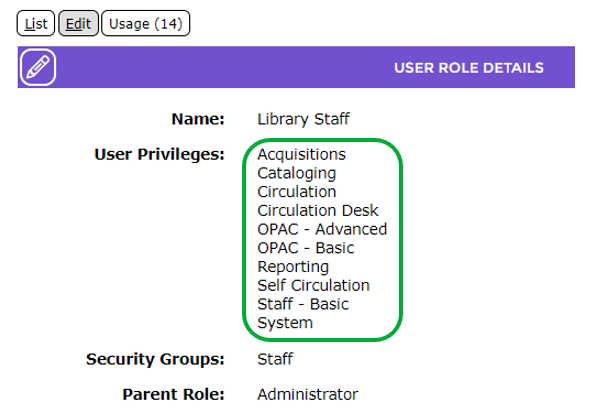
It is important to note that if a particular User Privilege Operation is active in any of the User Privileges, this will result in the User Privilege Operation being active in the User Role.
If the /cataloguing/exchange User Privilege Operation was active in both Cataloging, and Staff Basic User Privileges, it would need to be de-selected in both of the User Privileges before it would be de-activated for that User Role.
Sometimes it is required to browse through the User Roles in your system in order to familiarize yourself with how User Privileges are used in more than one User Role. Familiarizing yourself with the User Roles will assist you to determine which User Privilege to edit.
How to Edit a User Privilege
Sometimes you will need to add or remove User Privilege Operations to/from a User Privilege. This can be performed by logging into your system as an Administrator and editing the respective User Privilege.
Once you have determined which User Privilege you would like to adjust, and you have navigated to the User Privilege’s detail screen, click the Edit link to access the edit screen.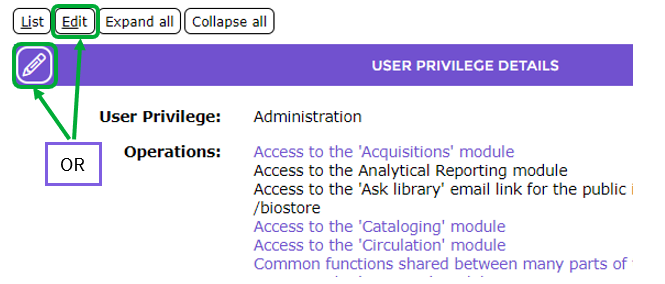
The Edit screen will display.
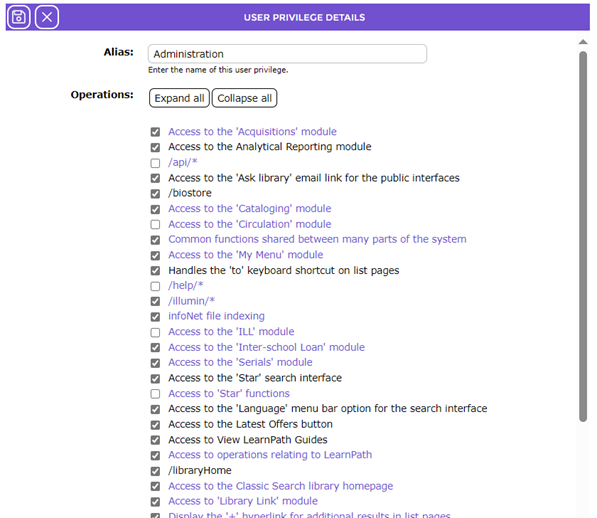
In the same way as the Detail screen, User Privilege Operations are grouped in an effort to make them easier to find when looking through them.
You will see active  and inactive
  User Privilege Operations on the Edit screen.
Checking the checkboxes next to the purple (expandable) links will check all of the User Privilege Operations grouped underneath it, including the related sub-groups and their operations. 
Searching for a Specific User Privilege Operation
In most cases the Support team will advise you which User Privilege Operations need to be ticked/un-ticked. Due to the vast number of User Privilege Operations to choose from, the ability to search for a specific User Privilege Operation becomes very useful.
The option to click on Expand all, and Collapse all will expand or collapse all groups of User Privilege Operations on your screen.

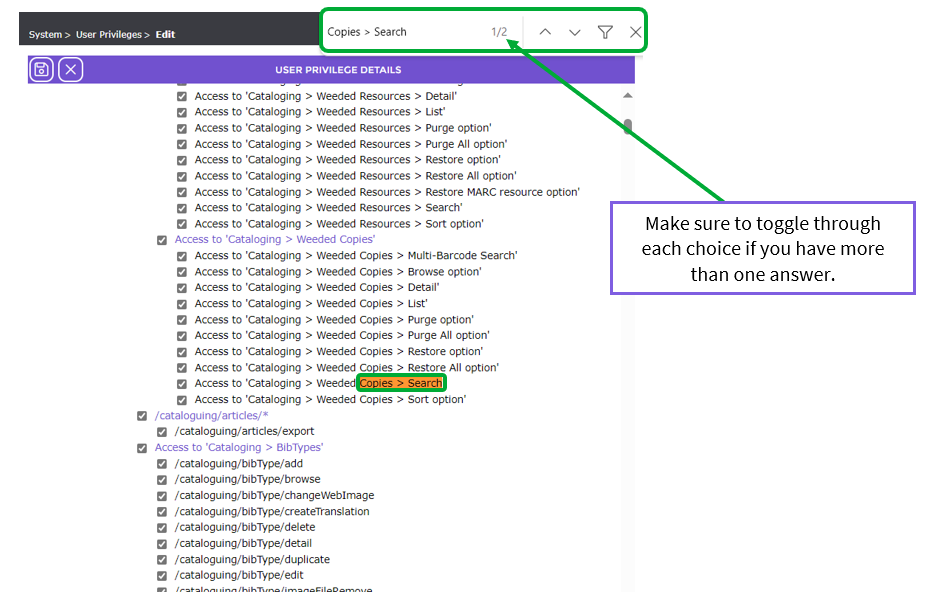
Expanding all User Privilege Operations allows you to perform a text search for keywords by using the in-built Search function in your Internet browser.
Generally, if you hold down the Ctrl + F keys on your keyboard, you will see a search box appear at the top of your browser window. After entering the word you wish to search for, and clicking Next, you should see the keywords highlighted in the list of User Privilege Operations. Clicking Next again will shift the focus to the next instance of that keyword in the User Privilege Operation list.
The image below illustrates the workflow for searching through User Privilege Operations using the Text Search in your internet browser.
Saving User Permissions Changes
After having changed User Roles, User Privileges, and/or User Privilege Operations you will want to save the changes you have made.
This can be done by clicking the Save icon on the respective edit screens. 

Was this article helpful?
That’s Great!
Thank you for your feedback
Sorry! We couldn't be helpful
Thank you for your feedback
Feedback sent
We appreciate your effort and will try to fix the article