Summary
When Orders are printed can be dependent on library policies or established workflows. An order can be printed, via the Print button on the Order Detail screen, immediately after creating it. Alternately, orders can be created then printed, in a “batch”, via the Supplier List or Supplier Detail screen, on, for example, a weekly basis. Orders, which are not yet printed, can be located via the Acquisitions Home screen, the Suppliers List screen, or the Suppliers Detail screen. Orders can also be emailed to the supplier rather than printing the orders then mailing.
This guide will provide the steps to printing or emailing orders via the Supplier List screen and a Supplier Detail screen.
Print Orders via the Supplier List Screen
- Navigate to Acquisitions > Suppliers.
- If the Search screen displays, complete a search for the supplier required or, if only a few suppliers are used by the library click on the Browse icon to display all suppliers in the List screen.

- The resulting List screen includes a Print column that identifies any Unprinted or Late orders applicable to each Supplier. Unprinted and Late will include a number, in brackets, indicating how many orders apply to those Orders; they are clickable links.
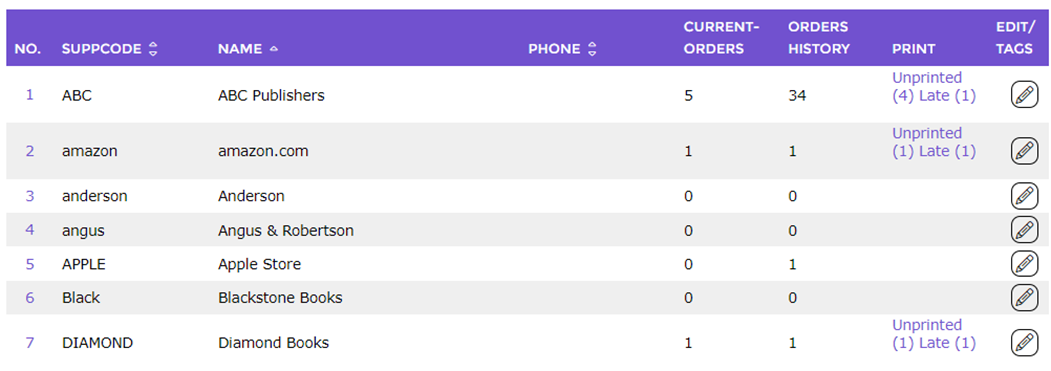
Orders can be printed from the Supplier Detail screen or by clicking the corresponding Unprinted link on the List screen.
Print an Order via the Unprinted Link
- Click on the Unprinted link in the Suppliers List screen.
- The Orders Printing screen will display.
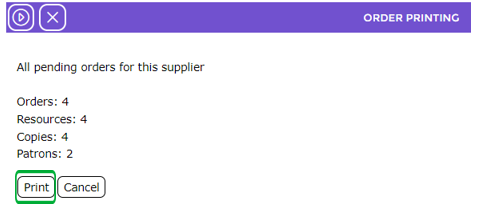
- The screen confirms the number of orders to be printed, the number of resources to which the orders apply.
- To print the orders click Print on the Order Printing screen.
- The System > Report screen displays.
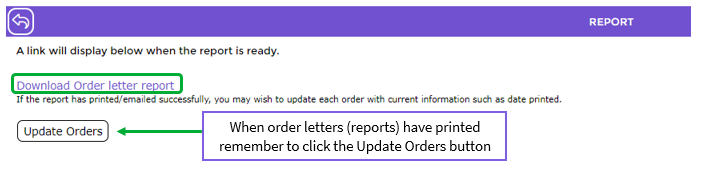
- Click the Order letter report link.
- The File Download popup screen or Do you want to open…panel displays.
- Click Save to save the file to a location on your computer in the usual manner if an order file is to be emailed to a Supplier or to be printed at a later date.
Or
- Click Open to display the populated report to enable the printing of the order letters immediately.
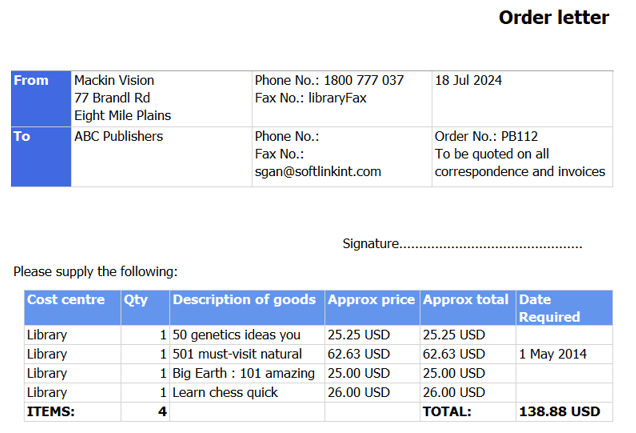
- The Order letter includes Supplier contact and address details, Order Number, resource Title, Approximate Price Date Required (if added) and Print Date.
- Remember to click the Update Orders button once the report is run. If this is not done the orders you just printed will be included when next orders for this supplier are printed.
If a number of orders are printed or emailed in a “batch” and then updated, they will all be included on the same order number. The Order Number field will be populated with that number. Be aware that this number is different to the number that was automatically added whilst creating the order and appeared in the Purchase Order field.
Staff can also print orders by clicking the Print button on the Supplier > Detail screen to access the Order Printing screen and completing steps 3-11 provided above.
Example of Order Letter
The order letter includes:
- Library address details
- Supplier address details
- Cost Center
- Quantity
- Description of the goods including title, author, and publisher and year details
- Approximate price and total
- Date required if applicable
Was this article helpful?
That’s Great!
Thank you for your feedback
Sorry! We couldn't be helpful
Thank you for your feedback
Feedback sent
We appreciate your effort and will try to fix the article