Summary
A full orders report can be run on a specified list of orders.
This guide will provide the steps required to search for a required list of orders and run the Full Orders report.
Search for a List of Supplier Orders
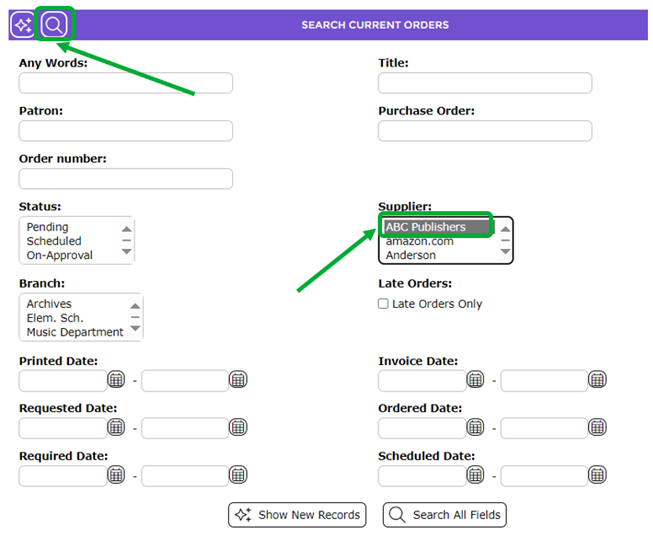
The following example search will locate all orders placed with a specified Supplier, in this case, ABC.
- Navigate to Acquisitions > Orders > Search.
- Click on ABC in the Supplier list-box then click the Search icon.
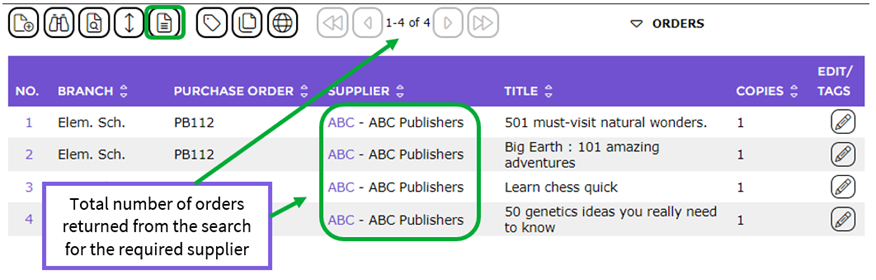
- The List screen containing all orders placed with the supplier will display.
Print the Full Orders Report
- In the Orders > List screen click on the Reports icon.

- The Reports Setup screen will display.
- The Full orders report, in the Select report list-box, is the first report in the Select report list-box and is highlighted by default.
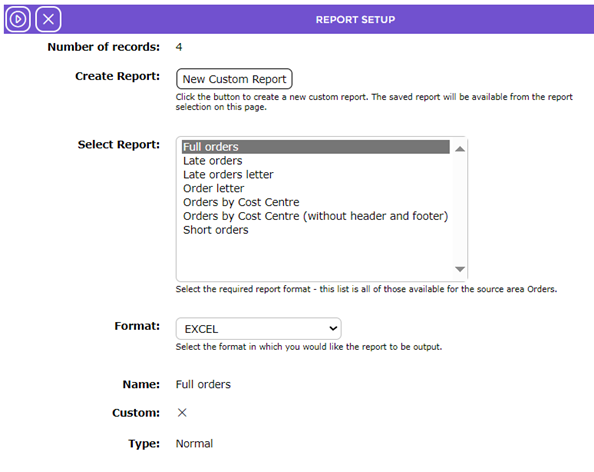
- If the format displayed in the Format field is not the one required, click on the down arrow at the end of the field and click on the other format.
- Click on the Go icon.

- The Report screen will display and when ready the Download Full orders report link will become available. Click on the link.
- Either the File Download popup screen or the Do you want to open or save…panel will display. Both include an Open, Save, and Cancel.
- Click on the Open button to print the report to your screen after which you can either print it or save as a file to a location on your machine. Click the Save button to save the report to a location on your machine.
- Click on the Return to Orders List icon to return to the List screen.


Report Example
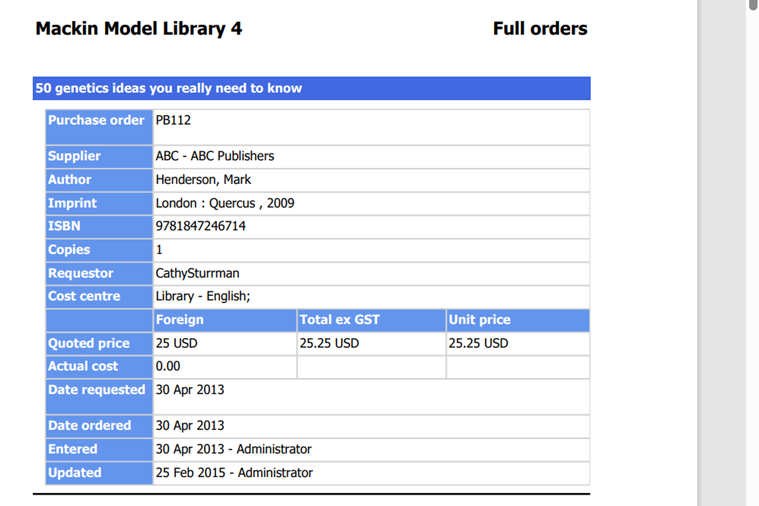
The report includes the titles in alphabetical order and the following information for each title:
- Purchase order number
- Supplier
- Author if included on the resource record
- Edition if included on the resource record
- Imprint details if included on the resource record
- ISBN if included on the resource record
- Copies
- Cost center
- Quoted price
- Actual cost if included on the resource record
- Date requested
- Date needed
- Message
- Entered
- Updated
- The time, date and logged in user is also noted at the bottom of each page of the report
Was this article helpful?
That’s Great!
Thank you for your feedback
Sorry! We couldn't be helpful
Thank you for your feedback
Feedback sent
We appreciate your effort and will try to fix the article