Summary
If there is an email address on a supplier record, and email is the selected notification method on an order, an Email (x) button will display on the supplier Detail screen.
This guide will provide the steps required to email orders to a supplier. A separate guide provides the steps required to print orders via the supplier Detail screen.
How to Email orders to a Supplier
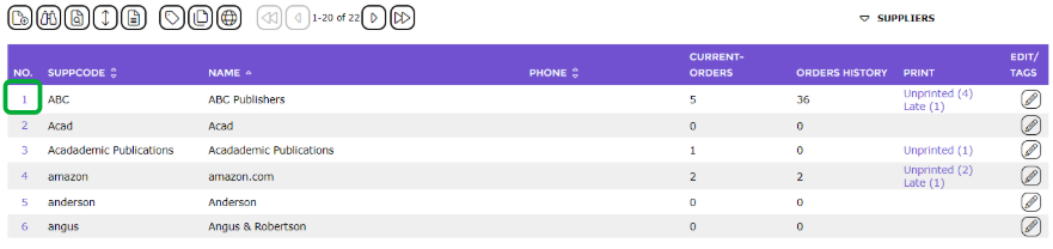
1. Navigate to Acquisitions > Suppliers > List (or complete a search for the required supplier in the usual manner).
2. Click on the number link corresponding to the supplier required.
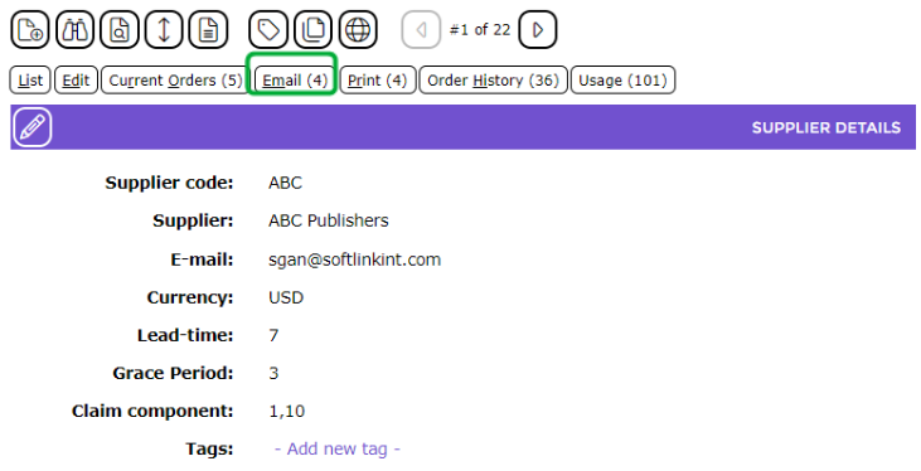
3. The Supplier Detail screen will display. Click on the Email < number> button (the button on the screen example below is Email (4)). The number in parentheses identifies how many orders have not been processed, that is, emailed or printed.
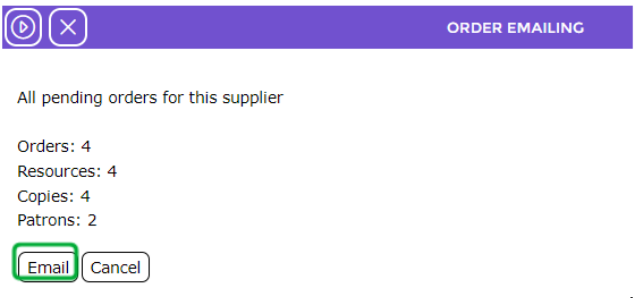
4. The Order Emailing screen will display. The screen identifies the number of pending orders, resources, and copies relating to the orders. Click on the Email button.
5. The Orders report has been queued for sending… status screen will display.
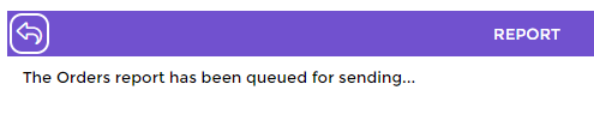
6. Click on the Return to List icon.

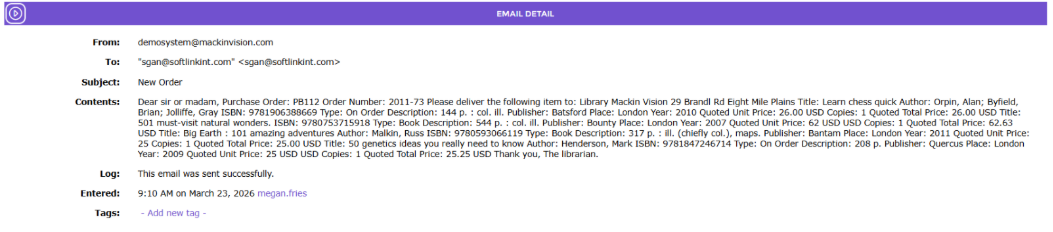
7. To check the orders email has been sent, navigate to Management > Emails. Search for the email or check the Emails List screen.


8. Click on the number link of the relevant email in the List screen and check the details to confirm the titles are included on the email. All of the titles (and copies) ordered from the supplier will list on the email.
Was this article helpful?
That’s Great!
Thank you for your feedback
Sorry! We couldn't be helpful
Thank you for your feedback
Feedback sent
We appreciate your effort and will try to fix the article