Summary
A report containing basic information about ordered resources, called Short Orders can be run via Acquisitions.
This guide provides the steps required to run a Short Orders reports.
How to Run a Short orders Report
1. Navigate to Acquisitions > Orders > Search.
2. Complete a search for orders on which you wish to run the Short Orders report, for example, orders for a specific supplier.
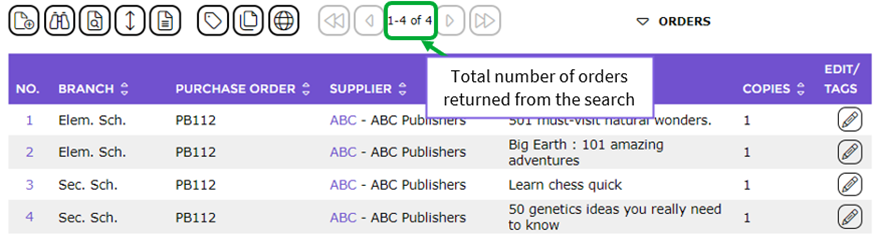
3. In the resulting List screen, click on the Reports icon. 
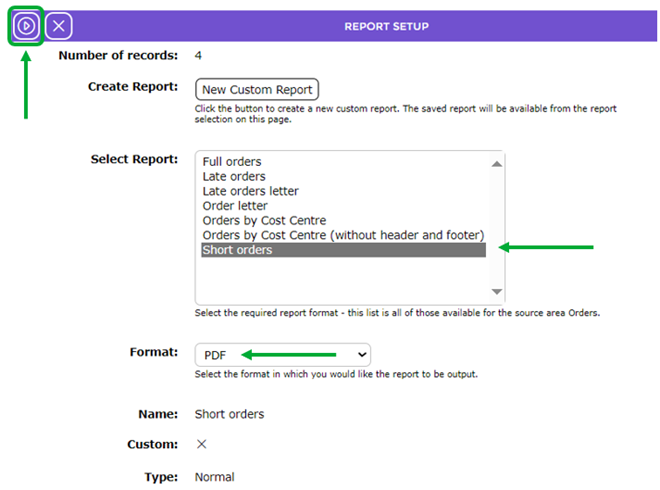
4. The Report Setup screen will display. Click on Short orders in the Select report list-box, select your preferred format then click the Go button.
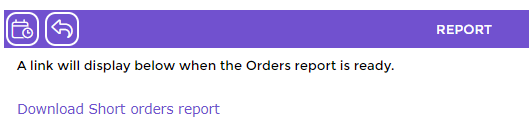
5. The Reports screen will refresh and when ready the Download Short orders report link will display. Click on the Short order report link.
6. Either the Download File popup screen or the Do you want to open or save…panel will display. Both include the Open, Save, and Cancel buttons.
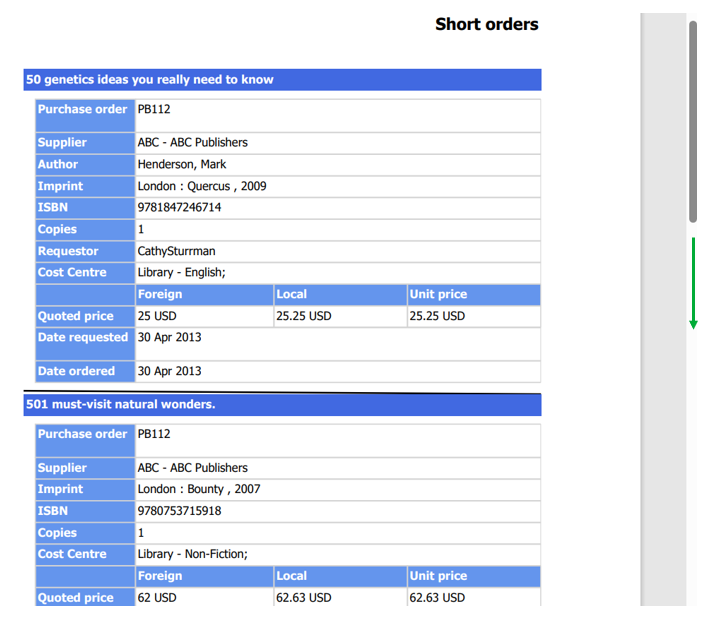
7. Click on the Open button and the report will open onto your screen to review before saving to a location on your machine in the usual manner. Click on Save to save the report to a location on your computer for viewing at a later date.
The report information includes:
- Title
- Supplier
- Author
- Imprint
- ISBN
- Cost Center
- Quoted Price
- Date requested
- Date ordered

Was this article helpful?
That’s Great!
Thank you for your feedback
Sorry! We couldn't be helpful
Thank you for your feedback
Feedback sent
We appreciate your effort and will try to fix the article