Summary
A report of all late orders per Supplier can be run from the Acquisitions module. It is recommended that this report be run on a regular basis to identify the number and how long remain outstanding. You can send the report to the supplier for follow up. This is particularly useful if the claims process has been completed and there are still outstanding orders.
This guide will provide the steps required to run a Late Orders report.
Run a Late Orders Report
The example provides the steps required to run a late order report for a supplier called ABC.
- Navigate to Acquisitions > Orders > Search Current Orders.
- Click on the supplier required from the Suppliers list-box. For this example, the supplier called ABC is clicked on.
- Click in the Late Orders checkbox so a check displays and click on Ordered in the Status list-box.
- Click the Search icon.
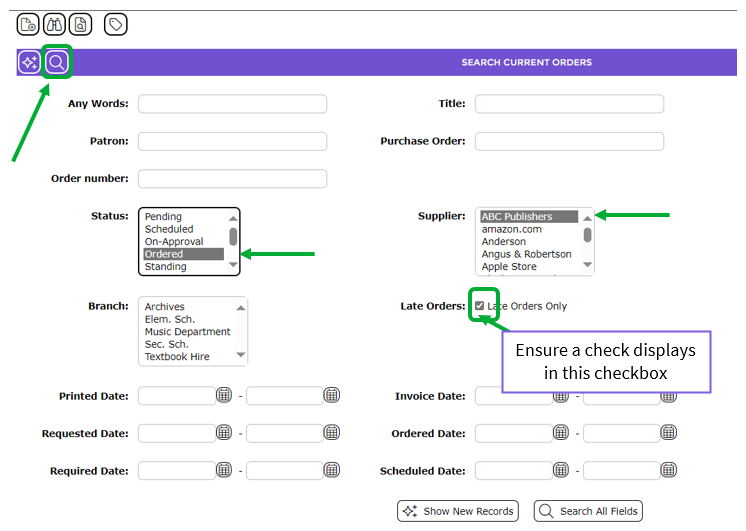
- The Orders List screen will display. Only late orders placed with the supplier are listed.
In the following example list screen, only six orders are late. You may have significantly more.
- Click on the Reports icon.

- The ReportSetup screen will display.
- Click on Late orders in the Select report list-box, choose either PDF or WORD as a format then click the Go icon.
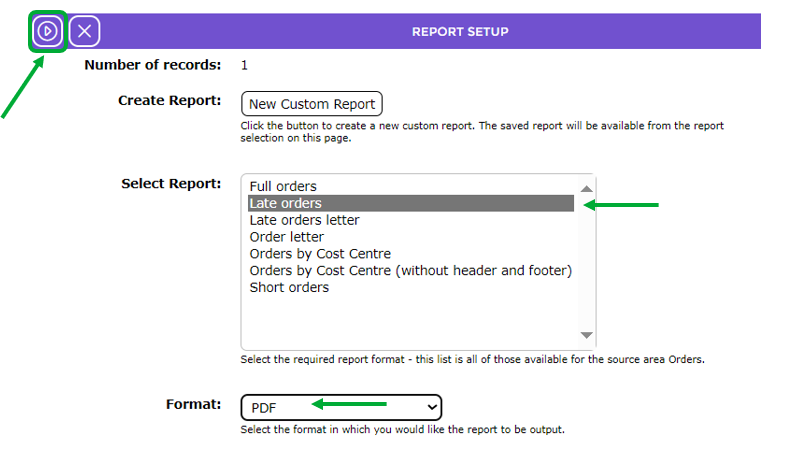
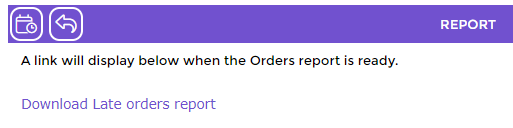
- The Reports screen will refresh and when ready the Download Late orders report link will display.
- Click on the report link.
- Either the File Download popup screen or Do you want toopen or save…panel will display. Both include the Open, Save, and Cancel buttons.
- Click on the Open button to print the report to your screen (you can then either print it or save as a file to a location on your machine) or click the Save button to immediately save the report to a location on your machine for use at a later date. Click Cancel if you do not want to proceed.
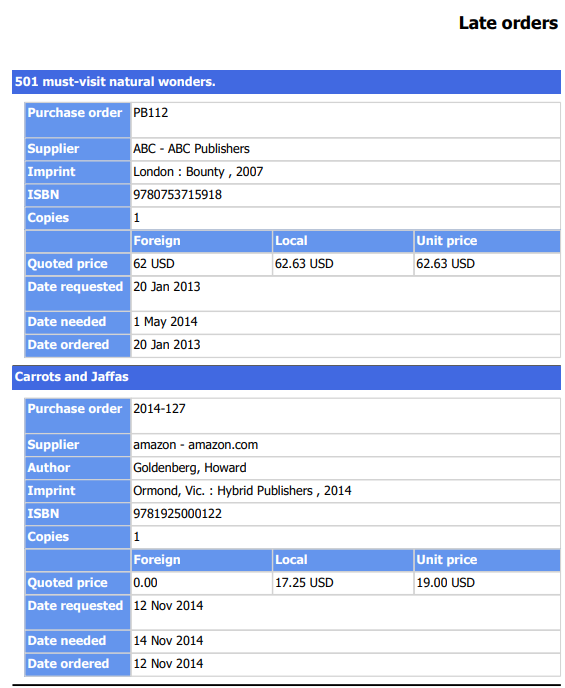
Example of the Report
The report includes the following information:
- Title
- Purchase Order
- Author/Company/Corporate Author for example
- Imprint details
- ISBN
- Number of copies
- Quoted price if any
- Date requests
- Date needed if entered on the order
- Date ordered
Was this article helpful?
That’s Great!
Thank you for your feedback
Sorry! We couldn't be helpful
Thank you for your feedback
Feedback sent
We appreciate your effort and will try to fix the article