Summary
A Collection is selected as part of the process when adding a copy to a resource record. It specifies the copies’ location. There are several options that can be turned on when creating (or editing) a Collection such as Hidden in Search, Bookable or Reservable. While selecting a Collection on a copy record is not mandatory, it is highly recommended that staff do so as copies can then be searched for by Collection. There is no limit to the number of Collections that can be created. Collections cannot be deleted if they are currently selected on any copy. Collections are created (and edited), via the Management menu option.
This guide will provide information on how to create and edit a Collection.
Create a Collection
- Navigate to Management > Collections > New.
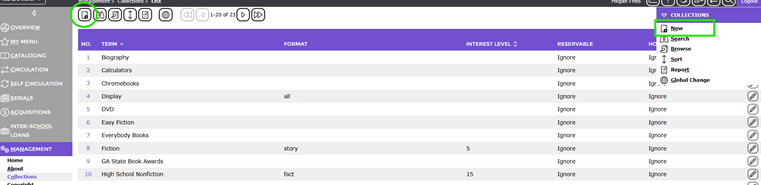
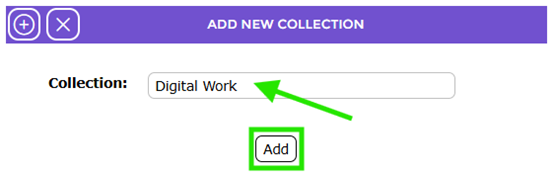
- The Add a new collection popup screen will display. Enter the Collection term, for example Digital Work, and click the Add button or Add icon.
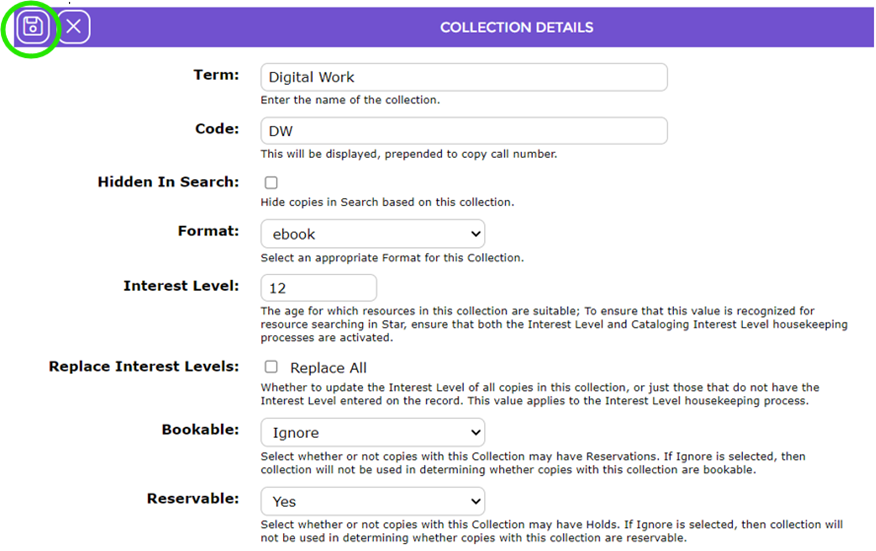
- The Collections > Add screen will display.
The following table identifies and describes the fields in the Collection > Add screen:
Field |
Description |
Term | The Term field will automatically populate with the term entered in the Add a new collection popup screen, for example, Digital Work.
|
Code | In this field enter the code for the Collection, for example, DW. Try to ensure the code indicates clearly the Collection to which it relates.
|
Hidden in Search | This option includes a checkbox. If you require copies, with this Collection, to be hidden in the Search interface click in the checkbox so a Check displays.
Clicking in the checkbox will not result in the copy being hidden from staff when completing a search via Cataloging > Copies (or Resources) in the main Management screen.
|
Format | This field contains a drop down list of Formats. Select the format, which best indicates the format of the collection, for example, text or sound or video.
It is not mandatory to select a Format. It is however, useful if the library has also implement the Children’s Search option on Olly.
|
Interest Level | If you are using STAR, the children’s Search interface and you wish to restrict results in STAR to those which conform to the logged in Patrons age, enter the applicable age, for example 12.
|
Replace Interest Level | If you are using a Interest Level for the Collection, and you wish to update the Interest Level of all copies in this collection, click in this checkbox.
Clicking in this checkbox would not be done as part of creating a new Collection. If the interest level of an existing Collection is changed, and all copies are to reflect the change, then the user should click in the checkbox.
|
Bookable | This field comprises of a drop down list of three options.
Yes – If copies with this Collection can be booked select Yes No – If copies with this Collection cannot be booked select No Ignore – if copies with this collection code are not to be used when determining whether copies can be booked or not select Ignore.
|
Reservable | This field comprises of a drop down list of three options.
Yes – If copies with this Collection can be reserved select Yes No – If copies with this Collection cannot be reserved select No Ignore – if copies with this collection code are not to be used when determining whether copies can be reserved or not select Ignore.
|
- When all details have been completed, click the Save button.
- The Collections List screen will display and now includes the newly created Collection.
- The newly created Collection will be available for selection in the Collection field on a Copy Add or Edit screen.
Edit a Collection
- To edit a Collection click on the
 in the extreme right hand side column in the List screen that corresponds to the Collection to be edited.
- The Edit screen will display.
- Complete the change required then click on the Save button to return to the Collection > List screen.
- The change will be reflected in the screen.
Collection Detail Screen
The Collection Detail screen always includes a List and Edit button. Collections that are not tied to any copies will include a Delete button which when clicked will delete the Collection record.
Collections which are currently used on copy records will include a Usage button with a number in brackets indicating how many copies include that Collection.
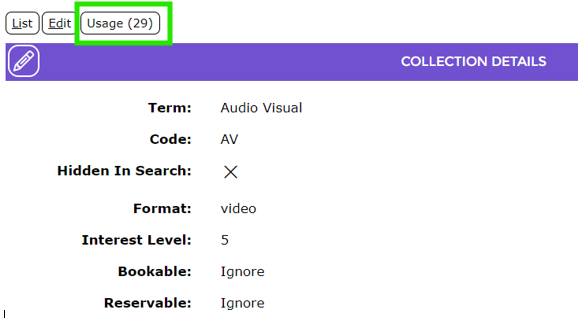
Clicking the Usage (xx) button will display all copies using the Collection.
Was this article helpful?
That’s Great!
Thank you for your feedback
Sorry! We couldn't be helpful
Thank you for your feedback
Feedback sent
We appreciate your effort and will try to fix the article