Summary
There are a number of Resource Types (General Material Description) provided with the system and staff can create additional Resource Types as required. For those using Star, the junior catalog feature, selecting a format on Resource Types (and Collections) will make it very easy for young patrons to filter a results list to only include the types of resources they want.
This guide will provide the steps required to select a format on a Resource Type. Separate guides provide the steps required to add images to a Resource Type and add a format to a Collection
Select a Format on a Resource Type
Resource Types are selected on resource records and a Collection is selected on copy records; both have the option to enable staff to select a format on them. While a Resource Type will identify the physical description of a resource the format will identify the type of material, for example: story, fact, toy, or sound. In some instances there will be Collections and Resource Types with the same name.
1. Navigate to Management > Resource Types.
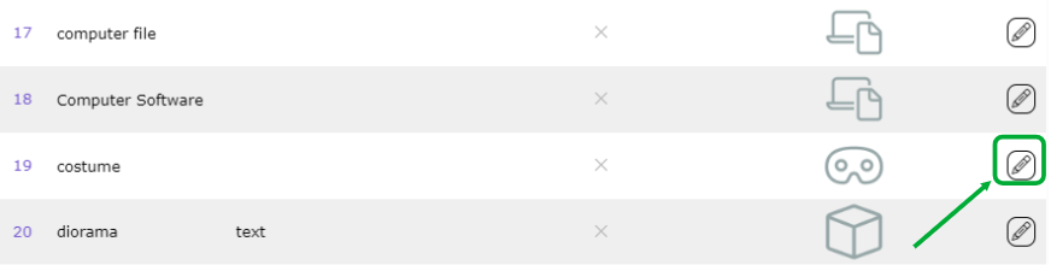
2. Click on the Edit icon corresponding to the Resource Type you are to select a format on.
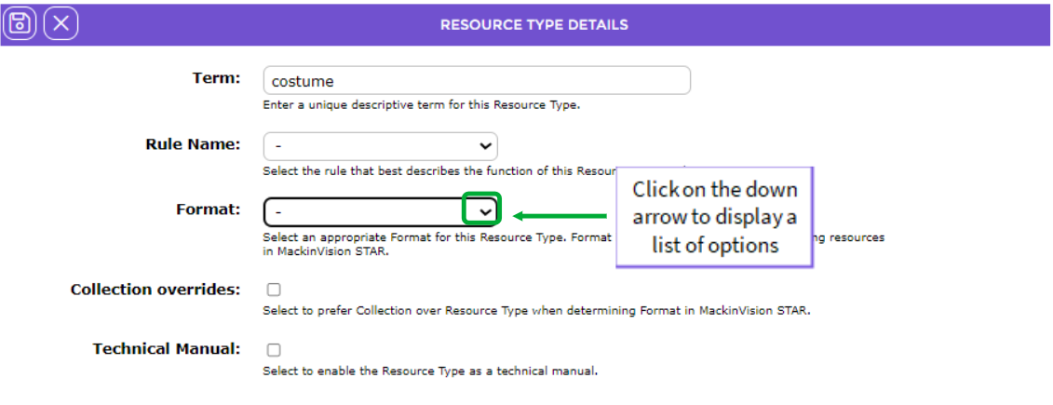
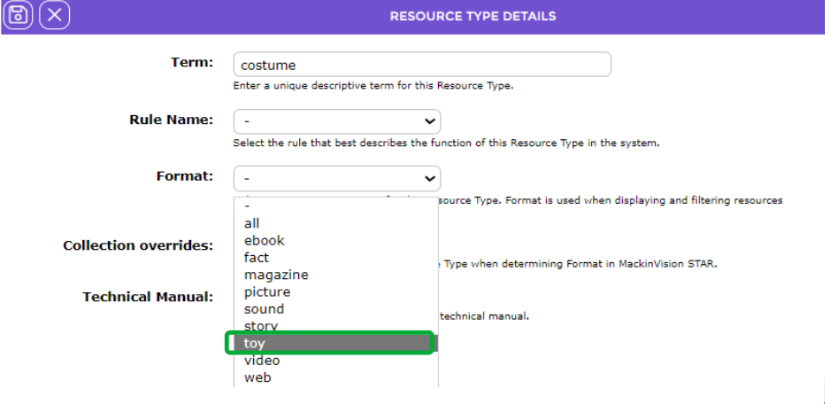
3. The Edit screen will display. Click on the down arrow at the end of the Format field and click on the format required, for example, toy.
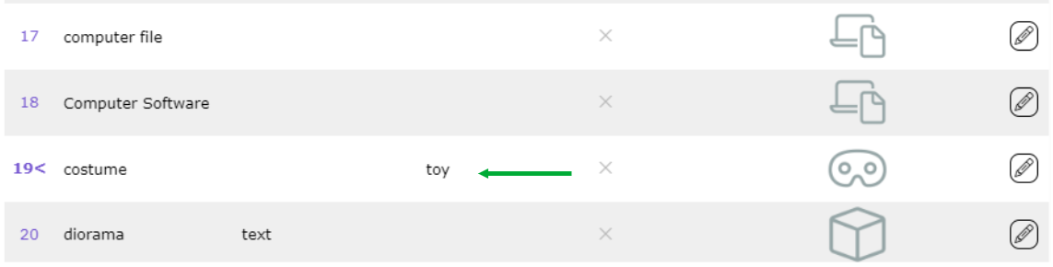
4. Click the Save button. The Detail screen will display and the format selected is included in the corresponding cell in the Format column.
Was this article helpful?
That’s Great!
Thank you for your feedback
Sorry! We couldn't be helpful
Thank you for your feedback
Feedback sent
We appreciate your effort and will try to fix the article