Summary
Family Library Portal provides options for caregivers to:
- Block specific titles from student search screens and disallow checkout of those titles
- View student checkouts information.
Either or both functions can be enabled for caregivers. Functionality is available to caregivers via a URL, allowing either a computer or smartphone to be used (to block items and / or view checkout information).
Access is available provided the caregivers’ email addresses information has been stored in their students’ patron records.
- Any blocked items will be be visible when the student searches using search (OPAC) or STAR.
- If a student attempts to checkout a blocked item via Circulation Desk, Self Circulation, Borrower (STAR) or Teacher's Library Portal, the checkout will be disallowed, with a message displayed accordingly.
- If a hold request for a blocked item is attempted in Circulation Desk via the Hold tab, the hold will be disallowed, with a message displayed accordingly.
Please note:
In the sample screens provided, Mackin Model Library 1 will be replaced by the student’s school name.
Related Parameters

In Management > Parameters :
Parameter No. 5770 – Enable Family Portal (Yes / No). When set to Yes, Family Portal QR Code and URL displayed on the System > Home, which can be provided to caregivers to access Family Portal functions.
Parameter No. 5771 – Enable Item Blocking (Yes / No). When set to Yes, caregivers can block specific items from the student search screen. Blocked items cannot be checked out to students.
Parameter No. 5772 – Enable Checkout Viewing (Yes / No). When set to Yes, caregivers can view their student(s) checkout information.
If Parameter No. 5770 is set to Yes, at least one of the parameters 5771 and 5772 also need to be set to Yes.
Parameter No. 5773 – Authentication Email Fields. (Alt Email, Email, Family Email). Allows you to determine which field(s) contain the caregivers’ email addresses.
Providing Family Portal access to Caregivers
On the Management screen, navigate to System > Home.
If Family Library Portal has been enabled (via parameter 5770), a QR Code and (URL) link will be displayed.
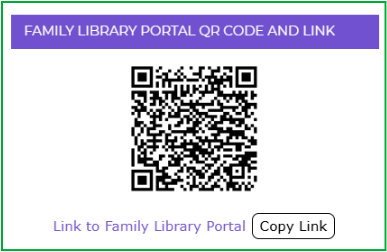
Clicking the Copy Link button will copy the Family Link Portal URL available to your clipboard, which can be copied into email communications to caregivers. Alternatively, you may copy the QR Code and add it to a printed or electronic format newsletter to caregivers.
Caregivers access to Family Library Portal
Click the URL or scan the QR Code.
The following screen will be displayed. The display may differ slightly depending on the device (computer or smartphone) being used.
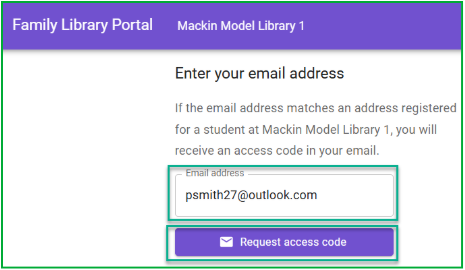
Enter the caregiver email address, then click the Request access code button.
The email address must be stored in the student’s patron record, in one of the fields specified by parameter no. 5773.
If the address is entered incorrectly or not stored in the patron’s record, a message will appear:
Unable to send email. The email address may be incorrect, not registered in the school library system or unable to receive messages.
A message will be sent to the specified email address (once the Request access code button is selected). This message includes a one-time, 6-digit access code. Example of email message:
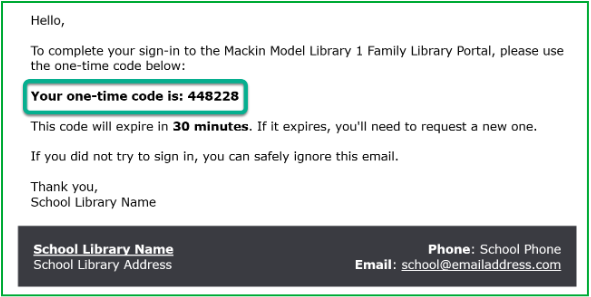
A screen will be displayed, prompting for the access code. Once the code has been successfully entered, the Welcome to Family Library Portal screen will be displayed, with options described :
Search
Find items in the school's library catalog and block items for the selected students.
Blocked Items
See all blocked items for the selected students and remove blocks.
Search and Blocked Items will be available if parameter 5771 'Enable Item Blocking' is set to Yes
Checkouts
See all checked out items for the selected students.
This option will be available if parameter 5772 'Enable Checkout Viewing' is set to Yes.
How to Block Items
At the top of the screen, a slider control allows switching between first matching student patron and all matching student patrons. This allows you to control whether the block will apply to a single student or all students associated with your (caregiver) email address.
Select Search from the Family library Portal menu icon (top left corner)
Type a search term in the box provided. A list of matching terms will be offered.
Select a search term. A list of matching titles will be displayed.
Click the Select button on all titles to be blocked. After the first title is selected, a Block Selected button will be displayed.
Click the Block Selected button. A confirmation message is displayed, including the number of selected titles (to be blocked)
Click the Block link at the bottom of the screen to confirm. A "block successful" message will be displayed.
How to View Blocked Items
Select Blocked Items from the Family Library Portal menu icon (top left corner)
A list of blocked titles will be displayed, including the Blocked date for each title.
How to Un-Block Items
While on the Blocked Items screen, click the Select button on any titles to un-block. After the first title is selected, an Unblock Selected button is displayed.
Click the Unblock Selected button. A confirmation is displayed, including the number of selected titles (to be unblocked).
Click the Unblock link at the bottom of the screen to confirm. An "Unblock successful" message will be displayed.
How to View Checkouts
Select Checkouts from the Family Library Portal menu icon (top left corner).
A list of the student's checkouts is listed, including Checkout and Due dates.
Was this article helpful?
That’s Great!
Thank you for your feedback
Sorry! We couldn't be helpful
Thank you for your feedback
Feedback sent
We appreciate your effort and will try to fix the article