Summary
While there are six default charge types provided by the system that cannot be deleted, additional Charge Types and associated values, if applicable, can be created. For example, there may be services the library may provide such as photocopying, research or library activities for which a charge applies. Some of these types of charges may not include a default value however, one can be added if applicable. This applies to some of the system provided charges as well. Default methods of payment that the library will accept, such as cash, credit card or check are provided but additional ones can be created.
TIP: Automated Charges for overdue items, holds and rental items can be established in the Lending Rules sub-menu option if charges are different according to the Patron and Resource Type as it provides the flexibility to set charges according to those criteria. |
This guide will provide the steps required to create a new charge type and a payment method.
Access Default Charge Types
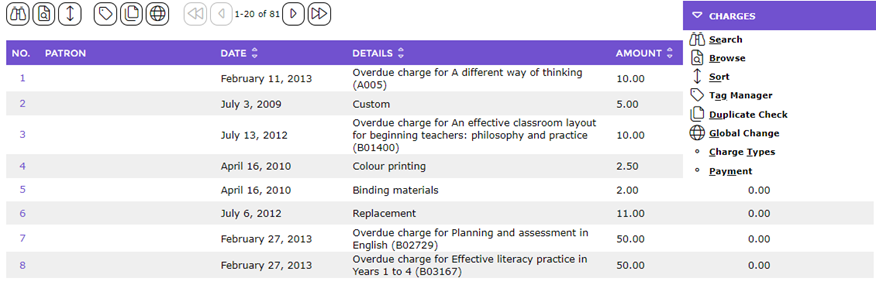
Default Charge Types can be viewed via Circulation > Charges clicking on the Function menu and selecting Charge Types.
The list of default charge types and any library staff created types will list.
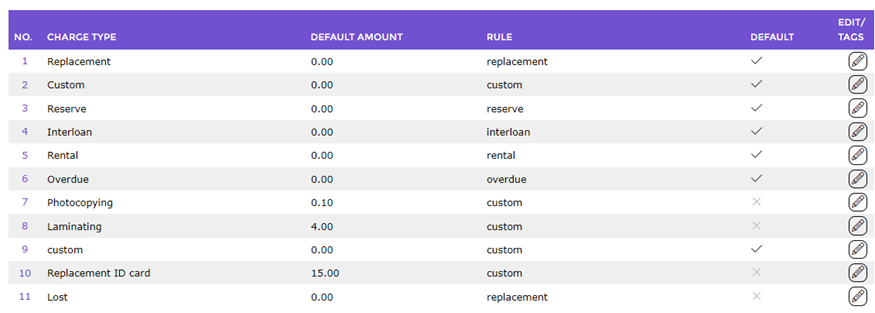
System Provided Default for Rule Types
The following table identifies the six Default for Rule options and explains the actions that will automatically apply a value, if included on the Charge Type:
Default For Rule |
When Used |
Replacement | A replacement charge may vary according to the item being replaced due to loss or damage. When selected via Circulation Desk, for example, the applicable value can be added.
|
Overdue | This Default for Rule is effectively the name of the default charge type. It is used when an overdue copy that incurs a charge is returned. If a value is entered on the charge type, it is applied to the Patron record, irrespective of the Patron and Resource Loan Category (RLC). By default, the system does not include a value.
To add or edit a value, click the Edit icon corresponding to this option in the List screen, enter the amount in the field provided, then click the Save button.
Important: If overdue charges are specific to Patron Types and Resource Types, do not enter the value here. Enter it via Lending Rules.
|
Rental | This Default for Rule is effectively the name of the default charge type. It is used when a copy is issued that incurs a rental charge. If a value is entered on the charge is entered it is applied to the Patron record irrespective of Patron and RLC. By default, the system does not include a value. To add or edit a value, click the Edit icon corresponding to this option in the List screen, enter the amount in the field provided, then click the Save button.
Important: If rental charges are specific to Patron Types and RLC, do not enter the value here. Enter it via Lending Rules.
|
Reserve | This Default for Rule is effectively the name of the default charge type. It is used when a copy, that has incurred a hold fee, is issued. By default a value is not entered on this charge. To add or edit a value, click the Edit icon corresponding to this option in the List screen, enter the amount in the field provided, then click the Save button.
Important: If request charges are specific to Patron Types and RLC do not enter the value here. Enter it via Lending Rules.
|
Custom | This Default for Rule is effectively the name of the default charge type. The Custom Default for Rule is automatically selected when a new charge type is created. By default, a value is not included. Custom is selected by default on any new Charge Type created. Any value, if applicable, is added on the new Charge Type.
|
Interloan | This Default for Rule is effectively the name of the default charge type. It is used when a copy is issued to an Interlibrary Loan Patron. The value of this charge would generally be a default amount.
|
Create a new Charge Type
Any newly created charge will be available for selection in the Circulation Desk to enable the adding of the applicable charge to a Patron record. A default charge amount does not need to be included when setting up a new type; staff can just add the amount when the Charge Type is selected in the Circulation Desk. This could apply if the library applies charges for services such as photocopying or research where the calculated cost depends on the number of pages or time spent for example.
The following example provides the steps required to create a new charge. The charge will be for library activities and will include a default charge of $5.00. If the Charge Type is selected in the Circulation Desk, $5.00 will be added to a patron’s record.
- Navigate to Circulation > Charges > Search.
- Select Charge Types from the Function menu.
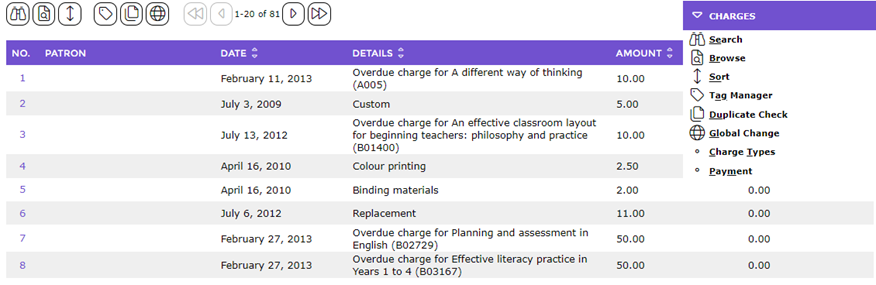
- The List screen will display. It includes the six default Charge Types provided by the system. The charges for three of those Charge Types - Overdue, Rental and Hold should be established via Lending Rules, if the charges vary according to Patron or RLC.
- Click the New button (or select New from the Function menu or type ne).
- The Add a Charge Type popup screen will display.
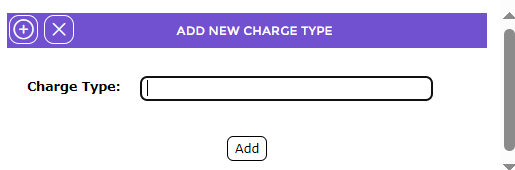
- Enter the name of the new type, for example Library Activities, in the field provided then click the Add button or Add icon.
- The Charge Types > Add screen will display.
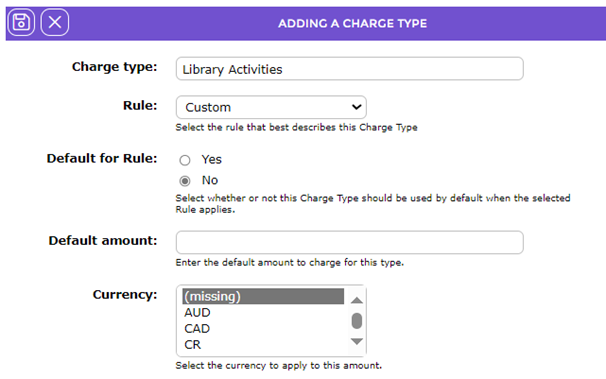
- The name of the new type will display in the Charge type field.
- By default, Custom is selected in the Rule field. This should remain.
- The radio button next to No in the Default for Rule field is activated. Do not change this setting.
- If a default amount applies, for example $50.00, enter it in the Default amount field.
- From the list in the Currency field, select the applicable currency for example, AUD or USD or GBP. There is no need to add the currency symbol.
- When all the required details have been completed, click the save icon.

- The Detail screen for the charge type just created will display.
Note: The Delete button will display only on the Detail screens of Charge Types that are unused. It is never available on the system provided Charge Types.
The new charge is available for selection in the Circulation Desk if a charge is to be set on a Patron record.
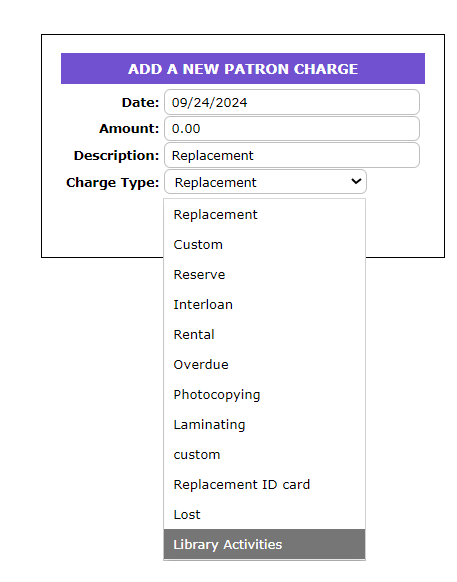
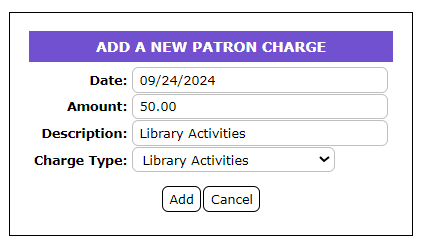
If a default amount applies, it will display automatically in the Amount field.
Payment Methods
Payment Methods are predefined terms that specify how the payment of a charge is made. There are several system provided default methods which are accessed via Management > List Files > Payment Method. If a method is in use it cannot be deleted.
To add a new payment method
- Navigate to Management > List Files > Payment Methods
- Enter the new method in the field provided in the top right hand side of the List screen.
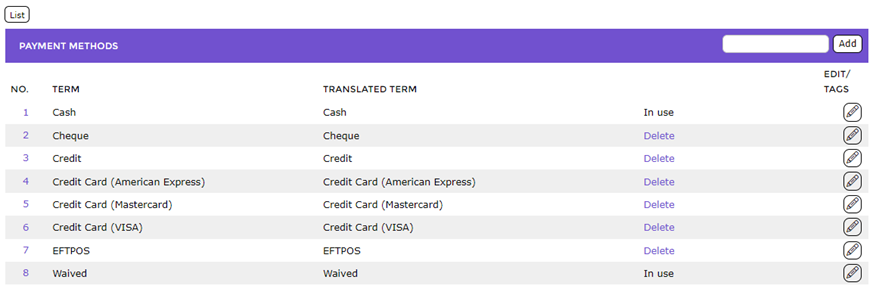
- Click the Add button.
- The new method will be included in the List screen.
- The new Payment Method will be available for selection when a payment is being made by a Patron via the Circulation Desk.
Was this article helpful?
That’s Great!
Thank you for your feedback
Sorry! We couldn't be helpful
Thank you for your feedback
Feedback sent
We appreciate your effort and will try to fix the article