Summary
The order of copies in the Copies List screen can be changed using the Sort option. Fields on the copy record are the sort options available for selection. The option to display the list in ascending or descending order is also available. The default sort on most List screens are determined by the setting on related parameters.
This guide will provide the steps required to change the sort order of copies in the List screen.
Related Parameters for the Copies List Screen
The selection on the following parameter determines the default sort order in the Copies List screen:
Parameter No.1812 - Copy List Sorting (Default)
Change the Sort Order in the Copies List Screen
- Navigate to Cataloging > Copies.
- Complete a search in the usual manner.
- In the resulting Copies List screen click on the Sort icon (or select Sort from the Function menu or type ‘so’).
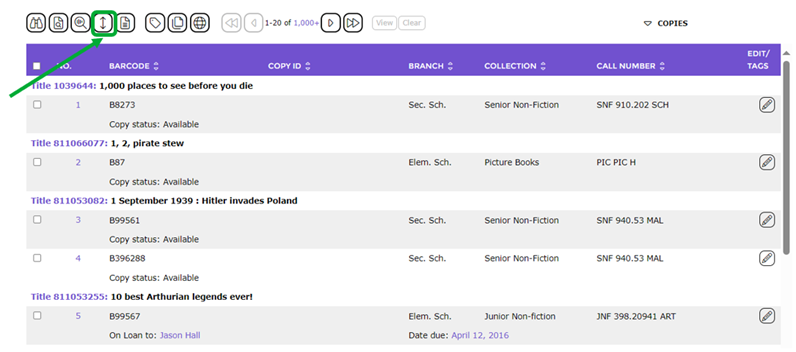
- The Sort Copies popup screen will display.
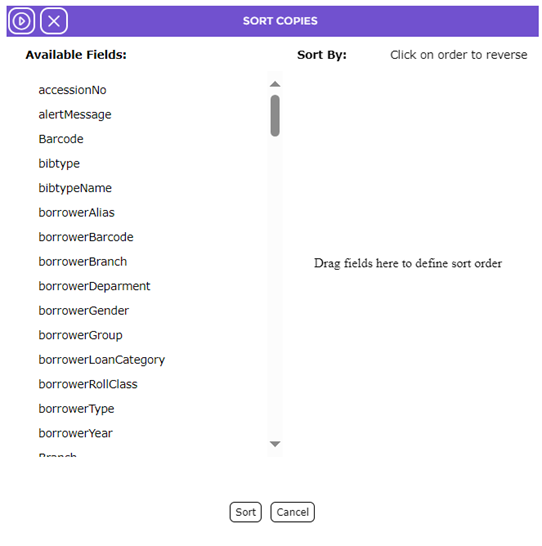
The list-box on the left-hand side of the screen contains all fields available to use as a sort option. More than one Sort option can be selected. The Ascending and Descending links provide an additional sort option.
- Drag the selected field from “Available Fields” to “Sort By” and drop, for example, Branch.
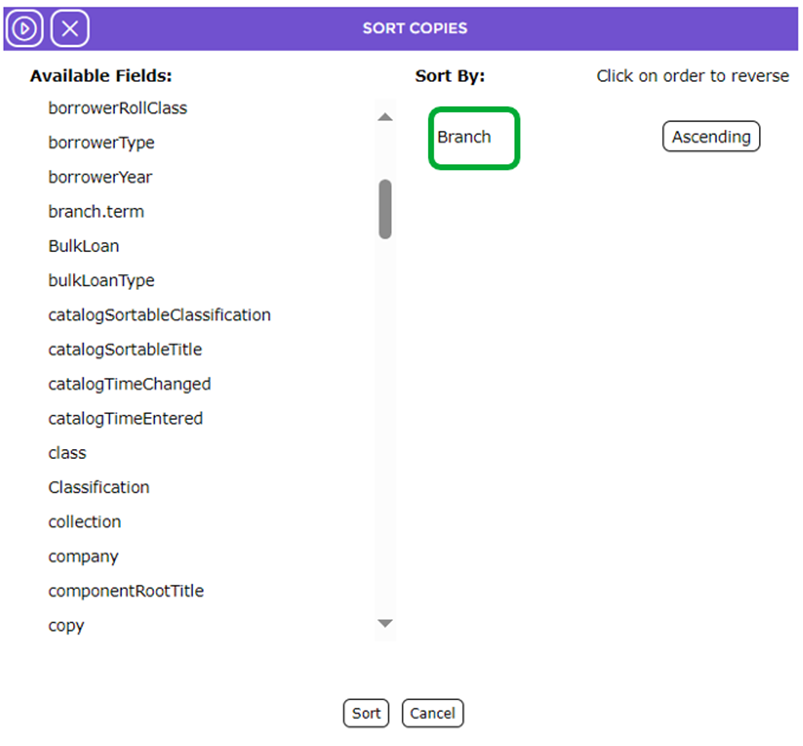

- The sort option highlighted in the Available Fields list-box is transferred to the Sort By list-box.
By default the sort order will be ascending to the right of each Sort By field. You can click on Descending if preferred.
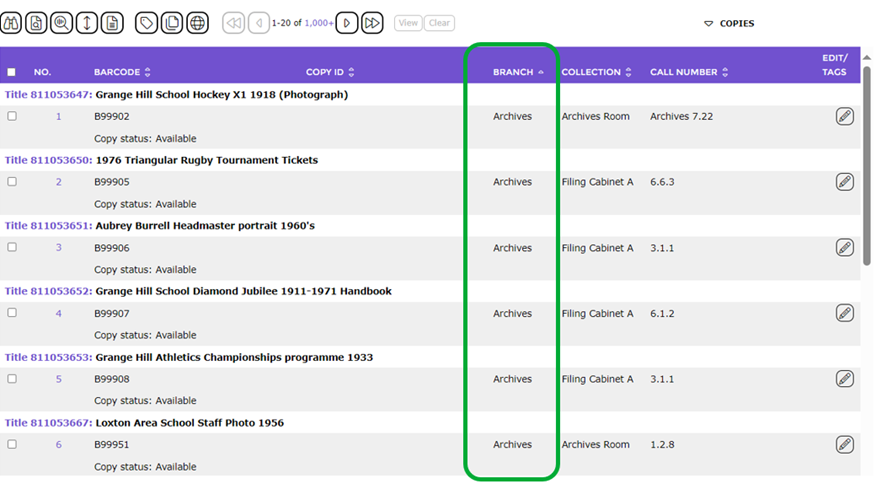
- Click the Sort icon or button.
- The copies List screen displays with the copies sorted accordingly.
Was this article helpful?
That’s Great!
Thank you for your feedback
Sorry! We couldn't be helpful
Thank you for your feedback
Feedback sent
We appreciate your effort and will try to fix the article